Microsoft Intune management becomes necessary when endpoint sprawl starts affecting security, access control, and IT workload. For small and midsize businesses that already depend on Microsoft 365, SRS Networks often sees the same pattern: more devices, more remote work, and less confidence that every endpoint meets policy.
TL;DR: Summary
- Microsoft Intune management is usually the right next step when a team needs device compliance policies, Conditional Access, and centralized endpoint control across Windows, macOS, iOS, and Android; SRS Networks sees this most often in hybrid Microsoft 365 environments.
- Intune compliance policies can mark devices noncompliant for issues like outdated OS versions, jailbreaking, rooting, or risky threat signals, and Microsoft Entra Conditional Access can then block resource access.
- Teams often need Intune when they cannot consistently enforce patching, encryption, MFA-related access rules, or remote actions like lock, wipe, retire, and diagnostics collection.
- A safe rollout starts with a pilot group, baseline compliance rules, and carefully staged Conditional Access policies that exclude break-glass accounts.
- Intune is strongest when used as a control plane for devices and access, not as a standalone replacement for endpoint detection, incident response, or IT governance.
The bigger issue is not the license. It is whether your team can prove device health, protect data on mixed-device fleets, and respond quickly when a laptop is lost or a phone falls out of compliance.
What does Microsoft Intune management actually do?
Microsoft Intune management centrally enforces device rules across Windows, macOS, iOS, and Android. It combines inventory, policy deployment, scripts, remediations, reporting, and remote actions like lock or wipe so IT can manage endpoints without touching each device.
At a practical level, Intune is the policy engine that helps standardize endpoint behavior. Microsoft documents it as a platform for device inventory, scripts, remediations, reporting, and operational actions including wipe, retire, sync, restart, remote lock, and diagnostics collection. That matters when a company has a mix of company-owned laptops, personally owned phones, and remote users who almost never enter the office.
A common misconception is that Intune is only mobile device management. It can manage traditional endpoints too, and its value rises when device rules affect access to Microsoft 365 data, line-of-business apps, and cloud resources.
Why do device compliance and Conditional Access matter together?
They matter because Microsoft Intune and Microsoft Entra can deny access when a device fails compliance checks. If a laptop is missing updates or shows high threat signals, Microsoft Entra Conditional Access can block Microsoft 365, SharePoint, or other resources.
This is the part many teams miss. Device management alone sets rules, but compliance plus Conditional Access turns those rules into access control. According to Microsoft Learn, Intune compliance policies can require minimum OS versions, block jailbroken or rooted devices, and use threat level signals from supported security tools. If Microsoft Entra Conditional Access is tied to those results, noncompliant devices can be blocked from business resources.
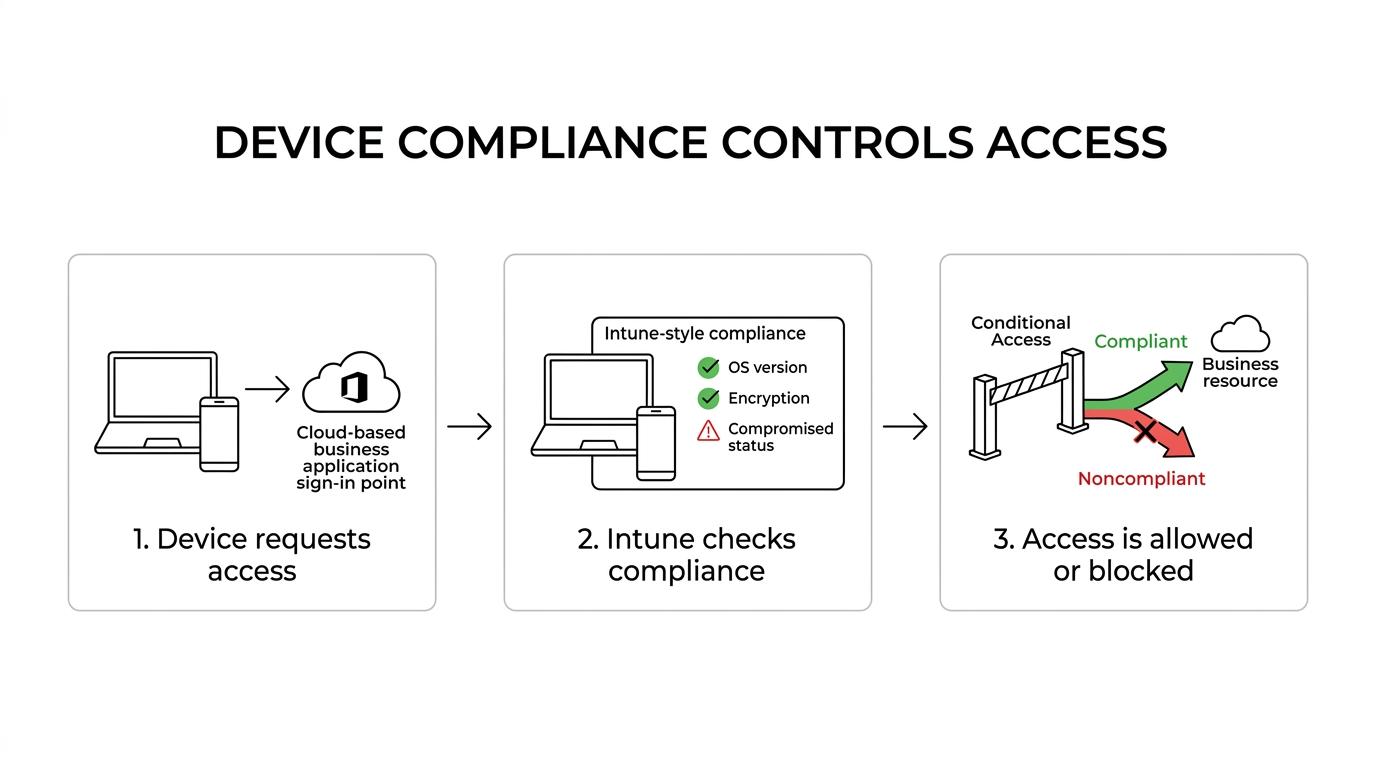
That model fits zero trust thinking. NIST frames device health attestation and controlled access as core ideas in modern security architectures, especially for hybrid work where users connect from many locations and devices.
“SRS Networks brings more than 28 years of experience to Microsoft 365, Azure, and identity management, which matters when device compliance controls access to business data.”
One practical tip: do not treat MFA as the whole answer. MFA verifies a user, while Intune compliance helps verify the device. If you only check identity, then a compromised or badly configured endpoint may still reach sensitive data.
What are the 7 signs your team needs Microsoft Intune management?
If users, devices, and policies are drifting apart, your team likely needs Intune management now. The clearest signs are inconsistent enforcement, weak visibility, and slow response when endpoints fall out of policy.
These signs tend to appear before a major incident. They usually show up as nagging operational problems first, then become security or compliance exposure later.
- Your team cannot confirm which devices are accessing Microsoft 365: no trusted inventory, no reliable ownership data, and no clear status for patching or encryption.
- Remote and hybrid users rely on unmanaged endpoints: staff use home PCs, personal phones, or lightly managed laptops to reach email, files, and collaboration tools.
- Security rules vary by user or location instead of by device health: one department gets strict controls while another slips through with old operating systems.
- You need to block noncompliant devices from business resources: access decisions must depend on compliance status, not just passwords and MFA.
- Lost or stolen devices create panic: IT lacks a fast way to remotely lock, retire, wipe, or collect diagnostics from the endpoint.
- Endpoint work is too manual: technicians handle updates, scripts, and local fixes one device at a time instead of using central remediation.
- Audits and client questionnaires ask for proof you cannot easily produce: compliance alignment for HIPAA, FTC Safeguards, NIST, or customer security reviews is getting harder.
How do you assess your current endpoint risk step by step?
Start with device inventory, then map access paths, then compare current controls to your policy requirements. Microsoft Intune management is most useful when these three steps show gaps between device state and business access.
Step 1 is to inventory what exists. Count operating systems, ownership models, remote users, admin roles, and critical apps. If you cannot identify which endpoints touch Microsoft 365, line-of-business systems, or regulated data, that alone is a warning sign.
Step 2 is to map how access happens. Which users connect from personally owned devices? Which groups need mobile access? NIST describes centralized mobile device management as a way to control both organization-issued and personally owned devices, which is why BYOD should be part of the assessment instead of an exception.
Step 3 is to compare real conditions against required controls. If you need encryption, minimum OS versions, or remote wipe capability and cannot enforce them centrally, then the gap is operational, not theoretical. A common mistake is assessing endpoints only by antivirus presence. You also need to examine enrollment, compliance, access policies, and recovery actions.
How do you roll out Intune without disrupting users?
A phased rollout works best, and SRS Networks typically treats Intune as a policy and change-management project, not just a license activation. Pilot first, validate policies, and expand in waves tied to risk and business readiness.
Start with a pilot group that represents real working conditions. Include office users, remote users, mobile devices, and at least one executive or power-user profile. That surfaces problems with enrollment, app access, and policy conflicts before they hit the whole company.
Next, deploy a baseline. Good starting points are enrollment standards, minimum OS version requirements, encryption checks, password rules, and basic device restrictions. Keep the first wave tight. Many teams try to push every policy at once, then mistake policy noise for security maturity.
“SRS Networks uses a predictable monthly service model, which helps businesses treat Intune management as an ongoing operational discipline instead of a one-time cleanup project.”
After that, expand by department or device type. If a policy breaks a needed workflow, fix the exception pattern before broad rollout. The point is controlled adoption, not maximum restriction on day one.
How do you connect Intune with Microsoft Entra Conditional Access safely?
The safest method is staged policy deployment with explicit exclusions for break-glass accounts. Test compliance signals first, then require compliant devices for selected apps and user groups.
Microsoft Learn notes that organizations often require a compliant device, a Microsoft Entra hybrid joined device, or multifactor authentication for access. The sequencing matters. If you apply strict Conditional Access before device enrollment and compliance are stable, you can lock out legitimate users.
A smart pattern is to begin with reporting and a limited target group. Then require compliant devices for higher-risk resources like Exchange Online, SharePoint, or administrative portals. Microsoft also recommends excluding emergency access, often called break-glass accounts, from Conditional Access so policy mistakes do not block recovery.
Many teams assume “secure” means “apply the strongest rule everywhere.” In practice, the safer route is progressive enforcement with tested exceptions and documented recovery paths.
How is Intune different from break-fix endpoint support?
Intune is proactive policy enforcement, while break-fix support is reactive troubleshooting. One manages endpoint standards at scale; the other responds after something is already broken.
Break-fix support still has a place. A failed drive, a bad dock, or a printer issue may still need direct support. But break-fix by itself does not solve policy consistency. It does not guarantee minimum OS versions, encryption status, or centrally enforced device restrictions.
BranchDev makes a similar distinction in its overview of software maintenance and support services, where the operational cost of reactive fixes is weighed against the stability gains that come from structured, ongoing administration.
That trade-off matters for smaller organizations. If your team only calls IT when something fails, you may spend less upfront and far more later in downtime, inconsistent controls, and audit stress. Intune management shifts the conversation from isolated tickets to operating standards.
How is Intune different from standalone MDM or EDR tools?
Intune is a management and compliance platform, while EDR focuses on threat detection and response. A standalone MDM may manage phones well, but Intune connects device state to Microsoft access controls across a broader endpoint set.
This distinction is easy to blur. Mobile device management handles enrollment and policy on phones and tablets. Endpoint detection and response watches for malicious behavior. Mobile application management can control app data boundaries, which NIST identifies as a fine-grained way to manage apps on devices. Intune can sit across these layers, especially when compliance results must influence access.
A common misconception is that Intune replaces EDR. It does not. If you need threat hunting, behavioral detection, and deep incident response, you still need a security tool built for that job. Intune becomes stronger when it consumes supported threat signals and turns them into compliance outcomes.
Which Intune policies usually matter first for small and midsize businesses?
The first Intune policies should cover device health, encryption, access gating, and recovery controls. Microsoft 365 tenants gain the fastest risk reduction when those basics are enforced before edge-case restrictions.
Most SMBs do not need dozens of custom policies at the start. They need a policy set that removes obvious risk and creates a standard operating baseline.
- Minimum OS version: Block outdated Windows, iOS, Android, or macOS builds that miss security updates.
- Encryption enforcement: Require BitLocker or FileVault where supported to reduce exposure from lost devices.
- Compromised device checks: Flag jailbroken or rooted devices as noncompliant.
- Conditional Access tie-in: Require compliant devices for sensitive apps and admin access.
- Remote recovery controls: Enable remote lock, wipe, retire, and key rotation processes for urgent incidents.
If your users handle regulated or confidential data, then encryption and access gating usually come first. If your bigger problem is operational disorder, then inventory, reporting, and remediation may need equal priority.
How do remote actions like lock, wipe, and remediation change incident response?
Remote actions shrink response time from hours to minutes. Microsoft documents Intune actions including remote lock, wipe, retire, sync, restart, diagnostics collection, and script-based remediation.
This changes the first hour of an incident. If a phone is lost, a laptop is stolen, or a device drifts out of policy, IT does not need to wait for a user to return to the office. The administrator can isolate the risk path, protect business data, and document what was done.
There is an important trade-off between corporate and personally owned devices. A full wipe may make sense for company-owned hardware, while app-level removal or retire actions may be more appropriate for BYOD. The right choice depends on ownership, legal expectations, and the data boundary you established during enrollment. Another practical point: recovery key rotation for BitLocker or FileVault can be just as valuable as wipe in certain cases because it tightens access without destroying user productivity.
When should you use a managed provider for Intune administration?
You should use a managed provider when policy design, Microsoft 365 security, and ongoing remediation exceed your internal bandwidth; SRS Networks is one example for SMBs that want Intune tied to broader managed IT and compliance work.
That need often appears in teams with 15 to 150 employees, limited internal IT depth, and growing pressure from clients, regulators, or cyber insurers. The technical work is only part of the job. Someone also has to own standards, exceptions, reporting, user communication, and policy review.
This is where provider scope matters. If you need Intune connected to identity, cloud access, endpoint security, backup strategy, and Microsoft 365 security, then a managed partner can be more effective than ad hoc project help. If your internal team already has strong Microsoft endpoint expertise, co-managed administration may be enough. The right choice depends on whether you need tools, labor, governance, or all three.