Picture this: your law office’s server room humming at midnight, a stack of client files waiting for the next hearing, and the clock ticking toward a deadline. A sudden power surge, a phishing email, or a ransomware attack can turn that calm into chaos.
Ever wondered what would happen if a cyberattack hit right before a depositary hearing? It’s not just a nightmare for your practice—it’s a nightmare for every client you represent.
That’s why IT support for law offices isn’t optional; it’s a legal safeguard. It’s about keeping sensitive data protected, ensuring compliance with NIST and state regulations, and guaranteeing that your team can work uninterrupted.
In our experience working with law firms in Salinas and the Bay Area, we’ve seen a few common pitfalls: outdated patch cycles, lack of endpoint protection, and no proactive monitoring. These gaps mean downtime, data loss, and, worst of all, a breach of fiduciary duty.
Here’s a quick checklist you can run right now:
- Run a full vulnerability scan on every device.
- Confirm that your firewall rules are up to date.
- Backup critical case data to an off‑site, encrypted location.
- Schedule quarterly security training for staff.
By addressing these items, you turn “what if” into “what’s next.” If your firm is in the middle of a big client move, you might want to consider a managed IT partner that already knows the legal landscape. Our Managed IT Services for Law Firms team can set up 24/7 monitoring and rapid incident response tailored to legal workflows.
And if your firm is planning a trip to Hartford for an upcoming client meeting, you might want to look at this useful travel resource: Your Complete Guide to Boston to Hartford Car Service. It covers booking tips, vehicle options, and pricing, making your journey smoother so you can focus on the case at hand.
Take the first step—review your current IT hygiene, and if gaps exist, reach out for a quick assessment. Your clients’ trust depends on it.
TL;DR
If your law office faces patch lag, blind endpoints, and no monitoring, you risk downtime and breach.
Tackling these gaps with a proactive IT partner turns uncertainty into resilience, safeguarding client data, keeping cases on track, preserving fiduciary trust, bolstering your practice’s daily operations and client confidence and smooth daily.
Step 1: Assess Your Current IT Infrastructure
Ever wonder how a single misstep in your IT stack can turn a looming deadline into a disaster? Let’s break it down, one coffee‑sized chunk at a time.
First, think of your law firm’s technology like a courtroom jury. Each tool, server, and device has to be reliable, and if one member is out of line, the whole case can collapse. That’s why a solid assessment is the foundation of any IT support strategy.
Start with a simple inventory. List every piece of hardware—desktops, laptops, mobile phones, printers—and every software stack: case management, e‑mail, document storage, billing. In a small practice, you might have 12 workstations, a handful of mobile devices, and a single server running a cloud‑based platform. In a mid‑size firm, you’ll see multiple servers, shared file shares, and perhaps a legacy document imaging system still in place.
Next, map out the connections. Which devices talk to which servers? Where do your sensitive client files live? Do you have a clear backup path? A quick diagram or even a whiteboard sketch can reveal blind spots—like a server that never receives nightly backups or a VPN that’s not encrypted.
Now, check the patch status. Are all operating systems up to date? Are antivirus signatures current? In the 2025 IT checklist every law firm should follow, the authors point out that 60% of breaches begin with a single unpatched vulnerability. If you’re still on Windows 7 or have a Windows Server that’s been dormant for months, you’re on the wrong side of a threat.
Don’t forget about mobile devices. Today, 70% of attorneys work from their phones or tablets. Implementing Mobile Device Management (MDM) ensures that confidential data doesn’t slip into the wrong hands when a device is lost or stolen.
For a quick baseline, use this high‑level checklist:
- Hardware inventory and lifecycle status
- Software stack and license compliance
- Patch management schedule
- Backup verification and off‑site storage
- Network topology and access controls
- Endpoint protection and MDM
- Compliance mapping (NIST, state regulations)
As you tick each item, note any gaps. Are there outdated servers that need replacement? Is your firewall rule set still reflecting current business needs? Is your backup rotation verified? Each answer should drive a clear action item—replace, patch, or reconfigure.
Once you’ve documented the gaps, prioritize them based on risk. A missing backup for a critical case file is a higher priority than an unused legacy printer that sits in the back office.
During this process, it helps to lean on resources that have already walked this path. The Comprehensive IT Support for Law Firms: A Practical Guide offers a step‑by‑step framework that aligns with the NIST Cybersecurity Framework and California’s privacy requirements.
When you’re ready to move from assessment to action, consider a managed IT partner that can help you fill the gaps. Many firms find that outsourcing the monitoring and patching cycle reduces downtime and frees up attorneys to focus on the law.

Beyond the technical, remember that this assessment is also a conversation with your team. Ask your paralegals, IT staff, and partners how they experience day‑to‑day workflow. Their insights often surface hidden bottlenecks that a purely technical audit might miss.
If you’re looking for a quick reference, the IT checklist every law firm should follow in 2025 provides a concise, actionable list that many of our local partners have found useful.
Now that you’ve mapped out the current state, the next step is to set up a remediation plan. Create a timeline, assign owners, and schedule regular reviews—ideally quarterly—to keep the environment lean and compliant.
For legal professionals traveling frequently, smooth IT operations mean fewer headaches. You might want to explore Elegant Wedding Limo Boston Options You’ll Love for special events, or Corporate Car Service Boston: A Complete Guide for Business Travelers when you’re on the road.
Ready to turn this assessment into action? Reach out for a free, no‑obligation IT evaluation and see how we can help protect your firm’s most valuable asset: your clients’ trust.
Step 2: Visual Overview of IT Support in Law Offices
Imagine you’re walking into a busy legal office. Desks are stacked with folders, laptops ping with new client alerts, and somewhere behind the scenes, servers hum quietly. That humming is your IT support in action—silent, but vital. In this step, we’ll turn that quiet hum into a visible, easy‑to‑understand map that tells you who’s doing what, where the bottlenecks are, and what to fix next.
First thing: create a simple diagram. You don’t need fancy tools—just a whiteboard or a sticky‑note sheet. List the three core layers: hardware, software, and people. Then draw arrows to show how data moves from a paralegal’s desk to a secure cloud bucket, back to a senior partner’s monitor for signing. Seeing the flow in one glance spot places where the chain breaks.
When you sketch, ask your team: “Where do we hit the biggest slow‑down?” Maybe it’s the old file server that still sits on Windows Server 2008, or perhaps the network switch that only handles 100 Mbps traffic. Whatever it is, label it. Labeling turns a vague “slow” into a concrete target.
Now, let’s bring in a real‑world example. A mid‑size firm in the Bay Area had a paper‑heavy workflow that weighed down their IT budget. They mapped their process and discovered that 40 % of attorneys still pulled hard copies for case notes. They used a pilot called “Paper Light” to digitize intake, and the result was a 30 % reduction in document‑retrieval time. The case study from Ricoh shows the before‑and‑after steps and highlights how automation can free up attorneys to focus on legal work rather than filing.
Learn how Ricoh helped a large law firm cut paper waste and speed up access.
Next, add a layer for security. Highlight firewalls, endpoint protection, and backup pathways. Use icons—a shield for security, a cloud for backups, a plug for connectivity. When you see a red “X” over a backup arrow, you know that data may not survive an outage.
Once the visual is ready, walk through it with the team. Start with the hardware layer: “Which devices are still on 2015 firmware?” Move to software: “Do we still run legacy case‑management modules?” Then people: “Who’s responsible for patching the network?” Turning the diagram into a discussion turns it from a static map into a living plan.
Remember, the goal is clarity, not perfection. It’s better to have a quick, accurate visual that you can update monthly than a perfect, never‑finished blueprint.
So, what’s the first action you’ll take after this? Pick one red‑flagged area—maybe the old file server—and assign it a priority level. Write a task, set a deadline, and ping the owner. That’s the tangible next step.
We’re not done yet. The next section will show you how to turn that map into a remediation roadmap, but for now, pause. Take a deep breath, look at your diagram, and feel that sense of control. Your IT support for law offices isn’t a mystery—it’s a picture you can tweak, share, and improve every month.
Before you go, watch this quick video that walks through the process of creating a visual IT map. It’ll help solidify the steps and give you a template you can copy.
Hope you found that helpful. When you’re ready, grab a pen, start drawing, and bring your IT support into the light.
Step 3: Choosing the Right Cybersecurity Framework
So you’re weighing frameworks for a law office. You want something practical that reduces risk and keeps client data safe without turning your team into auditors.
In our experience, the right framework isn’t a buzzword game. It’s a roadmap—one that translates into tighter controls, better incident response, and a clear line of sight for audits. The NIST CSF, with its five functions Identify, Protect, Detect, Respond, and Recover, is a solid starting point for many SMBs in the legal field, but there are other solid options depending on your needs.
First, inventory your data and critical workflows. Where do you store client files, emails, and matter data? Who has access? How quickly can you detect a breach in the filing system or mailbox?
For a law‑firm focused reference, this security framework for law firms provides a practical baseline you can adapt: security framework for law firms.
Meanwhile, if you’re exploring governance for AI or data‑risk management in your firm, you might find this perspective helpful: NIST AI RMF guidance.
Compare frameworks at a glance
Use a simple rubric to compare scope, certification needs, and how it maps to client contracts. Below is a compact view to help decide quickly.
| Framework | Core Focus | When to Use | Notes |
|---|---|---|---|
| NIST CSF | Identify, Protect, Detect, Respond, Recover | Most SMBs; broad risk management | Flexible baseline |
| ISO 27001 | ISMS setup and certification | Formal certification; client assurance | Documentation heavy |
| RSM Security Framework for Law Firms | Law‑firm centric controls | Audit‑ready; sensitive data | Industry‑aligned guidance |
So, what should you pick? Start with CSF, then layer in ISO 27001 controls where you need formal certification. Or lean into the RSM framework if contracts demand law‑specific safeguards. Translate the framework into your playbook: access controls, incident response, and quarterly reviews with partners.
Action steps you can take this week: name a framework owner, schedule a 90‑day assessment, and map your top three data stores to the chosen framework’s controls. Does this approach work in practice? Yes—creating a shared language makes audits more predictable and security more real for attorneys and staff.
Practical notes you can apply right away: tailor the framework to your biggest data risks, not every control on every system. Start with the essentials—encrypted backups, least‑privilege access, and event logging—and expand as you mature.
Practical mappings you can start with today: Identify assets and data flows; Protect through strong access controls and encryption; Detect via endpoint monitoring and log reviews; Respond and Recover with a documented incident playbook and tested backups.
Practical rollout in 4 steps
- Pick the primary framework and assign a security lead.
- Inventory assets and map data flows to the framework’s controls.
- Draft incident response and backup playbooks aligned to the framework.
- Run a quarterly tabletop exercise and adjust controls accordingly.
As an MSP serving law offices, we’ve seen this approach pay off by pairing concrete controls with clear client obligations. Ready to map this to your firm? Let’s talk and start with a quick assessment.
Step 5: Implementing a Cloud-Based Document Management System
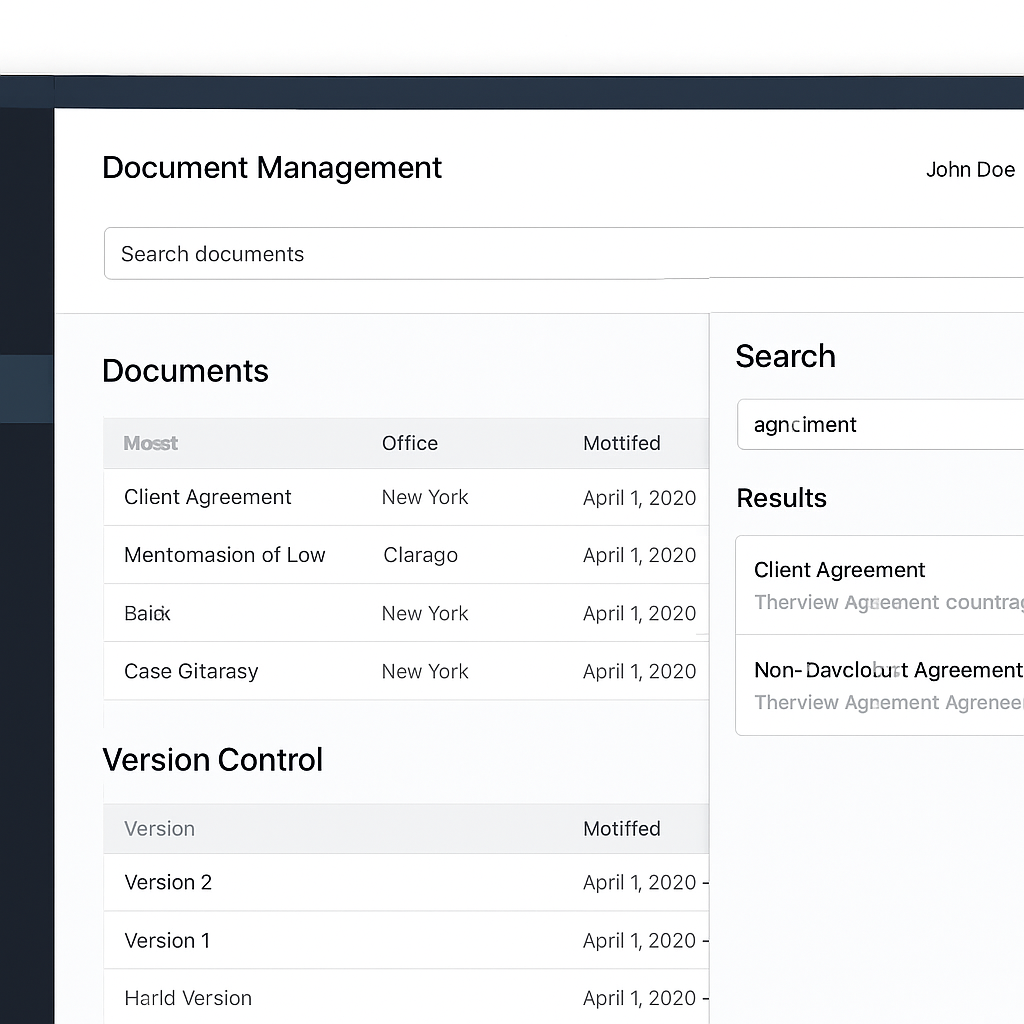
Now that you’ve mapped your data flows and set up your backup strategy, it’s time to put everything in one place that’s easy to search and hard to lose. A cloud‑based document management system (DMS) lets you keep every file in a single, secure vault that’s always online, no matter where your team is working.
Think of the DMS as a digital filing cabinet that never runs out of space. Unlike a physical cabinet, it can automatically tag, index, and version‑control files so that the last attorney to edit a contract is the one who sees it, and no one else gets stuck on an old draft.
Before you pick a platform, ask yourself these quick questions:
- What file types do you handle most often? PDFs, Word docs, e‑mail threads, or scanned images?
- How many users will need simultaneous access, and what permissions do they require?
- Do you already use a practice‑management system that can integrate with a DMS?
- What level of audit trail and encryption is mandatory for your state’s privacy rules?
- Are you willing to migrate a handful of hundred‑kilobyte PDFs or a library of terabytes?
Once you have that checklist, you can narrow your options. Many vendors offer a free trial, but the best fit is one that plugs into your existing stack—Office 365, Outlook, or your client‑portal software—so you don’t double‑tap documents every week.
Security is the backbone of any legal DMS. Look for built‑in role‑based access, end‑to‑end encryption, and an audit log that shows who viewed or edited a file and when. A system that automatically syncs to multiple geographic regions protects you against a regional outage or a ransomware attack that locks one data center.
Migration can feel like moving a whole office to a new building, but with a phased approach you can keep your day‑to‑day workflow intact. Start with non‑critical folders, verify the data integrity, then move the high‑value case files. Throughout, keep a backup on a separate server or a cold‑storage solution until you’re sure the cloud copy matches the original.
Training is often the forgotten step. Schedule a 30‑minute walkthrough with each role group: partners, paralegals, and IT staff. Use real case files for hands‑on practice, and create a short cheat‑sheet that lists the most common search shortcuts and version‑control tips.
After launch, set up automated health checks. Most cloud DMS vendors give you a dashboard that reports on storage usage, access logs, and security incidents. Tie these metrics to a quarterly review with your partner to ensure the system still meets your evolving needs.
Cost‑wise, a cloud DMS is usually subscription‑based. While the upfront price looks higher than a local server, you save on hardware maintenance, power, and the risk of a catastrophic data loss. Many firms report a return on investment within the first year because attorneys spend less time searching for files.
We’ve helped several local law offices transition to a cloud DMS without disrupting court filings. If you’re ready to dive in, take a look at our Managed IT Services page to see how we handle the tech side while you focus on the law.
For those long‑haul trips to Hartford or beyond, you might also find this Logan Airport Limousine Service guide handy for planning your travel logistics.
Step 7: Establishing Backup and Disaster Recovery Plans
It’s one thing to have a cloud‑based DMS, but it’s another thing to know what to do if that cloud hiccups or the office floods. That’s why backup and disaster recovery (BDR) isn’t a fancy buzzword—it’s the safety net you’ll thank you for after a crisis.
Start With a Clear Asset Map
Before you can back anything up, you need to know what you’re backing up. Pull together a quick inventory: file shares, client PDFs, email archives, case‑management databases, even the little spreadsheet that tracks billable hours.
Mark each item with its importance: mission‑critical, high‑value, or low‑impact. That triage will decide how often you back up and where you store the copies.
Choose the Right Backup Cadence
Full backups once a week keep the data footprint manageable. Incremental or differential snapshots every few hours make sure you don’t lose more than a couple of hours of work if a disaster strikes.
Remember the 3‑2‑1 rule: three copies, on two media types, with one off‑site. In practice, that could mean daily snapshots to an encrypted cloud bucket, nightly full copies on an external SSD, and a quarterly audit to a physical off‑site vault.
Automate and Verify
Manual backup routines are a recipe for missed cycles. Set up automated jobs that run on a schedule, log their success, and alert you if a job fails. Then, test those restores quarterly—pick a random file, bring it back to a test environment, and verify its integrity.
Testing isn’t just a checkbox; it’s the rehearsal that turns a plan into confidence. If the test fails, you’ll know exactly what broke before a client asks for a document.
Define Your Recovery Objectives
Two numbers drive every BDR plan: Recovery Time Objective (RTO) and Recovery Point Objective (RPO). RTO is how long you can afford downtime; RPO is how much data loss is acceptable.
For a law firm, an RTO of two hours and an RPO of 15 minutes can be realistic if you’re using a robust cloud DMS. Align those numbers with your client contracts—some agreements demand a 24‑hour recovery window, for example.
Document Roles and Escalation
When disaster hits, confusion is the fastest way to lose data. Create a simple runbook that lists who does what: who checks the backup logs, who initiates the restore, who contacts the legal tech partner, and who notifies the clients.
Include escalation paths—if the primary IT lead is unavailable, who steps in? Having that chain of command pre‑written saves precious minutes.
Integrate with Your Cloud DMS
Many cloud providers offer native backup tools that lock data in place, even during a ransomware attack. Leverage those features to create immutable snapshots. Pair that with your own off‑site storage for extra protection.
When you’re choosing a BDR solution, look for one that can tie directly into your existing DMS API. That way, you won’t need separate credentials or separate monitoring dashboards.
Plan for Remote Work and Mobile Devices
Today’s attorneys juggle court filings from coffee shops, client calls from home, and conference calls across time zones. Your BDR plan should account for data synced from laptops, phones, and tablets.
Enable device encryption and enforce strong passcodes. For mobile, enforce remote wipe so that a lost phone can’t become a data breach.
Keep the Plan Alive
A written plan is useless if no one reads it. Schedule a quarterly review with partners and the IT team. Update the inventory, tweak RTO/RPO numbers, and adjust backup windows as your firm grows.
And if a real disaster occurs, run a post‑mortem. Document what worked, what didn’t, and why. That feedback loop is the secret sauce that turns a reactive response into a proactive strategy.
Learn from Others
Clio’s guide on law firm disaster recovery outlines many of these best practices and adds legal‑specific considerations. Their article shows how a clear, documented plan helps firms meet ethical obligations while keeping client data secure.
Clio’s guide on law firm disaster recovery is a great starting point if you need a concrete example to model your own BDR playbook.
By building a solid backup and disaster recovery plan, you’re not just protecting files—you’re safeguarding the trust clients place in your firm. That trust is your most valuable asset, and a robust BDR plan keeps it safe, no matter what the world throws at you.
Step 9: Maintaining Compliance with HIPAA and Other Regulations
Compliance isn’t a one‑time checkbox. It’s a living conversation between your firm’s tech stack and the law. The moment you finish a BDR plan, you’re already stepping into the world of HIPAA, NIST, and state privacy rules.
Understand the Landscape
First, ask: who is actually handling protected health information (PHI) in your office? It could be a paralegal researching a medical malpractice case, a client portal that stores lab reports, or even an email attachment you never notice. Knowing the scope is the baseline for every compliance decision.
HIPAA’s privacy and security rules split into two layers. The privacy rule focuses on who can see PHI and how you get consent. The security rule sets out technical safeguards—encryption, access controls, and audit logs. Together they form the backbone of any law firm’s data strategy.
Build a Risk‑Based Matrix
Think of compliance like a kitchen: you need the right ingredients, the right stove settings, and a clear recipe. Create a simple matrix that maps each data asset to risk level (low, medium, high).
- High: client medical records, court filings that reference PHI.
- Medium: internal memos that reference a patient’s case.
- Low: marketing emails.
Use that map to prioritize controls.
Encryption First
Encrypt data at rest and in transit. For desktops and laptops, enable full‑disk encryption (like BitLocker on Windows). For data in the cloud, use native encryption and enforce TLS for all connections. If you store PHI in a shared drive, set folder‑level permissions so only authorized attorneys can read.
Access Controls and Least Privilege
Adopt role‑based access. A paralegal should see only the files they need for a case, not the entire vault. Use MFA for every login, especially for VPNs and cloud portals. Audit who’s accessing what and when; a simple log review every month can surface anomalies.
Audit Trails and Logging
HIPAA demands you can prove you protected PHI. Enable logging on your document management system and ensure logs are immutable—write‑once, read‑many. Store logs separately from the data they track. A quarterly audit of these logs is a low‑effort, high‑impact check.
Integrate Compliance Into Your BDR Playbook
When you write your disaster recovery plan, add a compliance clause: every restore must maintain PHI integrity. That means backups must be encrypted, and the restoration process must verify that audit trails are intact. Test restores with sample PHI files to confirm the encryption keys and access controls work.
Regulatory Updates: Keep Your Ear to the Ground
HIPAA and state laws evolve. Set up a subscription to the Thomson Reuters guide on HIPAA for law firms to stay informed. Every quarter, skim the new guidance and update your policy documents. A quick 15‑minute review of the latest regulatory changes can save you from costly penalties.
Real‑World Example: A Mid‑Size Practice
A Bay Area firm had a single shared folder that held both case notes and client medical reports. One intern accidentally shared that folder with a public link. The incident triggered a breach notification. After the review, the firm added a two‑step workflow: a mandatory review of any share request, and automated alerts for high‑risk documents. Since then, no new incidents, and the firm passed its next audit with zero findings.
Action Checklist for the Next 30 Days
- Audit all user accounts and revoke unused ones.
- Enable MFA for every remote access point.
- Encrypt all PHI on local drives and cloud buckets.
- Schedule a quarterly audit of access logs.
- Update your BDR playbook to include compliance verification.
- Subscribe to a regulatory update feed and set a quarterly review.
Compliance isn’t a bureaucratic hurdle; it’s a shield for your clients and a signal of professionalism. If you’re unsure where to start, reach out for a quick assessment—your trust budget is worth protecting.
FAQ
What are the most common IT support mistakes small law firms make?
Many firms think they can patch and reboot in a rush. In reality, a single missing update can open a door for ransomware, and a shared folder without proper permissions can trigger a breach notice. The key is a simple audit: list every device, verify patch status, and set up a quarterly review. If you find a device that’s three years old or running an unsupported OS, replace it before it becomes a liability.
How do I know if my law office’s network is ready for new software?
Start with a bandwidth check and a server load test. If your current Wi‑Fi can’t handle simultaneous video conferences and large file uploads, you’ll hit latency headaches. Run a quick speed test during peak hours and compare the results to your service provider’s SLA. If the numbers lag, upgrade to a managed Wi‑Fi solution or add a secondary access point before you roll out new tools.
Why is MFA so critical for legal teams?
Multifactor authentication adds a second layer that stops credential stuffing and phishing. Even if a password is compromised, an extra code or biometric check stops the intruder. For law firms handling PHI, the 3‑2‑1 backup rule, MFA, and strict access controls together create a fortress that regulators and clients will notice. A quick 15‑minute setup can protect thousands of documents overnight.
What should my incident response plan include for a law firm?
An effective plan has three parts: detection, containment, and recovery. First, use an endpoint detection system to spot anomalous activity. Second, isolate the affected device and notify your legal team. Finally, restore from an immutable backup and run a post‑mortem to refine controls. Keep the playbook in plain language so that a paralegal or partner can follow it without IT jargon.
How can I protect client medical records under HIPAA while using cloud storage?
Choose a HIPAA‑compliant cloud provider that offers end‑to‑end encryption, audit logs, and signed Business Associate Agreements. Map the data to the correct storage tier and enforce folder‑level access. If you need to share a file, use a secure link that expires after a set time. Regularly review your permissions and revoke any that are no longer needed.
What’s the best way to train staff on new security practices without losing productivity?
Keep training short and role‑specific. A 30‑minute workshop for attorneys and a separate 20‑minute session for support staff works well. Use real‑world scenarios, like a phishing email, to illustrate risks. Provide a quick reference guide and a “cheat sheet” for MFA steps. Follow up with a brief quiz and offer a refresher after three months to keep the knowledge fresh.
When should I consider outsourcing IT support for my law office?
If you’re spending more than 8% of revenue on in‑house tech staff or if downtime lasts more than a few minutes per week, it’s time to look outside. A managed partner can monitor systems 24/7, patch promptly, and provide a single point of contact for all IT emergencies. The extra cost is often offset by fewer disruptions, tighter security, and the peace of mind that your client data is protected.
Where can I find a comprehensive list of questions to ask before selecting an IT provider?
The Clear Guidance FAQs offers a handy checklist that covers everything from security posture to support response times. Reviewing these questions before you sign a contract ensures you’re not missing a critical gap.
Conclusion
We’ve walked through the whole roadmap—from inventory to backups, from frameworks to compliance—so you’re not left wondering what the next move is.
First, keep a living inventory. Every file, every device, every user is a potential weak spot. Treat that inventory like a living checklist; update it when a new laptop joins the firm or when a partner leaves.
Second, automate the routine. Setting up a nightly snapshot and a monthly audit log turns a manual chore into a system that does the work for you, freeing lawyers to focus on the law.
Third, test and review. Schedule a quarterly tabletop drill with the partners and IT crew. The goal is to see how quickly you can restore a client file, not to prove you’re compliant.
So, what’s the one thing you can do today? Pick one critical asset—maybe the shared medical‑records folder—and write an action item: encrypt it, set MFA, and run a test restore next week.
Remember, the real value isn’t the tools you buy; it’s the confidence you build that you can answer a question in a courtroom and still have every document intact. Feel that peace, and let it guide your next step. today.