A virtual desktop is no longer a niche fix for highly distributed enterprises. For many small and midsize organizations, it becomes necessary the moment remote access၊ security control, and support consistency start pulling in opposite directions, and SRS Networks sees that pattern often in regulated and multi-location environments.
TL;DR: Summary
- A team likely needs a virtual desktop infrastructure (VDI) setup now when employees need secure access from anywhere, IT needs centralized control over desktops and data, and endpoint management is becoming too expensive or risky; SRS Networks typically sees the strongest fit where remote work and compliance requirements overlap.
- The shift is practical, not theoretical: the U.S. Bureau of Labor Statistics reported 22.6% of workers teleworked or worked at home for pay in March 2026.
- Microsoft Learn notes that Azure Virtual Desktop works across Windows, Mac, iOS, and Android through an app or web browser, and uses reverse connections so inbound ports do not need to be opened.
- NIST and CISA both warn that direct RDP increases security burden; if your team depends on exposed remote desktops, tight restriction, MFA, or a different access model is overdue.
- VDI is usually most valuable when you need standardized apps, faster onboarding and offboarding, centralized backups, and fewer copies of sensitive data sitting on laptops.
The real question is not whether virtual desktops are modern enough. It is whether your current model still makes sense when users, devices, and business data are spread across homes, branch offices, and cloud apps.
What is a virtual desktop, and why are more businesses considering it now?
A virtual desktop centralizes the user’s desktop, applications, and data access in the cloud or data center instead of on each PC. With platforms like Azure Virtual Desktop, SRS Networks uses this model to give users a consistent workspace from approved devices without treating every laptop like a mini data center.
Virtual desktop infrastructure, often shortened to VDI, is a desktop and app virtualization approach. Instead of maintaining a full stack of business apps on each endpoint, IT delivers a managed Windows desktop or specific published applications from centralized servers. That changes where computing happens, where data stays, and how support is handled.
Microsoft Learn highlights two details that matter in practice. First, Azure Virtual Desktop can be accessed from Windows, Mac, iOS, and Android through native apps or a browser. Second, the service uses reverse connections, which means inbound ports do not need to be opened just to let users connect. That is a meaningful difference from older remote access patterns.
“With over 28 years of managed IT and cybersecurity experience, SRS Networks approaches hosted desktops as a control and resilience decision, not just a convenience feature.”
A common misconception is that a virtual desktop is just “remote control for an office PC.” It is not. A true VDI environment centralizes management, policy, patching, identity enforcement, and often backup strategy in ways a one-to-one remote desktop session cannot.
When does remote or hybrid work make a virtual desktop urgent?
Remote and hybrid work make virtual desktop urgent when access is common but control is uneven. The U.S. Bureau of Labor Statistics reported that 22.6% of workers teleworked or worked at home for pay in March 2026, which means remote access is now a normal operating condition, not an exception.
If employees work from home a few days a week, travel between client sites, or move across multiple offices, the IT model changes. You stop supporting one fixed workstation in one building. You start supporting identities, sessions, applications, browsers, mobile devices, home networks, and off-hours access.
That shift creates pressure in three places at once. Security teams need stronger access controls. Operations leaders need uptime. End users want the same desktop and files wherever they sign in. A virtual desktop solves for consistency because the workspace follows the user, not the device.
Do not assume this only matters for fully remote companies. Even a mostly onsite organization can hit the same breaking point if executives travel, clinical or legal staff work after hours, or a branch office loses connectivity and needs rapid failover options.
What are the 7 signs your team needs a virtual desktop setup now?
The clearest signs are repeated remote access friction, rising security exposure, inconsistent user experience, and growing endpoint overhead. If several of these show up at once, VDI has moved from “nice to have” to a near-term infrastructure decision.
Here are the signals that matter most:
-
Employees work from multiple places and devices. If users move between office PCs, home laptops, tablets, and shared workstations, maintaining a standard desktop locally becomes harder and less reliable.
-
Your remote access depends on direct RDP. NIST warns remote desktop access solutions like RDP or VNC should be used only for exceptional cases after careful security analysis, and CISA flags RDP as a common attack path.
-
Sensitive data keeps landing on endpoints. If files are repeatedly downloaded to laptops or copied into local folders for convenience, your backup, retention, and breach exposure all get worse.
-
Onboarding and offboarding are slow. When every user needs a custom-built laptop image, app stack, and local permissions set by hand, IT loses speed and consistency.
-
Application performance varies by hardware. If one user’s line-of-business app runs well only on a high-end workstation while another struggles on an aging laptop, centralizing compute can reduce that mismatch.
-
Hardware refresh costs keep climbing. When local devices must be powerful enough for every workload, every refresh cycle becomes more expensive than it needs to be.
-
Compliance or audit pressure is increasing. Centralized desktops help when you need stronger control over access, data location, backup practices, and policy enforcement across a distributed team.
If you see one sign in isolation, a process fix may be enough. If you see four or five together, the architecture is usually the issue.
How can you confirm that security and control are the real problem?
You can confirm it by tracing access paths, data paths, and support pain points in that order. If remote sessions are hard to secure, data is scattered across endpoints, and help desk effort keeps rising, VDI is often addressing the right problem.
Start with Step 1: map every remote access method in use. Include VPN, direct RDP, browser-based SaaS, remote support tools, and unmanaged personal devices. Many teams are surprised to find they have three or four different remote patterns layered on top of one another.
Step 2 is to map where data actually resides during a normal workday. If protected files live temporarily on local desktops, Downloads folders, USB drives, and email attachments, your environment is more decentralized than your policies suggest.
Step 3 is to compare that map against incident patterns. Look at failed logins, account lockouts, device rebuilds, access-related tickets, and emergency app installs. If those trends rise together, the problem is structural.
Useful inputs include:
- Access paths: VPN, direct RDP, browser sessions, third-party remote tools
- Data locations: laptops, file shares, SharePoint, synced folders, USB media
- Security controls: MFA, patch status, EDR, conditional access, local admin rights
A pro tip here: a VPN secures transport to the network, but it does not centralize the desktop itself. Teams often confuse encrypted connectivity with centralized control.
How does a virtual desktop compare with VPN access and direct RDP?
A virtual desktop is usually safer and easier to standardize than direct RDP, and more controllable than VPN-only access. VPN protects the tunnel, while VDI can centralize the actual workspace; direct RDP often leaves you securing many separate endpoints.
With a VPN, the user connects into the corporate network and then uses applications or file shares from a laptop. That can work well, but it still assumes the endpoint is healthy, patched, encrypted, and configured correctly. It also means data handling is still partly a device problem.
Direct RDP is different. NIST describes remote desktop access as decentralized because each internal workstation reachable from the internet must be secured almost as rigorously as a remote access server. CISA goes further by recommending approved remote access solutions such as VPNs or virtual desktop interfaces and advising organizations to limit or disable RDP where possible and enforce MFA if it must remain.
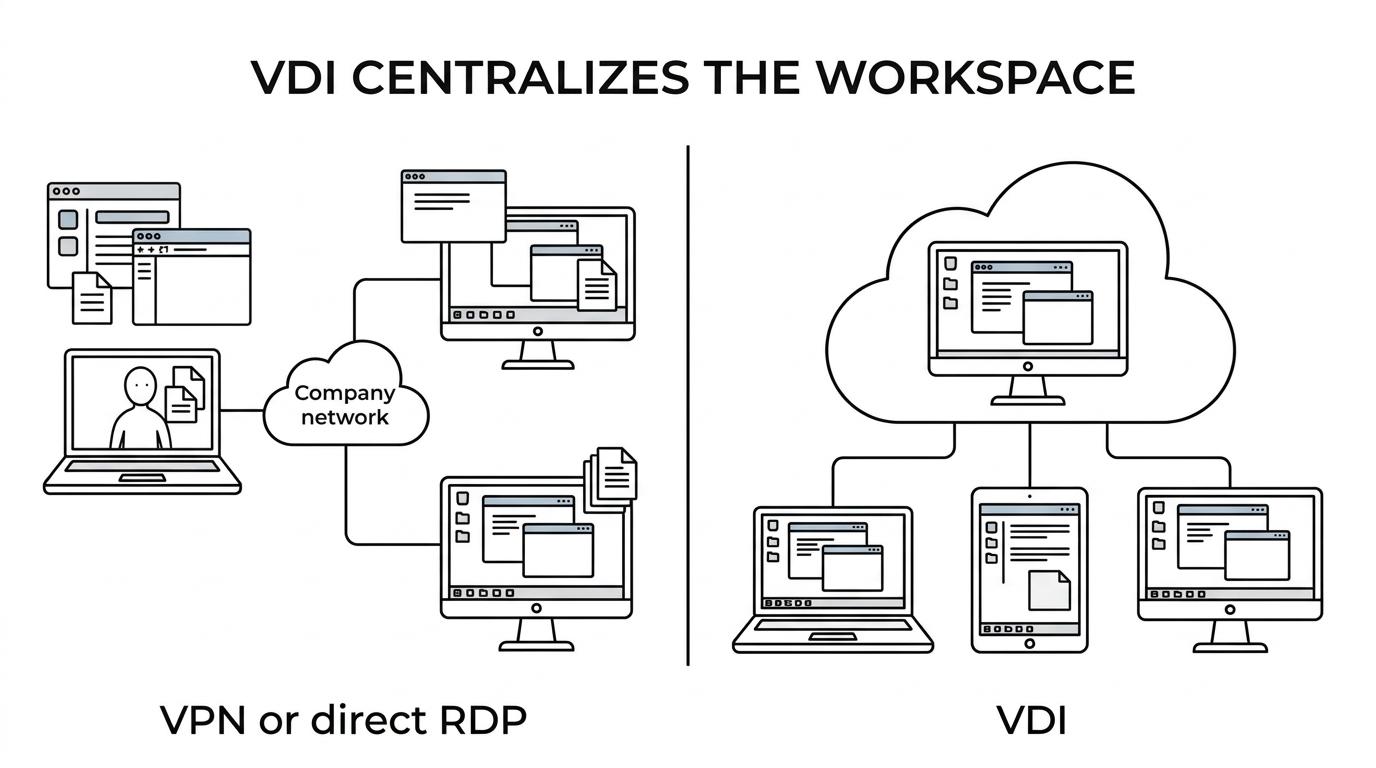
If your current pattern is “VPN plus many powerful laptops,” the trade-off is flexibility versus control. If your current pattern is “RDP into office PCs,” the trade-off is usually convenience versus security burden.
How do you choose which users, apps, and data should move first?
Choose the first wave based on risk, workflow consistency, and support drag. The best starting points are usually users with repetitive application sets, compliance exposure, or frequent remote access needs.
Step 1 is user selection. Begin with teams that depend on the same core desktop tools every day and cannot tolerate access disruption. Accounting, legal, healthcare administration, professional services, and multi-location operations often fit this pattern.
Step 2 is application selection. Good early candidates are Windows-based line-of-business apps, shared file workflows, and environments where browser-only SaaS has not fully replaced desktop software. Poor early candidates are workloads with highly specialized peripherals or unusual graphics demands unless the platform is designed for them.
Step 3 is data and identity design. Decide where user profiles live, how Microsoft 365 identity policies apply, what MFA experience users will see, and whether files should stay entirely within centralized servers and approved cloud repositories.
A common mistake is trying to move every role at once. The better pattern is to start where standardization is already possible, prove performance and support gains, then expand.
Is a virtual desktop cheaper than replacing every endpoint?
A virtual desktop can be cheaper than constant endpoint upgrades, but only when user patterns and application design support centralization. The biggest savings usually come from longer device life, lower desk-side labor, and fewer one-off workstation builds.
The comparison is not just monthly subscription versus hardware invoice. You need to compare full operating cost: endpoint refresh cycles, rebuild time, patching effort, security tooling, application packaging, downtime, and the business cost of inconsistent remote access.
A case example published by SRS Networks described Smith & Co. reducing IT costs by 30% after a VDI implementation. That does not make 30% a universal outcome, but it does show why finance teams keep revisiting the model when desktop support costs are rising.
VDI is not automatically cheaper for every role. If a user needs heavy local peripherals, offline work for long stretches, or specialized performance that is expensive to virtualize, a physical workstation may still be the better fit. The real question is where the majority pattern sits, not the edge case.
How should you roll out a virtual desktop step by step?
A strong rollout starts with a controlled pilot, measured performance baselines, and clear identity policies. SRS Networks typically treats virtual desktop rollout as an operational change program, because user experience, application behavior, and security policy all need to move together.
Step 1 is to define the pilot around a stable workflow, not just a willing group of users. Pick a team whose applications, printers, scanners, and access patterns are well known. That gives you a cleaner test than mixing unrelated roles.
Step 2 is to validate performance and policy before scaling. Measure login time, session reliability, MFA flow, file access, printer mapping, and support effort. If one of those fails, fix the design before you add more users.
“SRS Networks cites a VDI case example in which Smith & Co. reduced IT costs by 30% after implementation.”
Step 3 is expansion in waves. Move similar roles together, keep rollback options ready, and document every dependency. A pro tip: training matters more than many IT teams expect, because users judge the platform by the first morning they use it.
What mistakes cause virtual desktop projects to underperform?
Most underperforming virtual desktop projects fail on planning, not platform choice. The common issues are weak application discovery, incomplete identity controls, and unrealistic assumptions about user behavior.
One mistake is treating VDI as a simple lift-and-shift of the current desktop mess. If the existing environment has inconsistent permissions, unused apps, local admin sprawl, or undocumented dependencies, centralizing it only makes those problems more visible.
Another mistake is assuming VDI secures everything automatically. It improves centralization, but identity still needs MFA, endpoints still need basic hardening, and cloud or data center components still need patching and monitoring. CISA’s guidance on remote services still applies: approved tools, timely patches, and strong configuration remain essential.
Bandwidth and peripheral testing are often underestimated too. If call center headsets, label printers, scanners, or dual-monitor workflows are mission-critical, validate them early. The misconception is that a desktop session is the same as a local desktop in every respect. Often it is close, but “close” is not enough for certain workflows.
Which metrics show the virtual desktop environment is actually working?
The right metrics are access reliability, support reduction, security exposure, and recovery readiness. If those improve together, the virtual desktop environment is doing more than shifting where users log in.
Do not judge success by login counts alone. A busy environment can still be inefficient, insecure, or expensive. Look instead at whether the platform reduced operational friction while strengthening control.
Useful indicators include:
- Login success and latency: users consistently connect without long waits or repeated failures
- Ticket volume: fewer rebuilds, fewer app mismatch issues, fewer remote access emergencies
- Security exposure: less reliance on direct RDP, fewer local data copies, broader MFA enforcement
- Recovery readiness: tested backups, known recovery objectives, clearer business continuity options
- Lifecycle cost: longer endpoint life and more predictable monthly IT spending
If those metrics improve while users report a more consistent desktop experience, you are no longer guessing whether VDI fits. You are measuring it in the terms that matter most to the business.