Ever had that gut‑wrenching feeling when a hard drive dies right as you’re about to send an invoice? You stare at the blinking cursor, wondering if you’ll lose months of client records, and suddenly the whole business feels a little shaky.
That moment is why “backup as a service” (BaaS) matters more than any fancy software buzzword. It’s not just about copying files to the cloud; it’s about having a safety net that kicks in automatically, so you can keep serving customers while the tech team works behind the scenes.
Think about a local dental practice in Salinas that switched from manual tape backups to a managed BaaS solution. One night their on‑prem server crashed – the kind of thing that used to mean calling a frantic IT guy at 2 a.m. With the service in place, the practice restored all patient records in under an hour and never missed an appointment. No panic, no downtime, just a quick “it’s fixed” note on the front desk.
Or picture an e‑commerce boutique in Monterey that processes dozens of orders per hour. Their sales spike during the holiday season, and a ransomware hit could wipe out transaction logs. By encrypting backups daily and storing them off‑site, the shop kept its order history intact and continued shipping without a hitch. That’s the kind of resilience BaaS gives you.
So, how do you get from “I hope my data is safe” to “I know it’s safe”? Here are three quick steps you can start today:
- Identify the critical data – financial spreadsheets, patient records, customer orders. Prioritize those for hourly or real‑time backups.
- Choose a provider that offers automated, encrypted backups with a clear recovery time objective (RTO) that matches your business needs.
- Test the restore process quarterly. A backup is only as good as your ability to pull it back when you need it.
In our experience, partnering with a local MSP that understands regional compliance requirements – like HIPAA for health‑care or PCI‑DSS for online stores – makes the whole thing smoother. Backup and Disaster Recovery | SRS Networks walks you through setting up a solution that fits your budget and risk profile.
And if you’re already thinking about the broader picture of protecting your e‑commerce platform, you might find this guide on choosing the right storefront useful: Best ecommerce platform for small business: Top Aussie Picks. It highlights how a solid backup strategy dovetails with the right platform to keep your sales pipeline humming.
Bottom line? Backup as a service isn’t a luxury; it’s a practical safeguard that lets you focus on growing your business instead of worrying about what might go wrong.
Quick Overview: Backup as a Service for SMBs
Backup as a service gives small and mid‑sized businesses in Salinas and Monterey an automated, encrypted safety net that protects critical data—from patient records to sales orders—so you can keep serving customers without fear of downtime.
Implement the three steps we outlined, test restores regularly, and enjoy peace of mind knowing your data is always recoverable.
Step 1: Assess Your Data‑Protection Needs
First thing’s first – you need to know exactly what you’re protecting. It’s like walking into a kitchen and not knowing whether the stove is on; you’ll waste time and energy if you don’t spot the hottest burners.
Grab a notebook or open a digital list and start mapping out every data set that keeps your business humming. Think about patient records in a dental office, invoice spreadsheets for an accounting firm, or order histories for an e‑commerce boutique in Monterey. Anything that would bring the lights down if it vanished belongs on the list.
Ask yourself: which of these are regulated or contract‑bound? HIPAA, PCI‑DSS, and state privacy laws often dictate how long you must retain data and how securely it must be stored. That’s why we always tell our clients to flag compliance‑driven data first – it’s the non‑negotiable part of the puzzle.
Once you’ve got the inventory, rank each item by three criteria: business impact, compliance risk, and frequency of change. A quick three‑column table does the trick. For example, a dental practice’s patient charts (high impact, high compliance, frequent updates) would land in the “hourly backup” bucket, while a quarterly marketing report might settle for a daily snapshot.
Here’s a handy checklist you can copy‑paste into your favourite note‑taking app:
- Identify data owners – who creates and uses the data?
- Classify data sensitivity – public, internal, confidential, regulated.
- Determine RTO (Recovery Time Objective) – how quickly does each data set need to be back online?
- Set backup frequency – real‑time, hourly, daily, weekly?
And remember, the goal isn’t just to back up; it’s to back up in a way that lets you recover without pulling your hair out.
Now, let’s talk technology. Not every backup solution is created equal. Some services encrypt at rest and in transit, others only compress files. Some store data on a single cloud provider; others use a multi‑region approach. When you’re choosing a provider, look for a clear Backup and Disaster Recovery | SRS Networks page that outlines encryption standards, SLA‑backed RTOs, and compliance certifications.
Does your business handle crypto transactions or blockchain data? If so, you’ll need to think about immutable storage and legal hold capabilities. That’s where a partner like NeosLegal UAE Crypto Lawyers can help you navigate the regulatory maze, while your backup provider makes sure the ledger never disappears.
For e‑commerce owners, protecting checkout data is non‑negotiable. A single breach can erase months of revenue and trust. After you’ve locked down your critical data, you might also want to explore the right platform to run your store. The guide on Best ecommerce platform for small business walks you through options that play nicely with backup‑as‑a‑service solutions.
Below is a simple visual you can sketch on a whiteboard: three circles labeled “Compliance,” “Business Impact,” and “Change Frequency.” The overlap is your priority zone – that’s where you’ll apply the most aggressive backup schedule.
Once you’ve nailed the assessment, the next step is picking the right backup cadence and testing it. But before you get there, take a moment to watch this quick video that walks through a typical assessment workflow.
Seeing the process in action helps you spot gaps you might miss on paper.
Finally, visualize your data protection plan with an image that captures the essence of a well‑organized backup strategy – think of a tidy filing cabinet beside a cloud icon.
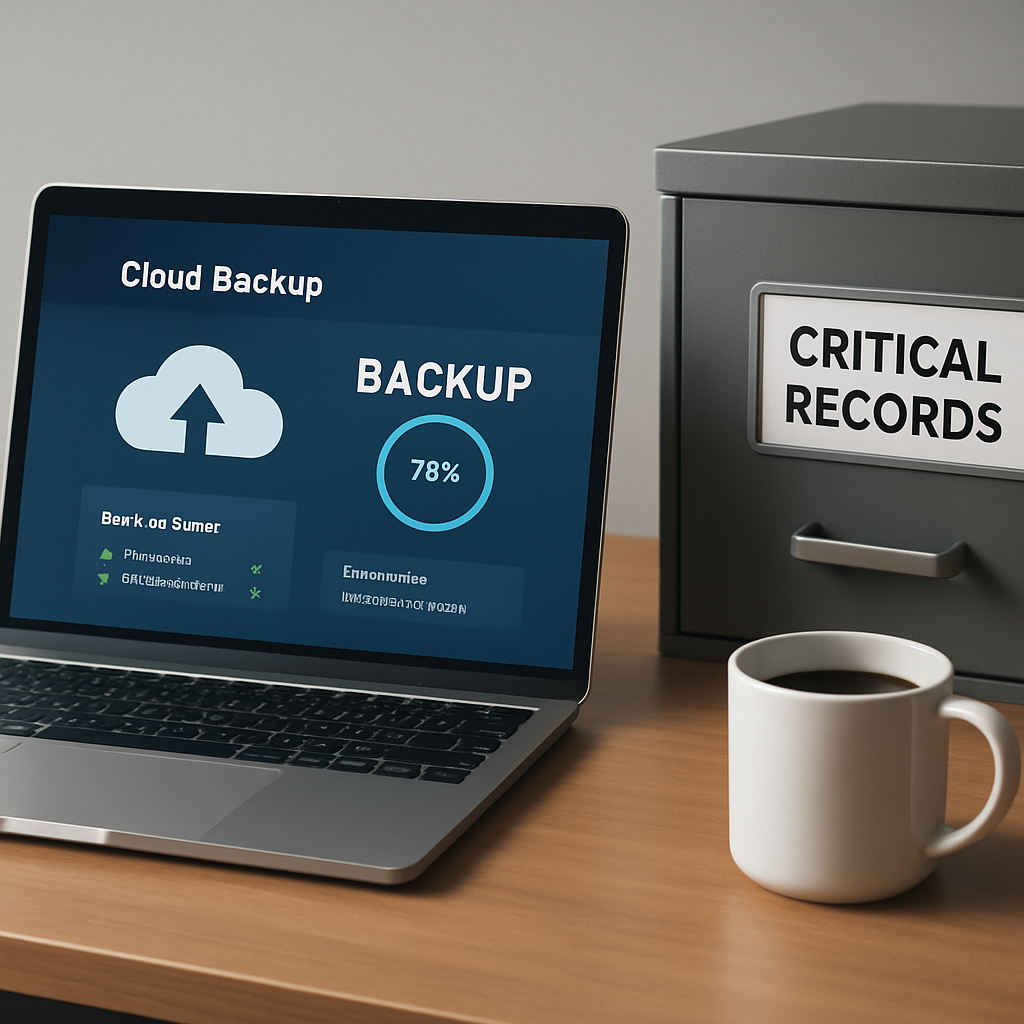
Take a breath. You’ve just turned a vague fear of data loss into a concrete, actionable roadmap. Next up, we’ll dive into choosing the right backup frequency and retention policy – stay tuned.
Step 2: Choose the Right Backup‑as‑a‑Service Model
Now that you know what you need to protect, the next question is: how do you actually get that data off the server and into a safe place? There isn’t a one‑size‑fits‑all answer, but breaking the decision down into a few concrete dimensions makes it feel a lot less overwhelming.
1. Decide where the backup lives
Broadly you have three options:
- Pure cloud BaaS – the provider spins up storage in their data centre and you push data straight from your office or SaaS apps. Ideal for businesses that already live in the cloud or have limited on‑prem hardware.
- Hybrid model – you keep a fast, local snapshot (often on a NAS or a purpose‑built appliance) for day‑to‑day restores, while the same data is replicated to the provider’s cloud for disaster protection.
- On‑premises BaaS – the vendor installs a backup appliance you control, but they still manage the software, encryption, and off‑site replication. This works when regulations demand data never leave your physical premises.
Think about a dental practice in Salinas. They need patient records instantly – a local snapshot lets the receptionist pull up a chart in seconds. At the same time, a nightly cloud copy satisfies HIPAA’s off‑site requirement. That’s a classic hybrid setup.
2. Pick the pricing model that matches cash flow
Providers usually charge by one of three methods:
- Capacity‑based – you pay for the amount of data stored (e.g., $0.10/GB per month). Predictable if your data grows slowly.
- Per‑user or per‑device – a flat fee per employee or endpoint. Works for firms where each user generates a similar amount of data, like a law office with dozens of case files.
- Pay‑as‑you‑go – you’re billed only for the backup jobs you run. Good for seasonal e‑commerce shops that spike during holidays but are quiet most of the year.
Run a quick spreadsheet: list your average daily data generation, multiply by the expected retention period, then compare the three pricing columns. The cheapest on paper isn’t always best – factor in hidden costs like egress fees for restores.
3. Align with compliance and SLA expectations
Regulated industries (healthcare, finance, nonprofit donor data) often require:
- Encryption at rest and in transit.
- Immutable snapshots that can’t be altered for a set period.
- Specific RPO (Recovery Point Objective) and RTO guarantees.
Ask the provider for a written SLA that spells out “99.9% availability” and “restore within 30 minutes for high‑priority data.” If the language is vague, move on. In our experience, a clear SLA is the single best predictor of a painless restore.
4. Test the restore workflow before you sign
Even the flashiest model is useless if you can’t get your files back when the lights go out. Schedule a 15‑minute “quick‑restore” demo with the vendor. Have them pull a recent backup of a sample file and walk you through the steps. Note any friction – do you need to log into a separate portal? Is there a multi‑factor prompt that slows you down?
After you’re live, make the test a quarterly habit. A simple checklist works wonders: pick a high‑impact file, restore it to a sandbox machine, verify integrity, and record the total time.
5. Consider future‑proofing
Data volumes double roughly every two years for most SMBs. Choose a model that scales without a massive redesign. Look for providers that support multi‑region replication, so if a California data‑center goes down, a West‑Texas node can take over. Also, check whether the platform can back up SaaS apps directly (e.g., Office 365, QuickBooks Online) – that eliminates the need for separate agents.
One resource that dives deeper into the nuances of these choices is Data Backup Solutions for Accounting Firms. While it focuses on accountants, the decision‑making framework applies to any SMB that handles sensitive data.
6. Take action – a three‑step checklist
- Map your data tiers (high, medium, low) and note any compliance rules.
- Match each tier to a backup model (cloud‑only, hybrid, or on‑prem) and pick a pricing plan that fits your budget.
- Run a restore test within the first month and schedule quarterly repeats.
By the end of this exercise you’ll have a clear, documented BaaS blueprint that talks the language of both your CFO and your IT manager.
And remember, protecting data isn’t just a tech problem – it’s a people problem too. When clinicians feel the pressure of patient‑care workloads, a reliable backup can be the quiet safety net that lets them focus on the bedside instead of the server room. For that holistic view, check out the wellbeing platform from e7D‑Wellness, which pairs nicely with robust data protection.
Step 3: Evaluate Security & Compliance Features (Video)
Ever sit at your desk, stare at a compliance checklist, and wonder if the backup service you’re eyeing actually backs you up when the auditors knock? You’re not alone. The right security and compliance features can be the difference between a smooth audit and a sleepless night.
First, ask yourself: does the platform encrypt data both at rest and in transit? Look for AES‑256 encryption, which is the industry‑standard for protecting everything from patient records to credit‑card logs. If you can’t find a clear statement about encryption keys being managed on a separate, hardened server, that’s a red flag.
Next up, immutable storage. Imagine a ransomware attack that tries to rewrite your backup files. An immutable, write‑once‑read‑many (WORM) layer means once a snapshot is taken, no one – not even the provider – can alter it for a set period. That’s the safety net regulators love, and it gives you peace of mind.
Role‑based access control (RBAC) is another must‑have. Your IT manager shouldn’t have the same permissions as a junior admin who only needs to run restores. A good BaaS solution lets you carve out granular roles, so only the right eyes see the right data.
Audit logs are the forensic tape record of who did what, when, and where. Ask the vendor for a sample log export. Can you filter by user, file, and action? Can you retain those logs for the length of time your industry demands? If the answer is vague, dig deeper.
Compliance certifications are the shortcut to confidence. HIPAA, PCI‑DSS, GDPR, and ISO 27001 aren’t just buzzwords – they’re proof that a provider has been vetted against strict controls. Check the provider’s compliance page for up‑to‑date certifications; a missing or outdated badge is a warning sign.
Now, let’s see these ideas in action. Below is a quick video that walks through a live demo of evaluating security settings on a popular backup platform. Pay close attention to how the presenter checks encryption status, toggles immutable snapshots, and pulls an audit‑log report.
After you’ve watched the video, run through this short checklist on any backup vendor you’re considering:
- Encryption: Verify AES‑256 at rest and TLS 1.2+ in transit.
- Immutability: Confirm WORM or “locked” snapshots for at least 30 days.
- RBAC: Map roles to job functions and test a low‑privilege account.
- Audit logs: Export a sample and check retention periods.
- Compliance: Look for current HIPAA, PCI‑DSS, GDPR, or ISO 27001 attestations.
- Data residency: Ensure the provider stores data in a region that meets your regulatory requirements (e.g., US‑West for many California health practices).
If any item feels fuzzy, ask the vendor for documentation or a live demo. A provider that can’t answer in plain language probably isn’t ready for a regulated environment.
In our experience at SRS Networks, we’ve seen SMBs skip the deep‑dive and later discover their backup couldn’t satisfy a HIPAA audit because the encryption keys were shared across customers. That mistake cost time, money, and trust. Taking a few extra minutes now to verify those security settings saves you from a costly scramble later.
Finally, run a restore test that includes a file flagged as “sensitive.” Does the process preserve encryption? Can you restore it to a sandbox without exposing the key? If the answer is yes, you’ve got a solid foundation.
Bottom line: security and compliance aren’t optional add‑ons; they’re the core of any trustworthy backup as a service solution. Use the video, run the checklist, and you’ll walk into that audit room with confidence.
Step 4: Integrate Backup as a Service with Your Existing IT Stack
Alright, you’ve picked a BaaS provider and you’ve already scoped what data matters most. The next puzzle is getting that service to talk to the tools you already use every day – your email server, your accounting SaaS, your on‑prem file shares, and even the point‑of‑sale terminals in the back office. If the pieces don’t speak the same language, you’ll end up with “backup‑but‑can’t‑restore” frustration.
First thing’s first: take a quick inventory of every system that holds a copy of your critical data. Grab a whiteboard, list the apps (Microsoft 365, QuickBooks Online, a local SQL database, a network‑attached storage device, etc.) and note how each one stores data – locally, in the cloud, or a hybrid mix. This visual map is the foundation for a clean integration.
Once you have that map, trace the data flow. Where does a new invoice originate? Does it land in QuickBooks, then get emailed to a client, and finally get archived on a NAS? Knowing the exact path tells you where to place the backup agent or API connector so nothing slips through the cracks.
Pick the right integration method
Most BaaS platforms give you three ways to hook into your stack:
- Agent‑based backup: Install a lightweight client on Windows, macOS, or Linux servers. Great for on‑prem file shares and databases.
- API‑driven cloud backup: Connect directly to SaaS apps (Office 365, G Suite, Xero) via OAuth tokens. No extra software needed.
- Hybrid gateway appliance: A purpose‑built box that syncs local snapshots to the provider’s cloud. Ideal when you need sub‑minute RTO for high‑speed restores.
Match the method to the workload. For a dental practice in Salinas that still runs an on‑prem imaging server, an agent on that machine plus an API link to their patient‑portal cloud ensures both the raw DICOM files and the appointment calendar are covered.
Meanwhile, a Monterey‑based e‑commerce shop that lives almost entirely in the cloud can get away with API‑only connections to their Shopify store and Stripe payment logs, keeping the integration footprint tiny.
Here’s a practical, step‑by‑step checklist you can run right after you sign the contract:
- Log into the BaaS admin console and generate service‑account credentials for each SaaS app you use.
- Deploy the backup agent on every on‑prem server that hosts high‑impact data. Verify the agent reports back within 5 minutes.
- Configure the API connectors: paste the OAuth tokens, select the data sets (mailboxes, calendars, files), and set retention policies that match your compliance needs.
- Set up a hybrid gateway (if you chose that route) in the server room, point it at the same storage array you already use for snapshots, and enable real‑time replication to the cloud.
- Define a backup schedule that mirrors your RPO goals – hourly for patient records, nightly for accounting journals, and weekly for marketing assets.
- Enable event‑driven alerts: email or SMS when a backup job fails, when storage usage hits 80 %, or when an immutable snapshot is created.
- Run a test restore for each data source within 48 hours of go‑live. Pull a recent patient note, a sales order, and a financial report to a sandbox machine and confirm integrity.
That checklist feels long, but you’ll check most of those boxes anyway during the initial pilot. Treat it like a short sprint – you’ll be back in business faster than you think.
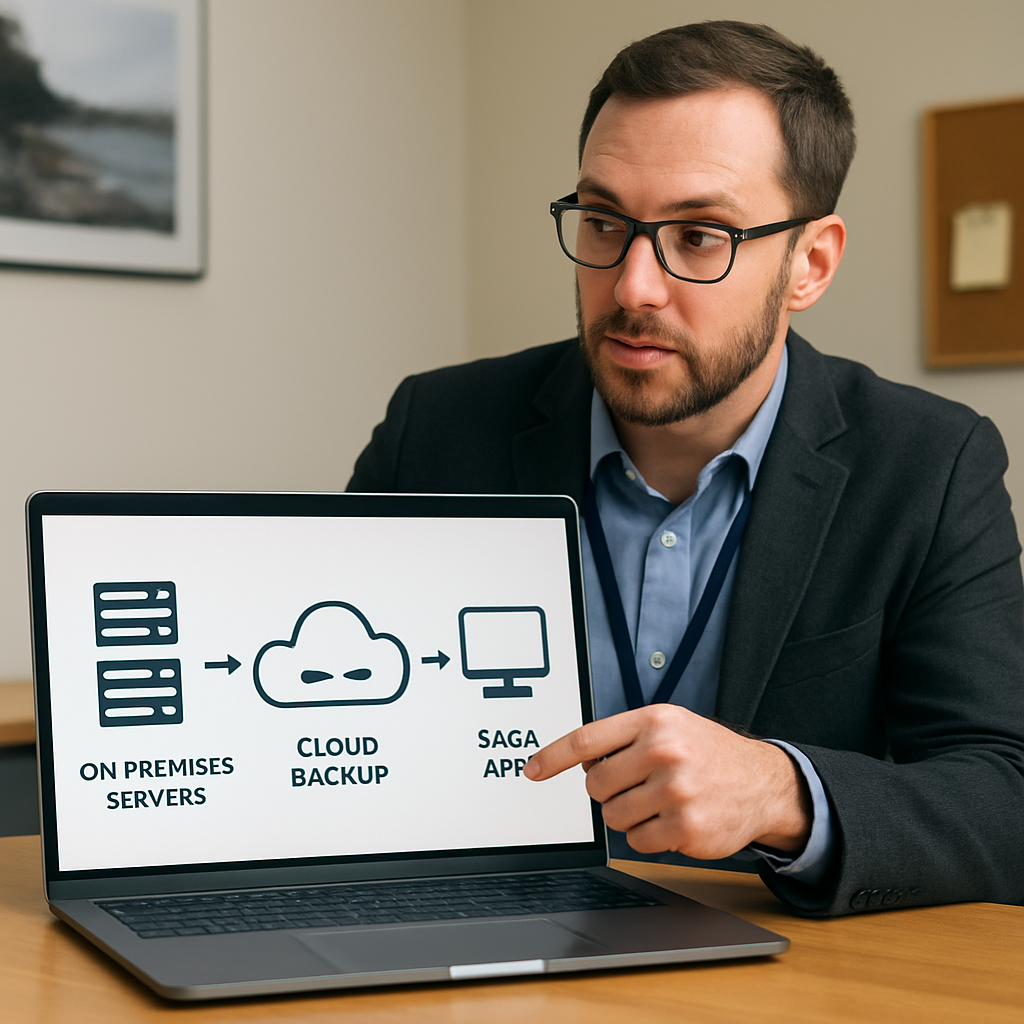
Automation is your best friend after the heavy lifting. Most BaaS consoles let you script policy changes via PowerShell or REST calls. Use those hooks to automatically add new workstations to the backup group whenever Active Directory provisions a new computer. That way you never have to remember to install an agent manually.
Monitoring should be baked into your existing IT dashboard. Pull the backup status API into your central monitoring tool (like PRTG or Datadog) and set a single “Backup Health” tile. When that tile turns red, you know something is off before your users even notice.
Finally, make integration a living process. Schedule a quarterly review of the data‑flow diagram – new apps get added, old ones get retired, and compliance windows shift. Update the backup policies accordingly, and re‑run the restore test for any newly added source.
Integrating backup as a service doesn’t have to feel like a massive IT overhaul. By mapping your stack, picking the right connection method, and following a concrete checklist, you turn a potential point of failure into a seamless safety net that works hand‑in‑hand with the tools your team already loves.
Step 5: Ongoing Management, Monitoring, and Testing
You’ve got the backup policy in place, the agents are talking, and the first restore test went smooth. But a backup strategy isn’t a set‑and‑forget checkbox – it’s a living process that needs a little love every week.
Make monitoring part of your daily dashboard
Pull the backup‑status API into the same tool you already use for servers, network devices, and security alerts. Whether you prefer PRTG, Datadog, or a simple Grafana panel, give it a single “Backup Health” tile. When that tile flips red, you know something’s off before a user even notices.
Set three simple thresholds: job‑success rate (should be 100 %), storage‑capacity utilization (alert at 80 %), and latency on the latest restore test (warn if it climbs above your RTO). A quick glance should tell you whether you can relax with a coffee or need to dive in.
So, what should you check each morning? Open the dashboard, glance at the tile, and if everything’s green, give yourself a mental high‑five. If it’s yellow, dig into the job logs – most failures are just a missed credential or a temporary network glitch.
Automate policy updates with scripts
New workstations, fresh SaaS apps, or a department moving to a different server – all of those changes should trigger an automatic policy tweak. Most BaaS consoles expose PowerShell or REST endpoints. Hook them into your existing AD provisioning script: when a computer object is created, fire off an API call that adds the machine to the appropriate backup group.
Here’s a tiny snippet you can drop into your automation runbook:
Invoke‑RestMethod -Method Post -Uri "https://backup.example.com/api/groups/add" -Body @{computer="$env:COMPUTERNAME";group="Finance"}
That way you never have to remember to click “Add device” manually.
Schedule regular restore drills
Backup without a restore test is like a fire alarm with a dead battery. Pick three critical data sets – a patient record, an invoice batch, and a website content folder – and restore each to a sandbox machine every quarter.
Document the steps: which console you used, how long it took, and whether the file integrity check passed. If a restore exceeds your RTO, it’s a sign to tweak the schedule or upgrade the storage tier.
Want a quick way to capture the results? Use a shared spreadsheet that logs date, data set, restore time, and notes. When the quarterly review rolls around, you’ll have a clear trend line instead of a vague feeling.
Quarterly health‑check checklist
Treat the backup environment like any other critical system – give it a quarterly health‑check. Grab a coffee, open your checklist, and walk through each item.
- Verify that all new devices added in the last 90 days appear in the backup console.
- Confirm encryption keys are still stored on a separate hardened server.
- Review storage utilization – prune old snapshots that are past retention.
- Run a full‑scale restore of a high‑impact file and record the end‑to‑end time.
- Check that audit logs are being retained for the compliance window you need (HIPAA, PCI‑DSS, etc.).
If anything looks off, schedule a remediation sprint before the next month ends. A small fix now prevents a major outage later.
Turn alerts into actionable tickets
When your monitoring tile turns red, automatically open a ticket in your ITSM tool. Include the backup job ID, error code, and a suggested remediation (e.g., “Refresh credentials” or “Increase storage quota”). That way the alert becomes a to‑do, not a nagging mystery.
Most platforms let you map severity levels to ticket priorities, so a complete backup failure pops up as a P1, while a minor latency warning lands as a P3. Your team can triage without guessing what matters most.
Keep the documentation alive
Every change – a new SaaS connector, a policy tweak, a hardware upgrade – deserves a quick note in the backup playbook. Store that playbook in a shared wiki so anyone on call can see the latest procedures.
Remember, the goal isn’t perfection; it’s confidence. When a ransomware alert fires or a server crashes, you want to know that your backup as a service is already humming in the background, ready to pull the rug back out.
Bottom line: schedule, automate, monitor, and test. Do those three things on a regular cadence, and you’ll turn a backup solution into a reliable safety net that grows with your business.
Step 6: Cost Considerations & ROI Comparison
When you first look at a backup as a service quote, the monthly price tag can feel like a mystery. Does $150 a month really make sense for a 10‑user dental office, or are you overpaying for features you’ll never use?
The key is to break the cost down into three buckets: the subscription fee, the hidden operational expenses, and the potential savings when disaster strikes.
Let’s walk through each bucket so you can see the numbers in plain English, not in vendor‑speak.
Understanding the subscription fee
Most BaaS providers charge by capacity, by user, or by a hybrid pay‑as‑you‑go model. Capacity‑based pricing is easy to picture – you pay $0.10 per gigabyte stored each month. If you back up 2 TB, that’s roughly $200. User‑based pricing bundles storage and support into a per‑seat fee, which can be cheaper for a small team but scales quickly as you add staff. Pay‑as‑you‑go lets you only pay for the jobs you actually run, perfect for seasonal e‑commerce spikes.
Ask yourself which model matches your growth pattern. A growing law firm that adds new attorneys every quarter will probably feel the pinch with per‑user pricing, whereas a static nonprofit with a steady data set might prefer capacity.
Hidden operational expenses
The headline price rarely includes the time your IT crew spends configuring agents, tweaking retention policies, or chasing failed jobs. Even a half‑hour a week of admin work adds up. At $75 an hour, that’s $150 a month you need to factor in.
Don’t forget egress fees – the cost to pull data out of the cloud during a restore. Some providers charge $0.02 per gigabyte retrieved. Restoring a full 2 TB backup could cost another $40, which matters if you ever need a rapid disaster recovery.
Calculating ROI
Return on investment isn’t just about the bill you pay today. It’s about the money you keep when things go wrong. Think of three common loss scenarios:
- A ransomware attack that encrypts on‑prem files. Without BaaS you’d need to rebuild servers, pay a forensics firm, and possibly lose revenue for days. Small clinics estimate $10,000‑$30,000 in downtime per day.
- A hardware failure that wipes a month’s worth of sales data for an e‑commerce store. The cost of lost orders, refunds, and brand damage can easily eclipse $20,000.
- Regulatory fines for missing backup logs in a HIPAA audit. Penalties range from $5,000 to $50,000 per violation.
Now compare those potential hits to your annual BaaS spend. If you’re paying $2,400 a year and you avoid just one $15,000 outage, your ROI is already over 500 %.
Simple comparison table
| Cost Model | Typical Monthly Cost (SMB) | Hidden Expenses | ROI Highlights |
|---|---|---|---|
| Capacity‑based | $200 (2 TB) | Admin time + egress fees | Predictable spend; easy to scale |
| User‑based | $150 (10 users) | Higher as staff grow | All‑in‑one support, good for stable teams |
| Pay‑as‑you‑go | $100 (average jobs) | Variable; watch spikes | Ideal for seasonal peaks, lower baseline cost |
Use this table as a quick sanity check. If your hidden expenses push the total above the “break‑even” line – the point where saved downtime equals spend – it’s time to renegotiate or look for a tighter fit.
Action checklist
- Map your data volume and pick the pricing tier that aligns with growth.
- Add 10 % to the quoted fee for admin time and egress costs.
- Run a worst‑case cost scenario (e.g., a full restore) and compare to your annual subscription.
- Document the break‑even point and review it quarterly.
- Ask your provider for a clear SLA that includes restore time guarantees.
Bottom line, cost shouldn’t be a mystery. By dissecting the subscription, accounting for hidden labor, and measuring the financial impact of an outage, you turn a line‑item expense into a strategic investment. Need help running the numbers for your Monterey‑area practice? Reach out for a free cost‑benefit assessment.
FAQ
What exactly is backup as a service and how is it different from a traditional backup solution?
Backup as a service (BaaS) is a cloud‑based subscription where a provider handles the storage, encryption, and routine copy of your data. Unlike a legacy on‑prem appliance you have to buy, install, and maintain, BaaS lets you pay month‑to‑month and offloads the heavy lifting to experts. You get automated snapshots, built‑in redundancy, and the ability to restore from anywhere without juggling tapes or extra hardware.
Do I need an internet connection to back up my data?
Yes, an internet link is the backbone of BaaS because the data travels to a remote data centre. That said, most providers support hybrid models where a local agent creates a quick snapshot on‑prem, then syncs the copy to the cloud during off‑peak hours. This approach keeps your RPO low even if bandwidth dips, and you still have a cloud copy for disaster‑level events.
How secure is my data when it’s stored in the cloud?
Security is baked into most BaaS platforms. Look for AES‑256 encryption at rest and TLS 1.2+ in transit, plus immutable (WORM) storage that prevents anyone—even the provider—from altering a snapshot for a set period. Role‑based access controls let you limit who can view or restore data, and audit logs give a complete trail for compliance audits. In practice, this often exceeds what a small business could build on its own.
What kind of compliance support does backup as a service offer for regulated industries?
Providers usually list certifications like HIPAA, PCI‑DSS, GDPR, and ISO 27001 on their compliance pages. Those badges mean the service has been audited against strict controls for encryption, data residency, and retention. For a dental practice in Salinas, for example, you’d want a provider that stores backups in a US‑West region and offers immutable snapshots to satisfy HIPAA’s off‑site‑storage requirement.
How often should I test restores and what’s the best way to do it?
Treat a restore test like a fire drill: run it at least quarterly, and pick a high‑impact file—maybe a patient record or a recent invoice. Document the start‑to‑finish time, verify file integrity, and compare the result to your RTO goal. If it takes longer than expected, tweak the backup schedule or ask the provider to adjust the storage tier.
Will backup as a service scale with my business as we grow?
Scalability is one of BaaS’s biggest perks. Because you’re paying for capacity or usage, you can add terabytes, users, or new SaaS connectors without buying a new appliance. Most vendors let you adjust the plan from the admin console, and many support multi‑region replication so a sudden spike in data doesn’t overwhelm a single data centre. Just keep an eye on egress fees if you start pulling large restores frequently.
Conclusion & Next Steps
If you’ve made it this far, you probably already feel the weight of protecting your data.
Backup as a service isn’t a nice‑to‑have—it’s the safety net that lets a dental office in Salinas keep patient charts accessible while a sudden outage happens.
So, what’s the next move? First, lock in a quarterly restore drill and log the time it takes – that simple habit often reveals hidden bottlenecks before they become emergencies.
Second, map any new apps or devices to your backup console within a week of deployment. A quick API‑token or agent install now saves you a scramble later.
Third, schedule a 30‑minute review with your IT partner (think SRS Networks) to confirm encryption keys remain isolated and compliance badges are up to date.
And don’t forget to factor egress fees into your budget; a surprise charge on a massive restore can bite harder than the downtime itself.
Finally, write down one concrete action you’ll take this week – whether it’s running a test restore, adding a new SaaS connector, or updating a retention policy – and stick to it.
When you treat backup as a service like a living part of your business, the peace of mind it delivers pays for itself every day.
Ready to turn those steps into a plan? Reach out for a quick, no‑obligation assessment and let us help you close the gaps.