Running a small business in Monterey means every tech dollar counts. You need a clear view of hardware, software, and services so you don’t waste cash on unused licenses or surprise outages. Below is a short list of ready‑to‑use budget templates that let you plan, track, and stay on top of IT costs without getting lost in spreadsheets.
We’ll walk through five options, show where each shines, and give you a quick checklist to pick the right one for your team.
1. SRS Networks IT Budget Template , Our Pick for Monterey SMBs
SRS Networks built a template that speaks the language of Monterey businesses. It starts with a simple inventory sheet, then adds rows for hardware, software, cloud services, and support contracts. The layout matches the way local firms think about tech , from POS terminals in a Seaside café to cloud backups for a Salinas clinic.
The template also includes a section for risk scoring, so you can see which line items could hurt uptime if they fail. That helps you justify security spend to the board.
And because SRS Networks has been serving the Monterey Bay area for nearly three decades, the numbers reflect real‑world pricing you’ll actually see in the region.
Here’s a quick tip you can try right now: pull your latest vendor invoices, paste the totals into the “Yearly Spend” column, and watch the template flag anything over 10 % of your total budget.
When you fill in the template, you’ll also get a printable summary that reads like a professional IT budget proposal. That’s handy for meetings with your accountant or a potential MSP.
For a deeper look at how to evaluate a managed‑service partner, check out How to Choose Managed IT Services for Small Business in Monterey. The guide walks you through a checklist that pairs well with the budget rows.
And if you ever need a quick sanity check, the template links to a CISA page on common cybersecurity pitfalls for SMBs.
Bottom line:SRS Networks’ template gives you a local‑focused, risk‑aware budget that’s ready to roll.
2. Microsoft Excel IT Budget Planner , Classic Spreadsheet Simplicity
Excel’s built‑in budget templates are a go‑to for many small teams. The “IT Budget Planner” is a blank workbook with pre‑wired formulas that calculate totals, variances, and monthly trends. You can drop in your own line items or copy the sample data to see how it works.
Because it lives in the Microsoft ecosystem, you can pull data from other Office apps , like exporting a list of devices from NIST Cybersecurity Framework guidelines and pasting it directly into the sheet.
And the template supports drop‑down month selectors, which makes quarterly updates a breeze. No extra software needed.
Here’s a simple way to start: open the workbook, go to the “Assumptions” tab, and type in your average hardware refresh cycle (usually 3‑5 years). The formulas will auto‑calculate depreciation for you.
Below is a short video that shows how to set up the month selectors and link them to a summary chart.
After the video, you’ll see a clean table that you can print or share as a PDF for stakeholder review.
When you’re done, the template lets you export a “Variance Report” that highlights where you’re over or under budget , a handy talking point for finance meetings.
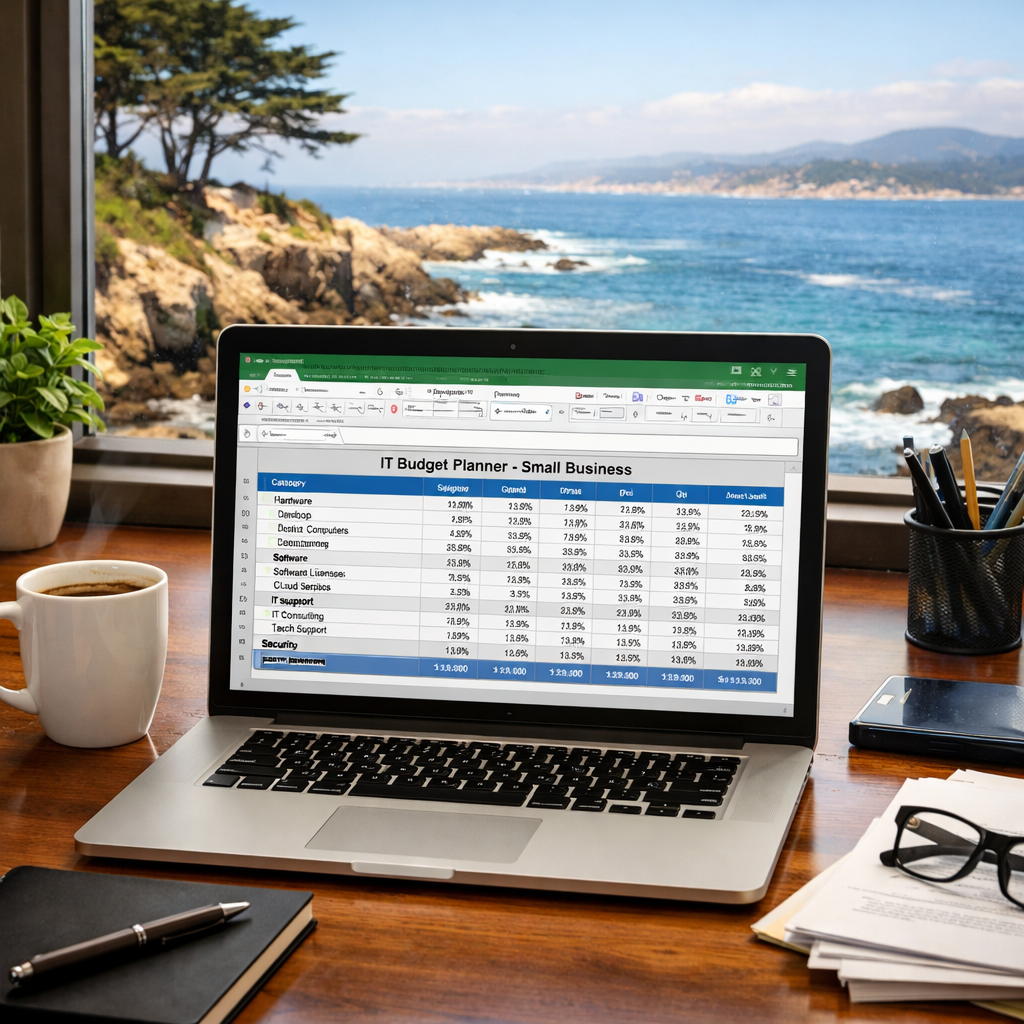
Bottom line:Excel’s planner is a solid, low‑cost option that works for anyone comfortable with spreadsheets.
3. Smartsheet IT Budget Template , Collaborative Cloud Solution
Smartsheet takes the spreadsheet idea to the cloud. The free IT budget template lets multiple users edit the same file, add comments, and attach receipts in real time. That’s a big win for teams that split between Monterey and Salinas.
It also includes a “Project‑Based” tab that breaks out costs by phase , perfect for a migration or a security rollout.
Because it lives online, you can set up alerts that email you when someone changes a line item. No more missed updates.
Here’s a quick way to test it: create a new sheet from the template, add a dummy line for a new firewall, and watch the change log record who edited it and when.
Smartsheet also offers a built‑in dashboard that visualizes spend by category , hardware, software, cloud, and services. You can embed that dashboard in a SharePoint site or a Teams channel.
For a deeper dive into pricing models, the Flat-Rate IT Support pricing guide explains how per‑user vs. per‑device costs can affect your budget rows.
Bottom line:Smartsheet’s template shines when you need cloud collaboration and visual dashboards.
4. QuickBooks Online Budget Planner , Integrated Finance & IT
QuickBooks Online isn’t just for accounting. Its budgeting tool lets you create an IT expense category, link it to vendor bills, and see the impact on cash flow. That means you can track a new software license and instantly see how it changes your profit margin.
The planner pulls in actual spend from your QuickBooks transactions, so you don’t have to double‑enter numbers. It also forecasts next‑year costs based on growth trends you set.Because it lives in the same system you use for payroll and invoicing, you avoid the “silo” problem that many spreadsheet‑only approaches suffer.
When you set up the IT category, be sure to enable the “track by department” option. That lets you see how much each office (Monterey, Salinas, Carmel) is spending on tech.
QuickBooks also offers a mobile app, so you can approve a new hardware purchase on the go and see the budget impact in real time.
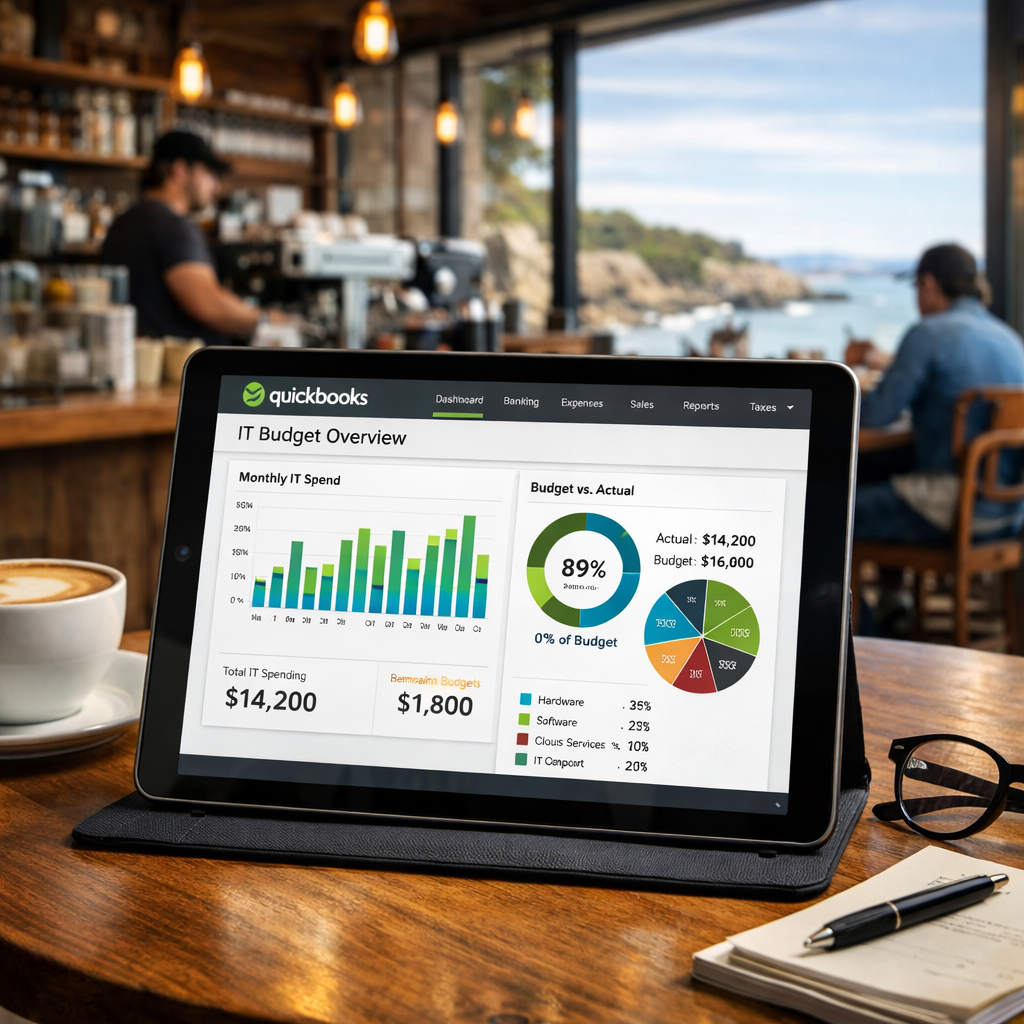
Bottom line:QuickBooks Online ties your IT budget directly to your financials, giving you a single source of truth.
5. Trello IT Budget Board , Visual Kanban for IT Projects
Trello lets you turn budget items into cards on a board. Each card can hold a cost, a due date, and a checklist of tasks. Move cards from “Planned” to “In‑Progress” to “Done” and watch the total spend update automatically.
This visual approach works well for teams that like to see work flow. It also integrates with Power‑Ups like “Custom Fields” to add a dollar amount to each card.
Because Trello is free for basic use, you can start small and add paid Power‑Ups (like Gantt charts) later if you need more detail.
Here’s a practical step: create three lists , “Hardware”, “Software”, “Services”. Add a card for each line item, attach the vendor quote, and set the budget amount in a custom field. The board then becomes a living budget you can share with the whole team.
For a broader view of how budgeting fits into overall IT strategy, the IT strategy consulting for SMBs article shows how to align spend with business goals.
Bottom line:Trello turns budgeting into a visual board that keeps everyone on the same page.
How to Choose the Right IT Budget Template
Pick the tool that matches your team’s workflow, data needs, and collaboration style. Use this quick checklist:
- Do you need real‑time collaboration? → Smartsheet or Trello.
- Do you want tight integration with accounting? → QuickBooks Online.
- Do you prefer a familiar spreadsheet? → Microsoft Excel.
- Is local expertise crucial? → SRS Networks template.
Score each option on a 1‑5 scale for ease of use, cost, and reporting depth. The highest total wins.
Bottom line:Use the checklist to pick a template that fits your SMB’s unique needs.
FAQ
What is the best way to start an IT budget for a small business?
Begin with an inventory of all devices, software licenses, and services. List each item, its cost, and renewal date. Then group them into categories , hardware, software, cloud, and support. Plug those numbers into one of the templates above. This gives you a clear baseline to compare future spend.
Can I use the same template for multiple years?
Yes. All the templates support a “Year” column, so you can copy the sheet and adjust figures for the next fiscal year. Keep historic data in a separate tab to track trends and spot cost‑savings opportunities.
Do these templates handle depreciation?
Most of them include a depreciation row or formula. In Excel and Smartsheet you can set a straight‑line rate. QuickBooks automatically calculates depreciation if you enable the asset tracking feature. SRS Networks’ template has a built‑in depreciation calculator tailored for Monterey‑area tax rules.
How do I integrate a budgeting template with my existing accounting software?
Export the finished budget as a CSV file and import it into your accounting system’s budget module. QuickBooks Online does this natively. For Excel or Smartsheet, you can use a simple import wizard in most accounting platforms. This keeps your financial statements in sync with your IT spend plan.
Is a cloud‑based template more secure than a local spreadsheet?
Cloud solutions like Smartsheet and Trello store data on encrypted servers and offer version history, which protects against accidental loss. However, you still need strong passwords and two‑factor authentication. For highly regulated data, keep a local copy on an encrypted drive as a backup.
What should I look for in a template’s reporting features?
Good templates provide a variance report, a visual chart of spend by category, and a forecast column for upcoming expenses. They should also let you filter by department or project so you can see where each team is spending its tech budget.
Conclusion
Choosing the right IT budget template can save you time, money, and headaches. Whether you pick the locally‑focused SRS Networks sheet, the familiar Excel planner, the collaborative Smartsheet, the finance‑linked QuickBooks tool, or the visual Trello board, each option gives you a clear path to track and manage tech spend.
Take the checklist, try a free version, and see which one fits your workflow. When you have a solid budget in place, you’ll be able to justify upgrades, avoid surprise costs, and keep your Monterey business running smoothly.
Ready to make your technology work for your business? Contact us for a free consultation and an IT health‑check tailored to Monterey SMBs.