Data loss can shut down a Monterey shop in a day. A single ransomware hit or a fire can wipe out years of work. That’s why you need a solid small business data backup checklist Monterey plan right now. In this guide you’ll learn six practical steps, common pitfalls to avoid, and how to keep your backup strategy fresh. Let’s get your data safe.
Step 1: Assess Your Data and Identify Risks in Monterey
First, list every file that keeps your cash flowing. Think of payroll spreadsheets, client contracts, inventory lists, and point‑of‑sale logs. Write them down in a simple table. Next, note where each file lives , a desktop, a local server, a cloud app, or a SaaS service.
Now ask three questions for each data set:
- How often does it change?
- How much downtime can you afford?
- Are there legal rules that tell you how long to keep it?
For a dental office in Salinas, patient charts change multiple times a day and must meet HIPAA rules. Those files need hourly backups and strong encryption. A local retailer’s sales logs might only need daily snapshots.
Monterey faces unique threats. Wildfires can knock out power, earthquakes can damage hardware, and coastal storms can flood basements. A quick look at the CISA emergency alerts shows how often natural events hit the Bay Area. Knowing these risks helps you pick the right storage type.
When you finish the inventory, rank each item by impact. High‑impact data gets the most frequent backups and extra copies. Low‑impact data can live on a slower, cheaper tier.
Here’s a quick example for a small accounting firm:
- Client financial statements , high impact, daily change, HIPAA‑like compliance , hourly backup.
- Monthly tax reports , medium impact, weekly change , nightly backup.
- Old marketing PDFs , low impact, rarely touched , weekly backup.
That simple map lets you see gaps. If a file lives only on a single laptop, you’ve got a single point of failure.
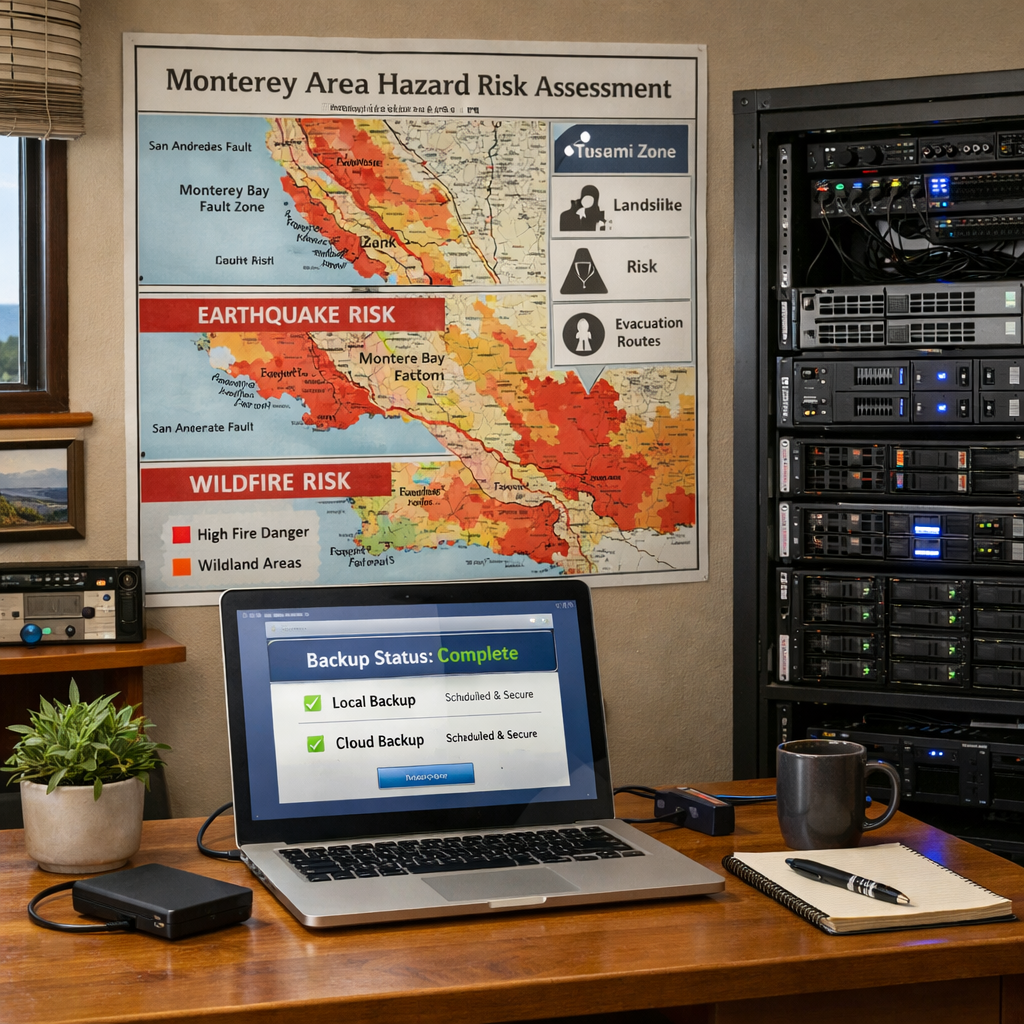
Bottom line:A clear data inventory and risk profile are the foundation of any backup checklist.
Step 2: Choose the Right Backup Solution (3-2-1 Rule)
The 3‑2‑1 rule is simple. Keep three copies of your data, store them on two different media, and keep one copy off‑site. That spread protects you from hardware failure, ransomware, and local disasters.
Copy one is the live file you work with every day. Copy two can be an external hard drive or a NAS device in your office. Copy three should live in the cloud or at a secure storage facility outside Monterey.
When you compare solutions, look at three factors:
- Cost, does the vendor charge per GB or per device?
- Speed, how fast can you restore a file?
- Security, does it use AES‑256 encryption and support immutable backups?
For example, MSP360 offers both cloud and on‑premises options, so you can build a hybrid system that meets the 3‑2‑1 rule without buying separate products. MSP360’s guide breaks down the pros and cons of each model.
Here’s a quick comparison table to help you decide.
| Solution | Local Media | Cloud Media | Off‑Site Option |
|---|---|---|---|
| External HDD | Yes | No | No (needs manual shipping) |
| NAS with RAID | Yes | No | Can replicate to cloud |
| MSP360 Hybrid | Yes | Yes | Cloud vault or third‑party data center |
| Vendor‑managed DRaaS | Yes (snapshot) | Yes | Built‑in off‑site replication |
Because ransomware often tries to encrypt both your live files and any locally stored backup, having an off‑site copy that the attacker can’t reach is critical.
“The best time to start building backups was yesterday.”
Once you pick a solution, set it up so that the second copy lives on a device you control, and the third copy lives in a cloud bucket that meets compliance rules.
Bottom line:A hybrid 3‑2‑1 setup gives you the most protection against both tech failures and natural disasters.
Step 3: Implement a Backup Schedule and Automation
Now that you know what to back up and where, decide how often each backup runs. Match the schedule to the recovery point objective (RPO) you set in step 1.
If you can’t afford to lose more than an hour of sales data, set up an hourly incremental backup for that data set. For less critical files, a nightly full backup works well.
Automation is key. You don’t want a human to remember to click “run backup” every night. Most backup software lets you set a cron‑style schedule or a simple UI timer.
According to the NIST Cybersecurity Framework, automated backups reduce the chance of human error and improve overall resilience.
Here’s a sample weekly schedule for a typical Monterey SMB:
- Monday , Full backup of servers (night).
- Tuesday‑Friday , Hourly incremental backups of point‑of‑sale data.
- Saturday , Full backup of workstations.
- Sunday , Verify backup health and run alerts.
Make sure the backup software sends you an email or SMS if a job fails. That early warning lets you fix the problem before a real disaster strikes.
Don’t forget to encrypt the data in transit. Use TLS‑1.2 or higher to keep the backup traffic safe from eavesdropping.
Finally, document the schedule in a simple one‑page playbook. Include the backup tool name, the frequency, the storage location, and the person responsible.
Bottom line:A clear, automated schedule keeps backups reliable and frees your team from manual tasks.
Step 4: Test Your Backups Regularly
Backups that never get tested are like a spare tire you never check. A test shows whether the data can be restored quickly and accurately.
Start with a small, high‑impact file , a recent invoice or a patient record. Restore it to a separate workstation and verify that the file opens and looks correct.
Then run a full‑scale restore drill once per quarter. Pick a critical system, spin up a sandbox VM, and restore the latest backup. Time the process and compare it to your recovery time objective (RTO).
TechTarget suggests a four‑step test process: inventory, verify contents, check permissions, and measure restore speed. Follow those steps to catch hidden issues like missing permissions or corrupted files.
When you run a test, record these details:
Keep the log in a shared folder so the whole team can see the results.
Bottom line:Test, document, and improve , that’s how you turn a backup into a real safety net.
Step 5: Develop a Disaster Recovery Plan for Monterey Businesses
A backup plan only protects data. A disaster recovery (DR) plan tells you how to get back online when the worst happens.
Start by naming the systems that must stay up , the point‑of‑sale terminal, the accounting server, the email gateway. Those are your mission‑critical assets.
Next, define clear recovery objectives:
- RPO, how much data you can lose.
- RTO, how fast you need the system back.
For a local bakery, an RPO of 15 minutes for sales data and an RTO of 2 hours for the POS system might be realistic. For a law firm, the RPO could be near‑zero because client files are highly sensitive.
Map out a step‑by‑step playbook:
- Detect the incident (fire, ransomware, power loss).
- Notify the recovery team , include phone numbers and roles.
- Switch to the off‑site backup copy (cloud or remote drive).
- Restore critical systems in order of priority.
- Validate that data is intact and services are running.
- Communicate status to employees and customers.
Don’t forget compliance. If you handle health data, the plan must meet HIPAA’s backup and audit‑log requirements. The IT disaster recovery checklist Monterey walks you through those steps.
Finally, run a tabletop exercise every six months. Gather the key people, walk through the plan, and note any gaps. Adjust the playbook after each drill.
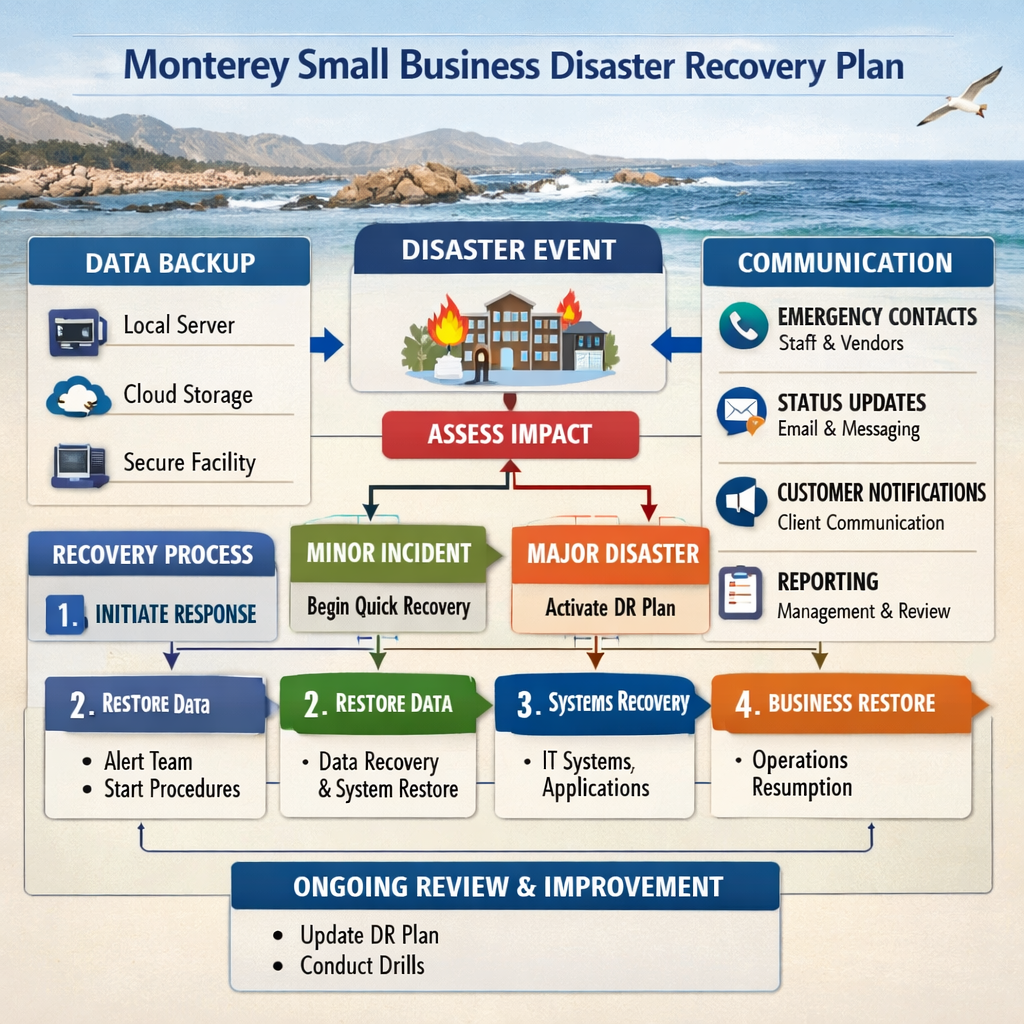
Bottom line:A clear, tested DR plan turns a backup into business continuity.
Step 6: Monitor and Update Your Backup Strategy
Backups aren’t a set‑and‑forget job. You need to watch them for failures, capacity limits, and security gaps.
Most backup tools have dashboards that show success rates, storage usage, and recent restore times. Aim for a 100 % success rate. If a job fails, the alert should land in your inbox within minutes.
Review the dashboard at least once a week. Look for trends , a spike in failed jobs may mean a network issue or a permission change.
Also, keep an eye on compliance windows. If a regulation says you must retain records for seven years, set a retention policy that moves older backups to cheap cold storage after 90 days.
When you add new applications or move data to the cloud, update the backup inventory and schedule. A quarterly review checklist helps:
- Did any new servers go live?
- Are all critical files still covered?
- Do we need to adjust RPO for faster‑changing data?
- Is storage cost staying within budget?
For a deeper look at monitoring best practices, see Monterey data backup compliance guide. It explains how to align monitoring with local regulations.
Bottom line:Ongoing monitoring keeps your backup plan accurate, affordable, and compliant.
Common Mistakes to Avoid in Data Backup
Even with a solid checklist, many SMBs slip into easy traps.
Mistake 1: Relying on a single copy.Storing backups only on one external drive gives you a single point of failure. If a fire hits the office, both the live data and the backup are gone.
Mistake 2: Skipping restore tests.Without a test, you won’t know if a backup is corrupt or missing files. A failed restore can cost you hours of downtime.
Mistake 3: Ignoring encryption.Unencrypted backups are a gold mine for thieves. Use AES‑256 encryption both at rest and in transit.
Mistake 4: Forgetting compliance.Some industries require specific retention periods and immutable storage. Overlooking these rules can lead to fines.
Mistake 5: Manual schedules.Hand‑typing a backup every night invites human error. Automation eliminates the “I forgot” risk.
Bottom line:Avoid these common errors to keep your backup plan reliable.
Frequently Asked Questions
What is the first step in a small business data backup checklist Monterey?
The first step is to inventory all the data that keeps your business running. List files, databases, and SaaS records, then note where each lives and how often it changes. This inventory helps you decide what needs frequent backups and which can wait.
How often should I run backups for critical data?
Match the backup frequency to your recovery point objective. If you can only afford to lose an hour of sales data, use hourly or continuous backups. For less‑critical files, a nightly or weekly schedule is usually enough.
Can I rely on cloud‑only backup for my Monterey business?
Cloud‑only backup protects you from local hardware loss, but it can be slow to restore if your internet is down. Most experts recommend a hybrid approach: keep a quick local copy for fast restores and a cloud copy for off‑site safety.
What encryption should I look for in a backup solution?
Look for AES‑256 encryption at rest and TLS‑1.2 or higher in transit. The solution should let you manage your own keys or use a zero‑knowledge provider. Encryption stops attackers from reading your data even if they steal the storage.
How do I test my backups without disrupting daily work?
Pick a non‑critical file, restore it to a sandbox machine, and verify its integrity. Schedule a full‑scale drill once a quarter, using a separate VM or a spare server, so the production environment stays untouched.
What should I do if a backup job fails?
Set up immediate alerts via email or SMS. When you get a failure notice, check the job log for error codes, fix the underlying issue (like a full disk or permission change), and rerun the job. Document the incident so the team can learn from it.
How can I ensure my backup plan meets local regulations?
Identify the regulations that apply , HIPAA for health data, PCI‑DSS for payment info, or California’s CCPA for consumer privacy. Then choose a backup solution that offers immutable storage, audit logs, and the required retention periods. Review the plan with a compliance officer at least once a year.
Is it worth hiring a managed service provider for backup?
Managed providers handle setup, monitoring, encryption, and testing for you. For many SMBs, the monthly fee is less than the cost of a data‑loss incident. A trusted partner also helps you stay compliant without hiring a full‑time IT staff.
Conclusion
Backing up data isn’t a one‑time task. It’s a cycle of assessing, protecting, testing, and improving. By following this small business data backup checklist Monterey you’ll have three copies of every critical file, a clear recovery plan, and a routine that catches problems before they hit.
Remember to inventory your data, apply the 3‑2‑1 rule, automate the schedule, run regular restore drills, and keep your disaster recovery playbook up to date. If you need help building a tailored solution that meets Monterey’s unique risks and compliance needs, SRS Networks can design, manage, and protect your backup environment.
Ready to make your data safe and your business resilient? Contact us for a free consultation and get your backup strategy in shape today.
- Date and time of test.
- Which data set you restored.
- Total restore time.
- Any errors you saw.
- Actions taken to fix errors.