Most small firms in Monterey think a simple rule list is enough. They’re wrong. A solid IT policy stops data loss, avoids fines, and keeps work flowing.
In this guide you’ll see how to build a Monterey IT policy template for small business from start to finish. We’ll walk through evaluating needs, defining scope, writing the doc, rolling it out, and keeping it fresh. By the end you’ll have a ready‑to‑use plan that protects your crew and customers.
Step 1: Evaluate Your Business Needs and Compliance Requirements
First, ask yourself what data you hold. Do you keep client lists, credit card numbers, or health records? Each type pulls a different rule set. Knowing the data lets you match the right compliance.
Next, list the regulations that apply. In Monterey many firms fall under HIPAA for health data, PCI DSS for payments, or California privacy law for personal info. Even if you’re under the $3 million exemption, the law still expects “reasonable steps” to protect data.
And you should check your industry’s standards. The NIST Cybersecurity Framework gives a solid base for any SMB. It breaks security into five functions: Identify, Protect, Detect, Respond, Recover. NIST’s framework guide explains each function in plain language.
But you also need a quick health check. The AWS checklist for SMBs notes that 43 % of breaches hit small firms, yet 83 % can’t afford recovery. CISA’s cyber‑risk advice stresses early detection and regular monitoring.
Now rank the risks. Ask: What would happen if a laptop was stolen? What if a phishing email got through? Score each risk on impact and likelihood. That score tells you where to spend money first.
- High impact, high likelihood → immediate controls.
- Low impact, low likelihood → monitor only.
Finally, talk to the people who own the data. Finance, sales, and health staff all have different worries. Their input shapes policy language that feels real, not legalese.
Bottom line:Start with a clear picture of data, regulations, and risk before you write anything.
Step 2: Define the Scope and Key Components of Your IT Policy
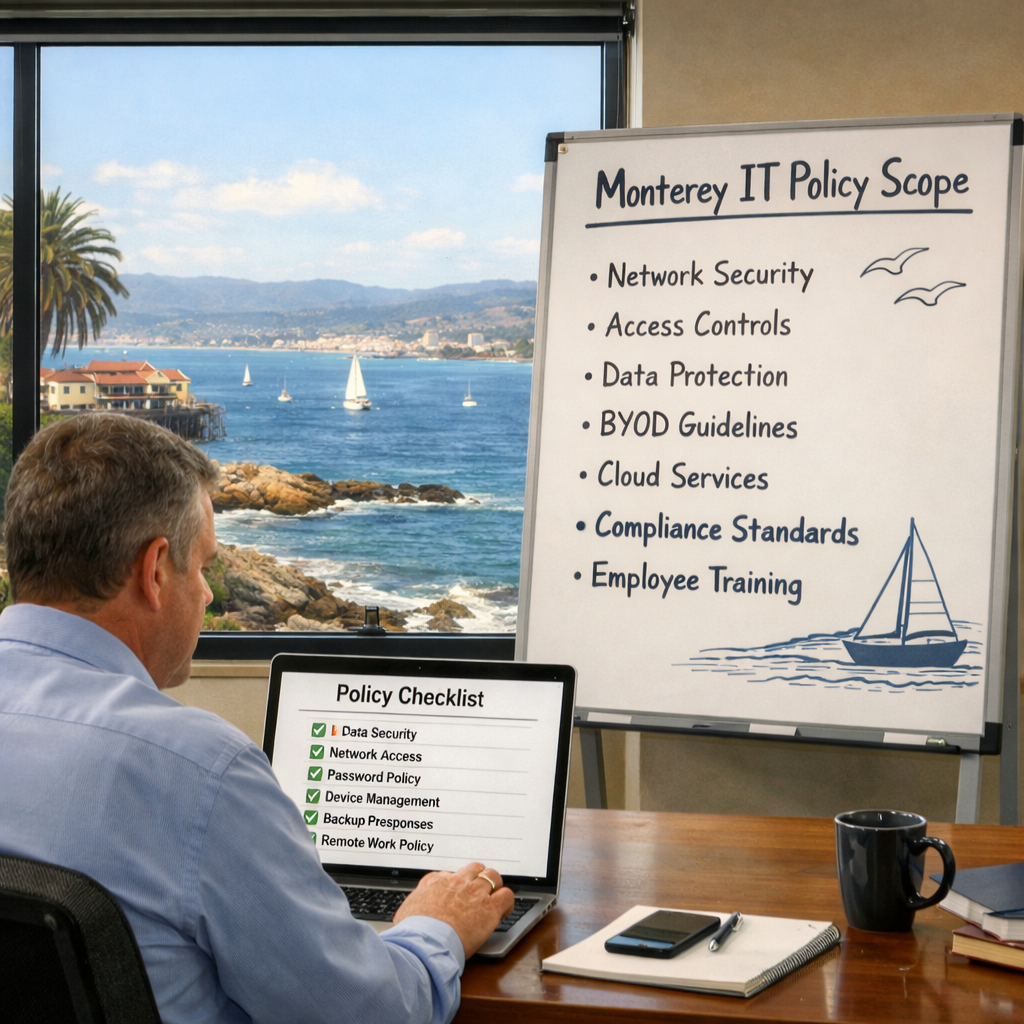
The scope says who and what the policy covers. A narrow scope misses gaps; a too‑broad scope scares staff. Aim for balance.
Identify the assets that need rules. Typical groups are:
- Workstations and laptops.
- Mobile phones and tablets.
- Cloud services like Microsoft 365 or Google Workspace.
- Network gear such as routers and firewalls.
And decide which users the policy applies to. All employees? Contractors? Vendors? Write a short clause that includes every party that touches your tech.
Key components to include are:
- Acceptable Use , what staff can and cannot do online.
- Password and Authentication , length, MFA, expiration.
- Device Security , encryption, auto‑lock, patching.
- Data Handling , classification, storage, transfer.
- Incident Response , who to call, steps to follow.
- Monitoring and Enforcement , how you check compliance.
Each section should have a short purpose paragraph, a list of rules, and a note on who enforces it.
Here’s a quick snapshot of a typical policy table you might use:
And remember to map each rule to a standard. For example, encryption aligns with ISO 27001 Annex A.6, while password rules tie back to NIST SP 800‑53.
Real‑world tip: A local Monterey dental office used a simple scope list and cut policy review time by 30 %.
Bottom line:Define who, what, and where the policy applies before you write the rules.
Step 3: Write the Policy Using a Proven Template
Now you have the data, the rules, and the owners. It’s time to put words on paper.
Start with a template. Using a proven layout saves time and makes sure you don’t miss a clause. The business continuity plan template for SMBs offers a solid structure you can copy.
And adapt the language to your tone. Write short sentences. Use “you must” instead of “it is required that”. This helps staff understand the rule.
Here’s how to fill each section:
Acceptable Use
State what devices are company property. Say personal use is limited. Example: “You may check personal email on company laptops only during breaks and never download large files.”
Password Policy
Give exact rules: at least 12 characters, mix of letters, numbers, symbols, and MFA required for remote access.
Device Security
Require full‑disk encryption and automatic lock after 15 minutes. List approved anti‑virus tools.
Data Handling
Define data classes and where each can be stored. Show a quick table of “Public vs Confidential”.
Incident Response
Provide a short flow: detect → report to IT lead → isolate device → call SRS Networks for help.
And don’t forget the enforcement clause. It should say violations may lead to disciplinary action up to termination.
“The best time to start building a policy was yesterday.”
Watch the video below for a walk‑through of filling a template. It shows where to add your company name, logo, and contact details.
After the draft, run it by a legal advisor. They will check for compliance gaps, especially if you handle health or payment data.
Finally, get everyone to sign an acknowledgement form. Store the signed PDFs in a secure folder.
Bottom line:Write the policy with a template, then tweak the language to fit your firm.
Step 4: Implement and Communicate the Policy to Your Team
Writing is only half the battle. Your staff must know the rules and follow them.
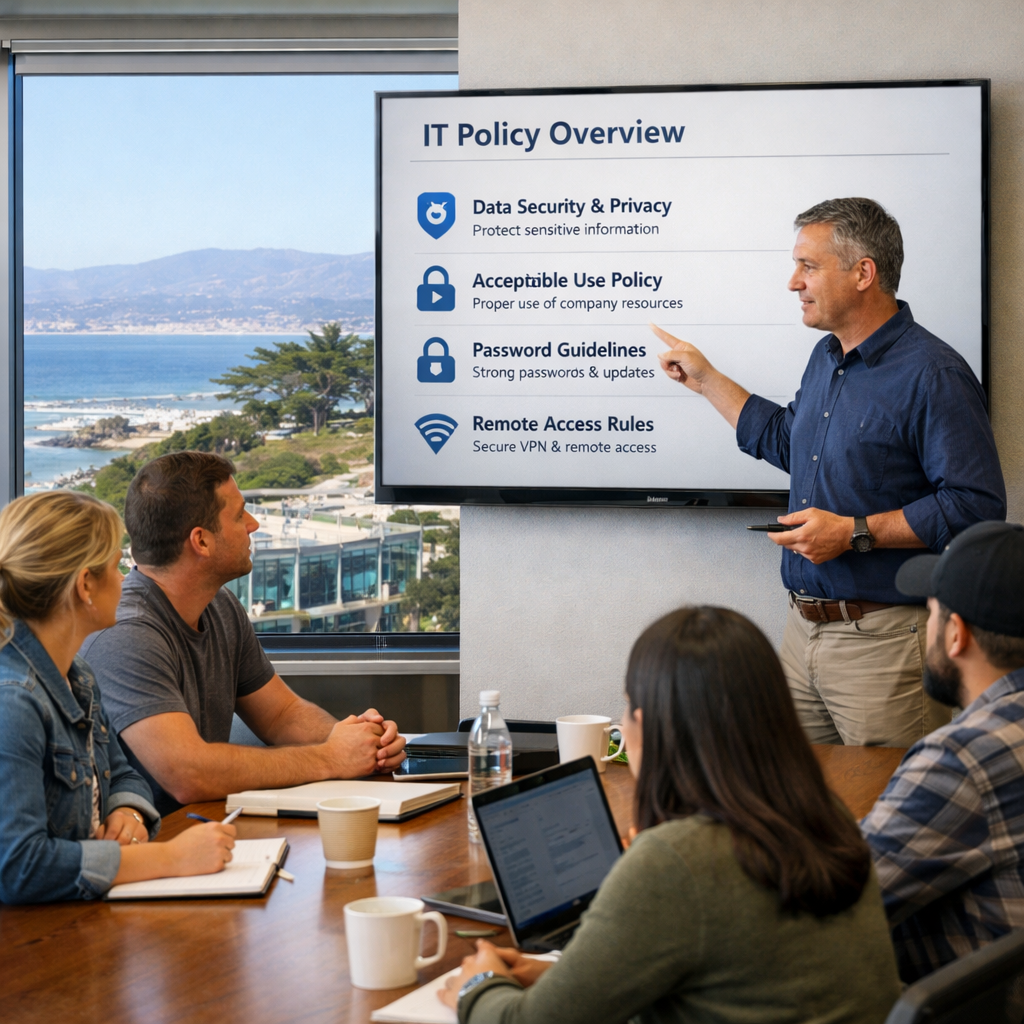
Start with a rollout meeting. Explain why the policy matters, not just what it says. Use real‑world stories like the local bakery that lost sales after a ransomware hit.
And provide training. Short, interactive sessions work best. Show how to set a strong password, how to encrypt a laptop, and how to spot a phishing email.
Distribute the policy in three ways:
- Email with a PDF link.
- Printed copy in the break room.
- Upload to the company intranet for easy access.
Ask each employee to read and sign a digital acknowledgement. Tools like DocuSign make this quick.
Next, set up technical controls that enforce the policy. Enable MFA on all cloud accounts, enforce password length via the directory, and lock down USB ports on workstations.
Monitor compliance. Run weekly reports that list devices without encryption or users without MFA. If you see gaps, send a friendly reminder.
And schedule a quarterly refresher. Policies evolve, and staff turnover means new eyes need training.
Bottom line:Teach, enforce, and track to make the policy live in your business.
Step 5: Review and Update the Policy Regularly
Security is not a set‑and‑forget job. New threats appear, and your business grows.
Mark your calendar. Review the policy at least once a year, or after any major change like a cloud migration or a data breach.
When you review, ask:
- Did we add any new data types?
- Do any regulations change?
- Did any rule prove hard to follow?
Update the sections that need it. For example, if you start using a new AI tool, add a clause about data fed to that tool.
Run a quick audit before each update. Check that every device still meets encryption standards and that MFA is enabled on new accounts.
Document the changes. Keep a change log that notes the date, what changed, and who approved it. This log helps auditors see you’re proactive.
Finally, re‑train staff on the new parts. A brief 10‑minute video works well.
Bottom line:Treat the policy as a living document that grows with your Monterey business.
Frequently Asked Questions About IT Policies for Small Businesses in Monterey
What is the first step in creating a Monterey IT policy template for small business?
The first step is to inventory the data you store and the regulations that apply. Knowing what you need to protect helps you choose the right controls and compliance references.
How often should I update my IT policy?
You should review and update the policy at least once a year, or after any major technology change, a security incident, or a new regulatory requirement.
Do I need a lawyer to approve my IT policy?
Having legal review is wise, especially if you handle health data (HIPAA) or payment data (PCI DSS). A lawyer can spot gaps that technical staff may miss.
Can I use a free template instead of hiring a service?
A free template can give you a solid start, but a customized policy from SRS Networks will fit your exact Monterey business needs and ensure full compliance with local and industry standards.
What training should I give my employees?
Provide short sessions on password hygiene, phishing detection, and how to report a security incident. Follow up with a quick quiz to confirm understanding.
How do I enforce the policy without micromanaging?
Use technical controls like MFA, device encryption, and web filters. Pair those with periodic compliance reports and clear consequences for violations.
What role does SRS Networks play in policy creation?
SRS Networks can draft a custom Monterey IT policy template, set up the technical controls, and train your staff, giving you a turnkey solution that meets all compliance needs.
Is a policy enough to prevent ransomware?
A policy is a key part, but you also need backups, endpoint protection, and incident response plans. SRS Networks offers a full ransomware protection package that works with your policy.
Conclusion: Get Expert Help Crafting Your IT Policy
Building a Monterey IT policy template for small business takes time, but the payoff is worth it. You’ll protect data, avoid fines, and keep operations running smooth.
If you need a custom document that matches your exact workflow, give SRS Networks a call. Their 28 years of local experience means they know the Monterey market and the compliance rules that matter most.
Ready to make your technology work for your business? Contact SRS Networks for a free assessment today.