Picture this: it’s Monday morning, you fire up your laptop and the entire network goes dark. Your accounting team can’t pull up client files, the storefront can’t process sales, and you suddenly feel that knot in your stomach.
That gut feeling? It’s the fear of business interruption, and for most SMBs it’s all too familiar. What if a ransomware attack or a natural disaster hits tomorrow? You need a safety net before the panic sets in.
Enter the business continuity plan template – a playbook that spells out exactly how you’ll keep the lights on when chaos knocks. Think of it as a recipe: list the ingredients, line up the steps, and you’ll know exactly what to do when the oven overheats.
We’ve helped dozens of Salinas‑area firms – from a busy dental practice to a growing e‑commerce shop – turn vague worries into concrete actions. In one case, a local legal office used a simple template to map out backup schedules, communication trees, and a quick‑switch to a cloud‑hosted email system. When a power outage knocked out their on‑premises server, they were up and running in under an hour.
So, what does a solid template actually contain? First, a clear inventory of critical assets – servers, databases, POS terminals, even the phone system. Second, defined recovery time objectives (RTOs) that tell you how fast each piece must be back online. Third, roles and responsibilities: who calls the vendor, who updates customers, who restores data.
Next, you’ll want documented backup procedures. That’s where our Business Continuity Planning Guide comes in handy, walking you through daily, weekly, and off‑site backup cycles that meet HIPAA and PCI standards without breaking the bank.
Don’t forget communication. A single email thread or a pre‑written press release can save reputation points when you’re forced to switch to a temporary workspace. Include phone trees, SMS alerts, and a checklist for notifying suppliers.
Testing is the part most businesses skip. Schedule a tabletop drill every quarter – gather the key players, walk through the scenario, note the gaps, and tighten the plan. Even a 15‑minute run‑through can reveal missing steps you never thought about.
Finally, keep the document alive. As you add new services, move to the cloud, or hire more staff, update the template. Treat it like a living policy rather than a dusty PDF you filed away.
The payoff? Less downtime, lower recovery costs, and peace of mind that lets you focus on growth instead of fire‑fighting. Studies show that companies with a tested continuity plan recover up to 50% faster after an incident.
If you’re wondering where to start, grab a blank worksheet, fill in the sections we’ve outlined, and let a trusted IT partner review it. The right template transforms uncertainty into a clear, actionable roadmap.
Ready to protect your business before the next surprise hits? Let’s get your continuity plan drafted today.
TL;DR
A business continuity plan template gives SMBs a clear, step‑by‑step roadmap to keep critical operations running during outages, cyber attacks, or natural disasters.
By filling out the template, you quickly identify key assets, assign recovery roles, and set testing schedules, so you can recover up to 50% faster and protect revenue, reputation, and compliance.
1. Identify Critical Business Functions
First thing’s first: you can’t protect what you haven’t named. Pull out a fresh sheet (or a digital note) and start listing every function that keeps your business humming day‑to‑day. It feels a bit like making a grocery list, except the items are the parts of your operation you’d miss the most if they vanished.
1. Revenue‑generating activities
These are the cash‑flow engines – point‑of‑sale terminals, e‑commerce checkout flows, invoicing software, and any subscription billing platform. If a dentist’s appointment scheduler goes dark, patients can’t book, and you lose revenue before you even notice.
2. Core client‑service processes
Think about the steps that deliver value to your customers: a legal firm’s case‑file management system, a healthcare provider’s patient‑record portal, or a marketing agency’s campaign reporting dashboard. When these grind to a halt, your reputation takes a hit.
3. Compliance and regulatory workflows
HIPAA‑related audit logs, PCI‑compliant payment processing, or any data‑retention schedule fall here. Missing a compliance deadline can mean fines that dwarf any downtime cost.
Does it feel overwhelming? It does for most SMB owners. The trick is to break it down into bite‑size chunks and ask yourself: “What would break the business if it stopped working right now?” That simple question surfaces the real‑world impact behind each function.
4. Supporting infrastructure
Servers, network switches, Wi‑Fi access points, and even the phone system belong in this bucket. They’re the plumbing behind the scenes. A busted router can freeze the whole office, while a cloud‑based email service might keep you afloat if your on‑premises mail server crashes.
And don’t forget the people side – who does what when the lights go out? Mapping roles early saves a scramble later.
5. Documentation and communication tools
Everything from incident‑response run‑books to printable emergency contact sheets. This is where a partner like JiffyPrintOnline can be a lifesaver – they supply affordable, ready‑to‑go forms and labels that you can stash in every office drawer.
Now that you have the list, you need a way to keep it organized and accessible. That’s where a solid Business Continuity Planning Guide comes in. It walks you through turning this raw inventory into a structured template, complete with recovery time objectives (RTOs) and assigned owners.
Watch the short video above for a visual walk‑through of how to map these functions into a usable plan. It’s quick, no‑fluff, and shows exactly where to slot each item.
Once your functions are mapped, think about the legal side. If you’re dealing with crypto assets, token sales, or any blockchain‑related activity, you’ll need to address jurisdiction‑specific regulations. A quick consult with NeosLegal can help you embed the right legal safeguards into your continuity template, ensuring you’re covered both technically and legally.
Here’s a quick checklist you can copy into a spreadsheet or print on a handy form:
- Identify each critical function (name, owner, tech stack).
- Define the maximum tolerable downtime for each.
- Assign a backup method (cloud, off‑site, redundant hardware).
- Document compliance checkpoints.
- Prepare printable checklists for on‑site reference.
Print those checklists, laminate them, and stick them on the wall near your server rack – you’ll thank yourself when the next outage hits.
Remember, the goal isn’t to create a perfect plan on the first try. It’s to get a working draft in front of your team, test it, and iterate. The more you involve the people who actually run each function, the more realistic and actionable the final template becomes.
So grab that spreadsheet, start ticking off the items above, and you’ll have the backbone of a reliable business continuity plan template before the week is out.
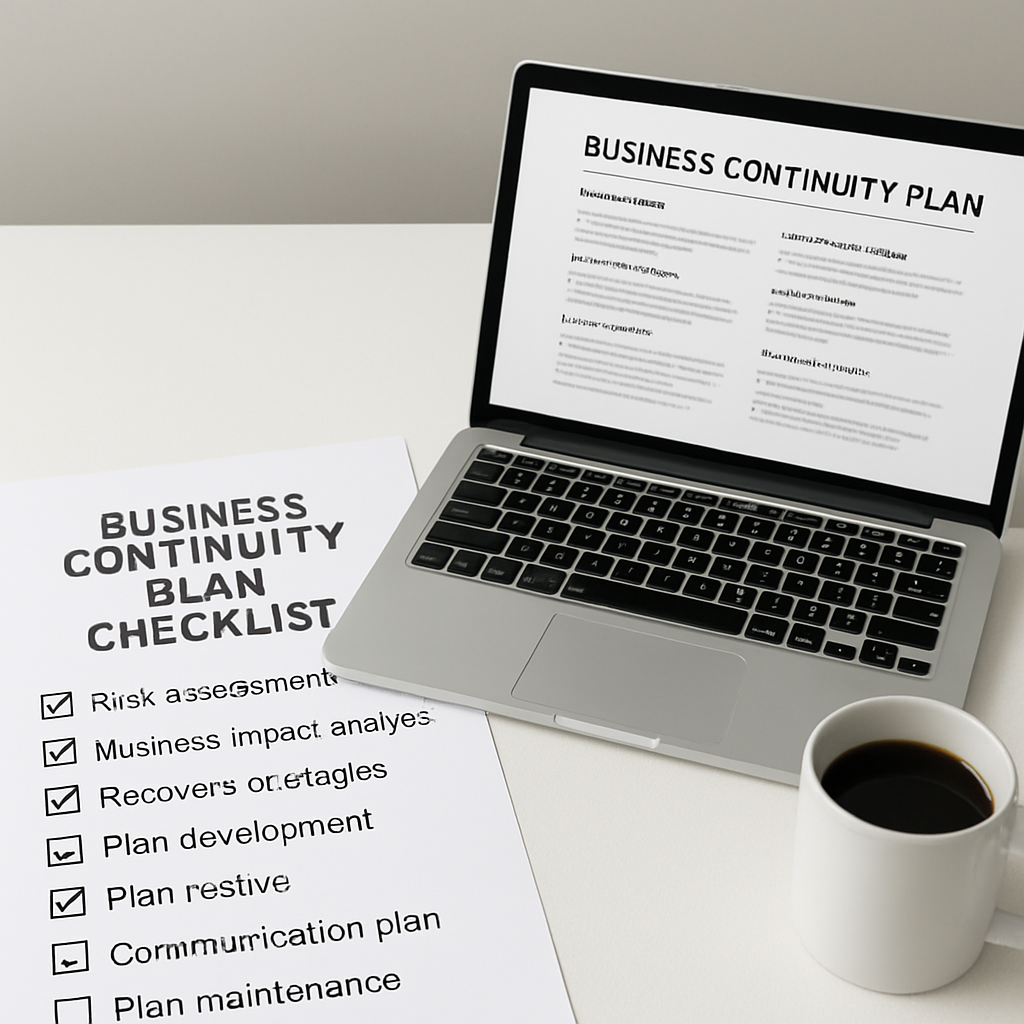
2. Conduct a Risk Assessment and Set Recovery Objectives
Let’s be blunt: if you don’t know what can break, you can’t plan to fix it.
This section is where you turn guesses into numbers — downtime costs, acceptable data loss, and who actually does the work when systems fail.
1) Start with a short, focused inventory
List the business functions (not every file) that must keep running: payment processing, EHR access, invoicing, order fulfillment, court filings. Keep it to the top 8–12 items.
For each function note: system owner, vendor contact, location of backups, and where the process runs (on‑prem, cloud, hybrid).
2) Score impact and likelihood — fast
Use a simple 1–5 scale for both impact and likelihood. Multiply them to rank your risks.
Example: if invoicing is down for four hours, estimate lost revenue per hour. That gives the CFO a number you can use to set RTOs.
Does that sound uncomfortable? Good. If you can say “we lose $X per hour,” people listen.
3) Define RTOs and RPOs — be specific
RTO (Recovery Time Objective): maximum tolerable downtime for a function. RPO (Recovery Point Objective): how much data loss you can accept.
Practical rule: tie RTO/RPO to the business owner’s tolerance. A dental practice scheduling system may need an RTO of 2 hours and RPO of 15 minutes; an archival reporting database may be 24 hours and RPO 24 hours.
4) Run one “what if” interview per week
Pick a function and ask its owner to walk you through the restore steps like the system vanished. You’ll find hidden dependencies — a shared SFTP account, a forgotten drive, or a vendor SLA you never reviewed.
In our experience, those interviews reveal the real gaps faster than any spreadsheet audit.
So what should you do next?
Put the RTO and RPO into a single line item per function and attach names. No name, no recovery.
Tip: schedule quarterly tabletop tests for your top 5 functions. Mark “Last tested” in your inventory and make it visible to the leadership team.
Actionable checklist (do this in the next 2 weeks)
1) Build the top‑10 functions inventory. 2) Assign owners and contacts. 3) Score impact/likelihood. 4) Set RTO/RPO. 5) Run one what‑if interview.
Need a worksheet or help turning this into technical recoveries? Consider managed support for mapping the technical pieces to your RTO/RPOs: Managed IT Services | SRS Networks.
| Feature / Item | Decision / Value | Notes / Example |
|---|---|---|
| Critical function | Rank 1–10 | Order processing — immediate priority |
| RTO | Minutes / Hours | Payment gateway RTO: 30 minutes |
| RPO | Minutes / Hours / Days | Inventory DB RPO: 15 minutes |
Final thought: make the numbers visible. When the CFO, compliance lead, and ops can see impact in dollars and minutes, continuity planning stops being optional and becomes priority.
Keep the inventory simple, test often, and update the RTO/RPOs after each drill.
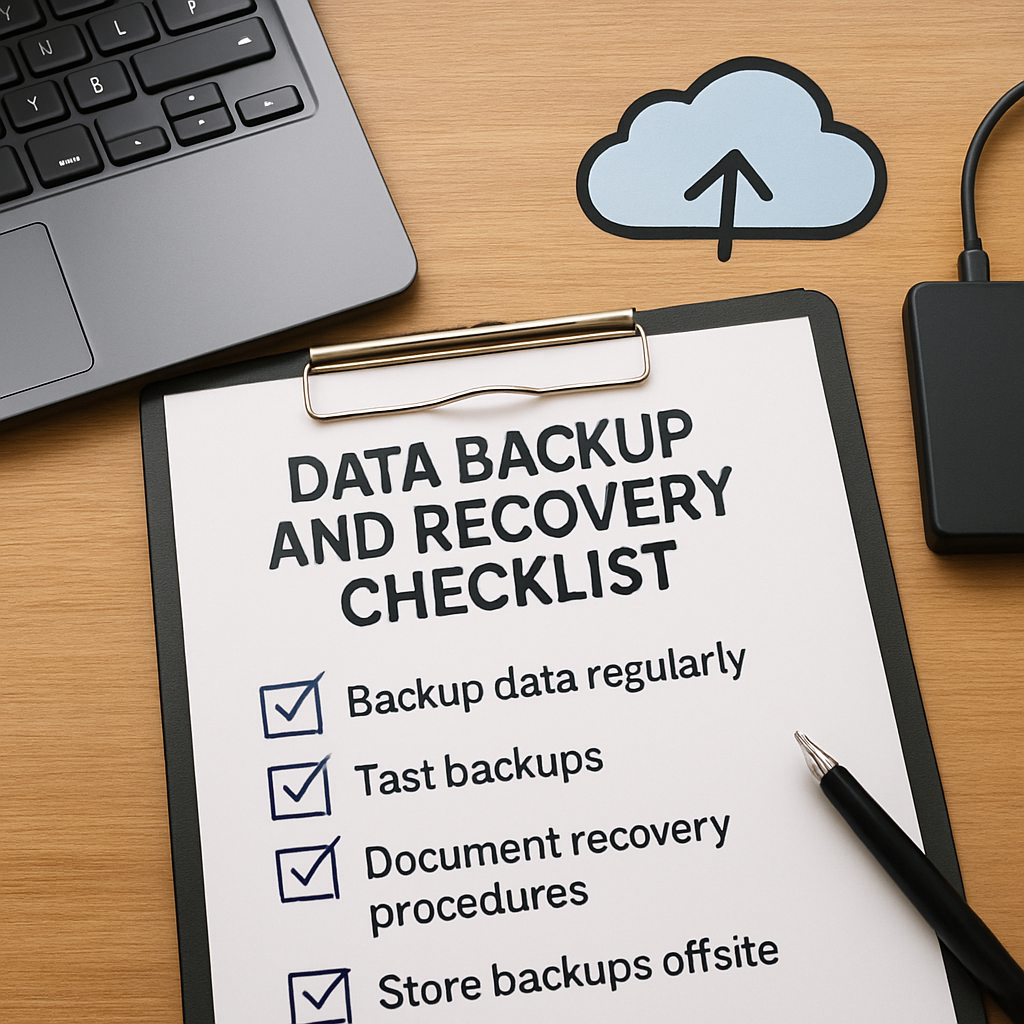
3. Define Data Backup and Recovery Strategies
When you finally sit down to map out a business continuity plan template, the part most SMBs wrestle with is data – what to back up, how often, and how fast you can get it back when the lights go out. Below is a practical listicle that walks you through the core pieces, real‑world examples, and bite‑sized actions you can start this week.
1. Classify Your Data by Business Impact
First, separate data into three buckets: mission‑critical, essential, and non‑essential. Mission‑critical items are the ones that, if missing for even an hour, hit revenue or compliance head‑on. Essential data can tolerate a few hours of loss, while non‑essential is “nice‑to‑have.”
Example: A dental practice’s patient records, appointment scheduler, and insurance claim files belong in the mission‑critical bucket. Their marketing flyers sit in non‑essential.
Action step: Open a simple spreadsheet, create columns for Data Set, Impact Tier, Estimated Revenue Loss per Hour, and Owner. Fill in at least five items today.
2. Pick the Right Backup Frequency for Each Tier
Once you know the tier, match it to a backup cadence. Mission‑critical = near‑real‑time or hourly snapshots; essential = daily; non‑essential = weekly.
Why does this matter? A 2025 Carbonite white paper notes that SMBs that adopt cloud‑based, frequent backups see up to a 40% reduction in downtime costs compared to weekly tape backups.Read the study.
Action step: Set up a recurring task in your calendar to verify that the hourly backup job for your EHR system runs without error.
3. Choose Where to Store Backups – 3‑2‑1 Rule
Rule of thumb: keep three copies of your data, on two different media, with one copy off‑site. For most SMBs, that translates to:
- Primary live environment (on‑prem server or primary cloud VM)
- Secondary local backup – a NAS or external RAID array
- Off‑site/cloud vault – a reputable SaaS backup provider
Real‑world tip: A small accounting firm in Salinas moved its weekly NAS backup to an encrypted cloud bucket. When a rogue ransomware hit the office network, the cloud copy was untouched and they restored in under two hours.
Action step: Verify that at least one of your backup destinations resides outside the physical office – a simple cloud storage account will do.
4. Define Recovery Point Objective (RPO) and Recovery Time Objective (RTO)
RPO answers “how much data can we afford to lose?” RTO answers “how fast must we be back online?” Align both to the impact tier you defined earlier.
Example: For the payment gateway, an RPO of 15 minutes and an RTO of 30 minutes keep checkout flowing and avoid lost sales. For archived HR files, an RPO of 24 hours and RTO of 4 hours is acceptable.
Action step: Write a one‑page table that lists each system, its RPO, RTO, and the person responsible for meeting those targets.
5. Test, Document, and Iterate
Backups are useless if you can’t restore them. Schedule a “restore drill” for one system each month. Run the restore on a test machine, note any hiccups, and update the documentation.
During a tabletop test last quarter, a local legal office discovered their encrypted backup key was stored on a shared drive that was also encrypted – a single point of failure. After moving the key to a password manager, their RTO dropped from 4 hours to 45 minutes.
Action step: Add a “Last Restored” column to your backup spreadsheet and mark the date after each successful drill.
6. Automate Alerts and Reporting
Set up email or SMS alerts for backup failures, missed schedules, or storage capacity thresholds. An automated dashboard that flashes red when a job fails gives you a chance to intervene before a crisis.
Tip: Most backup SaaS platforms let you route alerts to a shared Slack channel or IT ticketing system – no extra cost, just better visibility.
Action step: Create a single alert rule for “Backup job failed” and assign it to your IT manager.
By breaking the backup and recovery puzzle into these six bite‑sized pieces, you turn a daunting “business continuity plan template” chapter into a doable checklist. The goal isn’t perfection; it’s progress you can measure and improve each month.
4. Implement Cybersecurity Measures to Protect Continuity
We all know a cyber attack can turn a smooth‑running day into a scramble for passwords and backups. The good news? A handful of focused security steps can keep the panic at bay and let your continuity plan actually work when it’s needed.
1. Start with a Baseline Security Audit
Before you buy any fancy tool, take a quick inventory of what you already have. Which servers sit behind a firewall? Which workstations run outdated OS versions? Jot down the answers in a simple spreadsheet.
Does it feel like a chore? Think of it as the “check‑engine” light on your car – you wouldn’t drive far without knowing what’s under the hood.
Action step: Run a free vulnerability scanner (many vendors offer a 30‑day trial) and capture the top three findings. Assign a person to fix them within a week.
2. Harden Endpoints with Multi‑Factor Authentication (MFA)
Passwords alone are like leaving the front door unlocked. Adding a second factor – a code from an app, a fingerprint, or a hardware token – makes it a lot harder for a thief to get in.
Picture a receptionist who suddenly receives a login alert for a privileged account they never use. With MFA, that alert would stop the breach before it spreads.
Action step: Enable MFA on all cloud services (email, file storage, admin portals) and require it for any remote‑access VPN.
3. Segment Your Network
Think of your network as a house with rooms. If a burglar gets into the kitchen, you don’t want them wandering into the bedroom. By separating critical systems (e.g., POS, patient records) from general office devices, you limit how far an attacker can move.
Does that sound like a lot of configuration? Start small: create a VLAN for your finance and compliance servers and block traffic from guest Wi‑Fi.
Action step: Work with your IT partner to define at least two zones – “core” for mission‑critical apps and “edge” for everyday workstations – and enforce firewall rules between them.
4. Deploy Automated Patch Management
Every month, software vendors release patches that close known holes. Manually installing them is a recipe for missed updates and exposed data.
Imagine you’re running a dental practice and a ransomware strain exploits a known Windows flaw that you never patched. One click could shut down appointments for days.
Action step: Enable automatic updates on all supported operating systems and schedule a weekly “patch window” for any legacy applications that need manual handling.
5. Backup Encryption & Key Management
Backups are the lifeline of any continuity plan, but if the backup itself gets encrypted by ransomware, you’re back to square one. Encrypt your backup data at rest and store the encryption keys separately – preferably in a password manager or a hardware security module.
Does storing keys feel risky? It’s actually safer than keeping them on the same server that holds the data you’re protecting.
Action step: Verify that your backup solution supports AES‑256 encryption and that the key is stored off‑site or in a dedicated vault.
6. Conduct Regular Phishing Simulations
People are often the weakest link. A well‑crafted phishing email can hand over credentials in seconds.
Think about that moment when you get an email that looks like it’s from your bank, urging you to verify a payment. If you click, you’ve just opened the door.
Action step: Run a quarterly phishing test for all staff, then hold a short debrief to point out the tell‑tale signs they missed.
All these steps might look like a lot, but they’re meant to be tackled one at a time. Pick the item that feels most urgent for your business – maybe it’s MFA – and get it done. Then move on to the next.
When each piece clicks into place, your business continuity plan template transforms from a paper exercise into a real safety net you can rely on.
5. Leverage Cloud‑Based Disaster Recovery Services
When a storm knocks out your on‑prem server, the last thing you want is to scramble for tapes in a basement. That’s where cloud‑based disaster recovery (DR) swoops in – a safety net that’s already online, already synced, and ready to spin up at a moment’s notice.
1. Forget the “one‑copy” myth – use automated, near‑real‑time replication
Instead of pulling a weekly backup and hoping it’s fresh enough, set up continuous data replication to a cloud vault. Services from major providers can mirror your critical VMs every few minutes, so if your primary site goes dark you’re only a few minutes behind.
Actionable step: In your business continuity plan template, add a line that says “Enable continuous replication for all mission‑critical workloads, with a recovery point objective (RPO) of ≤ 15 minutes.”
2. Choose the right recovery‑as‑a‑service (RaaS) model for your budget
There are three flavors most SMBs see:
- Cold standby – you keep a dormant VM in the cloud; you spin it up when needed. Cheapest, but takes 30‑60 minutes.
- Warm standby – the VM runs at a low tier, already synced. You’re looking at 10‑15 minutes.
- Hot standby – a fully operational duplicate that can take over instantly. Best for e‑commerce checkout or point‑of‑sale, but costs more.
Tip: Map each of your critical functions (order processing, patient scheduling, invoicing) to one of these tiers in the template. That way you know exactly how much you’re spending for the speed you need.
3. Leverage built‑in failover orchestration
Most cloud DR platforms let you script a failover: “If primary network is unreachable, launch VM X, re‑point DNS, notify users.” It removes the “who’s in charge?” panic.
Real‑world example: A Salinas dental practice we helped set up a warm‑standby DR site. When a power surge knocked out their on‑prem server, the cloud service automatically brought the EHR system online in 12 minutes. Patients were barely aware of any hiccup.
Actionable step: Document the exact failover sequence in your template, and assign it to the IT Disaster Recovery Manager (see the role description for guidance).
4. Test, test, and test again – the cloud makes it painless
Because the DR environment lives in the cloud, you can spin it up for a drill without touching production. Run a quarterly “fire‑drill”: trigger a failover, verify that users can log in, and measure the recovery time objective (RTO).
During a recent drill for an accounting firm, the team discovered that a custom backup script wasn’t running on the weekend. Fixing that reduced their RTO from 45 minutes to 20 minutes.
Add a checklist item: “Quarterly cloud DR drill – record RTO, note gaps, update template.”
5. Keep an eye on costs and data sovereignty
Pay‑as‑you‑go pricing can surprise you if you leave a hot‑standby VM running 24/7. Set budget alerts, and review storage locations to meet HIPAA or PCI compliance.
For healthcare clients, we recommend a multi‑region bucket that stores encrypted backups in a U.S. data center – that satisfies most state regulations while still giving you geographic redundancy.
Action step: Add a “cost‑monitor” column to your DR section and schedule a monthly review.
6. Assign clear ownership – the people side matters
Technical tools won’t save you if nobody knows who hits “activate.” The IT Disaster Recovery Manager role highlights the importance of a single point of contact who oversees replication, failover, and testing.
In our experience, naming a single point of contact cuts decision‑making time in half. Write their name, phone, and backup contact right under each DR scenario in the template.
Bottom line: cloud‑based disaster recovery isn’t a fancy add‑on; it’s a core piece of any business continuity plan template. By automating replication, matching RaaS tiers to your business impact, scripting failover, testing regularly, watching costs, and assigning ownership, you turn a scary “what if” into a predictable, manageable process.
Ready to put these steps into your template? Give us a shout – we’ll walk you through the right cloud DR service for your industry and help you embed the checks that keep you up and running.
Business Continuity Plan Template Options: Comparison Table
When you sit down to pick a template, you’re not just choosing a layout – you’re deciding how much time, money, and headache you’ll spend later. Does a simple spreadsheet feel safe enough, or do you need a cloud‑based solution that can auto‑update when a new regulation pops up? Let’s walk through the three most common approaches you’ll see on the market.
First, the good‑old spreadsheet. It’s cheap, you can copy‑paste rows in a minute, and you control every cell. But ask yourself: if a new HIPAA rule arrives next month, will you remember to add a column, or will the whole thing get stale?
Second, a dedicated Business Continuity Plan SaaS. Services built on platforms like AWS often bundle impact analysis tools, automated reminders, and version control. AWS outlines how impact analysis drives BCP choices, making it easy to see which functions need the fastest recovery.
Third, a hybrid managed option where an IT partner custom‑crafts a template, hosts it in the cloud, and handles quarterly reviews. This gives you the structure of a SaaS but with the personal touch of a local expert who knows the Salinas compliance landscape.
So, which one feels right for your business? Below is a quick side‑by‑side comparison to help you decide.
| Option | Typical SMB Use‑Case | Pros | Cons |
|---|---|---|---|
| Basic Spreadsheet | Very small firms (1‑5 users) that need a quick start | Low cost, fully customizable, no learning curve | Manual updates, easy to become outdated, no built‑in alerts |
| Cloud‑Based BCP SaaS | Growing businesses (10‑50 users) that want automated reminders and impact‑analysis features | Automatic versioning, built‑in compliance checks, easy sharing | Subscription fee, less flexibility for niche processes |
| Hybrid Managed Service | Mid‑size firms (20‑100 users) that need compliance expertise and ongoing support | Tailored to industry regs, regular reviews, single point of contact | Higher upfront cost, relies on external partner availability |
Notice how the “pros” line up with the pain points we’ve talked about earlier – cost monitoring, ownership, and testing. If you’re still unsure, ask yourself: do I have the time to keep a spreadsheet current, or would I rather pay a modest subscription for peace of mind? Or maybe you need the hands‑on guidance of a local managed service to stay HIPAA‑compliant.
One more tip: whatever option you pick, treat the template as a living document. Schedule a quarterly “quick‑check” – open the file, verify the RTOs, and make one tiny update. Over a year you’ll have a plan that actually works when disaster strikes.
Finally, remember that a Business Continuity Plan isn’t just a tech checklist; it’s a bridge between people and processes. As Freed Maxick explains, BCP and disaster recovery overlap but serve different moments in a crisis. Choose the template that keeps that bridge sturdy, and you’ll sleep a little easier.
FAQ
What exactly is a business continuity plan template and why should my SMB use one?
A business continuity plan template is a pre‑structured worksheet that walks you through identifying critical processes, setting recovery‑time objectives, assigning owners, and defining backup‑and‑restore steps. Think of it as a cheat‑sheet that turns a chaotic “what‑if” scenario into a clear, repeatable playbook. Using a template saves you hours of drafting, ensures you don’t miss compliance‑related fields, and gives your team a single source of truth when disaster strikes.
How often should I update the template?
Treat the template like a living document. At a minimum, run a quick review every quarter – open the file, verify that the RTOs still match business expectations, and confirm contact info is current. If you add a new service, launch a new marketing channel, or undergo a regulatory audit, update the relevant rows right away. A habit of quarterly “quick‑check” keeps the plan realistic and prevents surprise gaps.
What are the most common mistakes SMBs make when filling out the template?
First, they leave the “owner” column blank, assuming someone will figure it out later. Second, they set generic recovery times like “within a day” without tying them to actual revenue loss. Third, they forget to map third‑party dependencies – an API or a cloud‑hosted service that could fail too. Avoid those pitfalls by assigning a named person, quantifying the impact in dollars or compliance penalties, and listing every external vendor.
Can I use a simple spreadsheet, or do I need special software?
A spreadsheet works fine for most small‑to‑mid‑size firms – it’s cheap, customizable, and easy to share. If you start needing automated reminders, version control, or built‑in compliance checks, a cloud‑based BCP SaaS might be worth the subscription. The key is to pick the tool that matches the complexity of your operations; don’t over‑engineer a solution that nobody will maintain.
How do I test the plan without disrupting my day‑to‑day work?
Start with tabletop drills: gather the owners, walk through a realistic outage scenario, and ask each person to explain their exact steps. No systems are shut down, but you surface hidden gaps. After the discussion, schedule a one‑hour “restore drill” for a low‑risk system – maybe a test server or a non‑critical database – and document the time it takes to bring it back online.
What role does cybersecurity play in a business continuity plan?
Cyber threats are now one of the top causes of downtime, so your template should include ransomware‑response actions, multi‑factor authentication enforcement, and backup‑encryption key storage. Add a row that lists the incident‑response lead, the steps to isolate infected machines, and the location of the offline backup key. When you align security tasks with recovery objectives, you protect both data integrity and operational uptime.
Is it worth hiring an outside partner to help me complete the template?
If you’re juggling compliance requirements like HIPAA or PCI, an experienced IT partner can audit your inventory, suggest realistic RTOs, and set up automated backup monitoring. The investment often pays for itself by preventing costly downtime and audit penalties. However, if you have an in‑house team comfortable with spreadsheets and basic risk scoring, you can get a solid start on your own and bring a consultant in for periodic reviews.
Conclusion & Next Steps
We’ve walked through the why, the what, and the how of building a solid business continuity plan template. If you’ve been nodding along, you probably already see the gaps in your own inventory.
So, what’s the first move? Grab a plain spreadsheet or a simple online sheet and list your three most‑critical functions – payment processing, patient scheduling, or client file access – whatever drives revenue day‑to‑day.
Next, assign a real person to each row. No “IT team” vague placeholder – put a name, phone, and backup contact. That tiny detail saves hours when a outage hits.
Then, set a realistic RTO and RPO. Think in minutes for checkout, hours for internal reports. Write those numbers next to the function and lock them in.
Finally, schedule a 60‑minute “restore drill” for one of those functions within the next two weeks. Run it on a non‑critical system, note how long it takes, and adjust your template accordingly.
Does this feel doable? Absolutely. The key is to treat the template as a living document, not a one‑time checklist.
Ready to tighten the gaps before they become emergencies? Reach out for a quick, no‑obligation assessment – we’ll help you put the pieces together and keep your business humming.