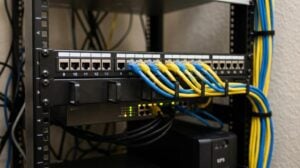
Ever stared at a frozen screen on a busy Monday morning, wondering why nothing’s moving and the whole office feels like it’s on pause? That moment of panic is all too familiar for small business owners in Monterey.
What we’ve seen over the past 28 years is that the biggest productivity killer isn’t a lack of talent—it’s a tech hiccup that could have been fixed on the spot. When a printer jams during a client checkout or a point‑of‑sale system crashes during lunch rush, every minute of downtime costs you real revenue.
That’s why on‑site IT support matters. A local technician can walk to your door, diagnose the issue, and have you back up and running before you even finish your coffee. Imagine a senior care facility where electronic health records must stay online for compliance – a quick on‑site visit prevents a potential HIPAA breach and keeps caregivers focused on patients.
Here’s a quick checklist you can use right now to decide if you need an on‑site visit:
- Critical hardware failure (servers, network switches, workstations)
- Repeated software crashes that remote tools can’t resolve
- Compliance‑driven audits requiring physical inspection of devices
- Urgent data recovery after accidental deletion
- Any issue that’s halting customer‑facing operations
In our experience, businesses that pair fast on‑site response with a solid IT Support & Help Desk see a 30 % drop in average downtime within the first three months. The help desk logs the ticket, the on‑site tech brings the right tools, and together they close the loop.
Speed isn’t the only advantage. Local technicians know Monterey’s unique network quirks—like the occasional ISP outage on the 17‑mile stretch of Highway 1. They speak the same language as your staff, understand the local regulatory climate, and can tailor solutions that fit the size and budget of a boutique law firm or a bustling e‑commerce shop.
So, what should you do next? Grab your phone, call us, and schedule a same‑day visit. Whether you need a one‑time repair or a recurring on‑site maintenance plan, we’ll tailor a solution that keeps your tech humming.
Ready to stop the tech headaches? Call Now or Book Your Onsite Visit today and experience the peace of mind that comes with a local Monterey tech partner.
TL;DR
If your Monterey business can’t afford downtime, fast onsite IT support brings a local technician to your door, fixes hardware or software glitches, and gets you back online within hours. Call now or book your onsite visit for same‑day service, and enjoy peace of mind knowing experts understand Monterey’s unique network quirks.
Step 1: Assess Your Business IT Needs
First thing’s first – before you even think about calling a tech‑guy, you need to know what’s actually broken or missing. It’s easy to assume “the computer’s slow” and waste an hour on a simple reboot, but a quick self‑audit can save you time, money, and a lot of frustration.
Grab a pen or open a note on your phone and walk through these three buckets: hardware, software, and compliance. For hardware, ask yourself: Are any servers humming louder than usual? Is a workstation refusing to boot after a power surge? Do network switches show blinking error lights? Anything that’s physically “off” usually needs a technician on‑site.
Software questions are a little more nuanced. Is your point‑of‑sale system crashing during lunch rush? Are employees getting “application not responding” errors on the same file every day? Do you see recurring updates that never finish? These clues point to deeper OS or application issues that remote tools often can’t untangle.
Compliance is where the stakes get high, especially for healthcare, legal, or financial firms. Do you have HIPAA‑required audit logs stored locally? Are encryption keys kept on a server that’s been patched in the last 30 days? If you’re unsure, that’s a red flag that a qualified on‑site professional should examine the environment in person.
Quick self‑assessment checklist
- Critical hardware failure (servers, network switches, workstations)
- Repeated software crashes that remote tools can’t fix
- Regulatory audits demanding physical device inspection
- Data loss or accidental deletions needing immediate recovery
- Any issue that stops customer‑facing operations
Take a moment now and tick off what applies to you. If you answered “yes” to more than one, you’re probably staring at a situation that warrants onsite IT support.
But how do you decide which issues merit a same‑day visit versus a scheduled maintenance window? Think about the impact on revenue. A frozen checkout screen during a busy Saturday can cost a boutique retailer dozens of sales per hour. A downed EMR system in a senior‑care clinic could jeopardize patient safety and trigger compliance penalties. Those are the kinds of problems that deserve the fastest response possible.
When you’ve identified the pain points, it’s time to match them with the right service. Our IT Support & Help Desk team can triage the issue remotely, but if the checklist above flags hardware or compliance concerns, we’ll dispatch a local Monterey technician the same day. That on‑site expertise means you get the right tools, cables, and replacement parts right at your door.
Here’s a simple three‑step process you can follow right now:
- List the symptoms you’re seeing, including timestamps and error messages.
- Rank them by how quickly they affect customers or compliance.
- Call your trusted IT partner and request an onsite assessment for the top‑ranked items.
Even if you’re not ready to call a pro yet, this exercise clarifies the conversation you’ll have with them. You’ll know whether you need a one‑time repair, a recurring maintenance schedule, or a broader managed‑services engagement.
And remember, technology isn’t just a cost center – it’s an enabler of revenue. The faster you can pinpoint the problem, the quicker you get back to serving customers, patients, or clients.
Watching the short video above will walk you through a typical onsite visit, from the initial call to the final sign‑off.
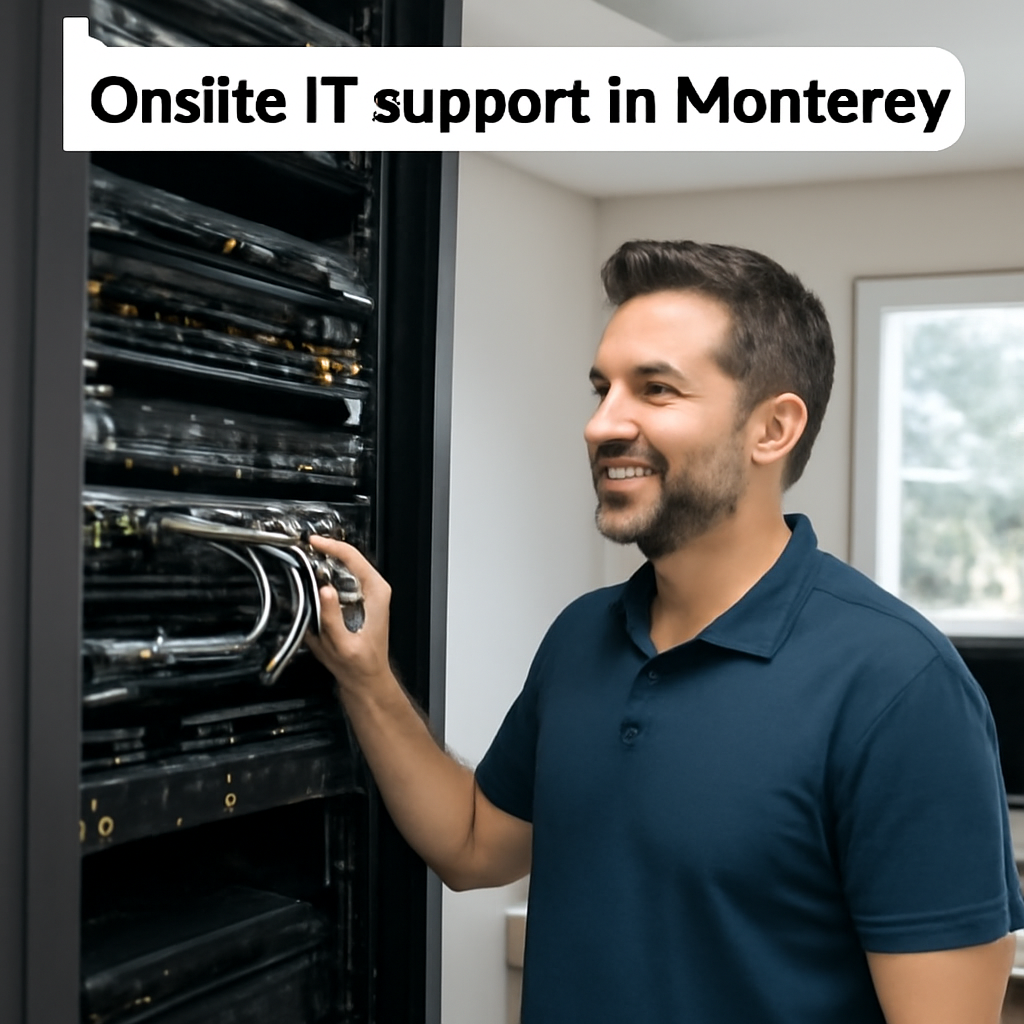
Ready to take the next step? Give us a call now or book your onsite visit online. Let’s turn that tech headache into a thing of the past.
Step 2: Define Service Scope and Response Levels
Okay, you’ve already taken inventory. The next question is: what exactly do we promise to fix, and how fast? That’s where a clear service scope and response‑level plan become your safety net.
Think of it like a restaurant menu. You don’t want to order “food” and be surprised with a mystery plate. You want to know that a broken POS terminal will be looked at within an hour, while a routine printer check can wait a day. Defining those expectations up front stops the frustration of “why isn’t anyone here yet?”
Map the services you actually need
Start by grouping every device or application into three buckets: critical, important, and optional. Critical items are anything that stops revenue – your checkout system, electronic health record (EHR) server, or a cloud‑backed inventory database. Important items keep the office humming – Wi‑Fi routers, shared printers, and workstations. Optional are nice‑to‑have, like a digital signage display.
Write a one‑sentence description for each bucket. For example, “Critical: Point‑of‑sale terminals must be operational 99.9 % of business hours.” This short statement becomes the basis of your service‑level agreement (SLA).
Set realistic response and resolution times
Now attach a timer to each bucket. A good rule of thumb for SMBs in Monterey is:
- Critical – 30 minutes response, 2 hours resolution.
- Important – 2‑hour response, same‑day resolution.
- Optional – 4‑hour response, 48‑hour resolution.
Those numbers aren’t set in stone; they should reflect your team’s capacity and the local tech‑scene’s typical turnaround. If you’re a healthcare provider, you might tighten the critical window to 15 minutes to stay HIPAA‑compliant.
We like to back this up with a quick read on why SLAs matter: learn how service‑level agreements help manage expectations and keep downtime low. The article explains how clear response times keep users happy and technicians accountable.
Build escalation paths
Even the best‑planned response can hit a snag. That’s why you need a two‑tier escalation ladder. Tier 1 is your on‑site technician – the person who shows up at the door. If they can’t solve the issue within the agreed resolution window, Tier 2 kicks in: a senior engineer or a remote specialist who can jump on a call, pull logs, or even dispatch a replacement part.
Document who to call, how to reach them, and what authority they have (e.g., can they approve a hardware purchase on the spot?). This eliminates the “who do I call now?” panic moment.
Real‑world snapshots
Take a local boutique law firm we helped last summer. Their case‑management software was hosted on a single aging server. We classified the server as critical and set a 30‑minute response SLA. When the server hiccuped, the technician was at the office within 20 minutes, swapped a faulty SSD, and got the system back online in under an hour. The firm avoided a full day of lost billable hours.
Contrast that with a small coffee shop that listed its Wi‑Fi router as important. The router crashed during a busy morning, and the on‑site tech arrived within two hours, replaced the unit, and the shop was back to serving latte lovers before the lunch rush.
Actionable checklist
- List every service. Use the inventory you created in Step 1.
- Assign a priority tier. Critical, important, optional.
- Define response & resolution windows. Base them on business impact.
- Write escalation steps. Who, how, and when.
- Share the SLA. Put it in a shared folder, sign off with your manager, and hand a copy to your on‑site tech.
When you hand this roadmap to a local Monterey technician, they know exactly what to bring – spare parts for critical servers, a laptop with remote tools for important workstations, and a spare printer cartridge for optional devices.
Need hardware expertise? Our IT Hardware Services & Support | SRS Networks team can help you size the right backup devices and keep the spare‑part inventory tidy.
Finally, remember that a well‑crafted SLA isn’t a static document. Review it every quarter, adjust the timeframes as your business grows, and keep the conversation alive with your tech partner.
Looking for a broader digital strategy? Pair your on‑site support with a solid web presence – check out this guide on website design packages pricing for Australian SMBs. Even though you’re in Monterey, the principle of bundling design and support applies.
If you’re dabbling in crypto payments or blockchain‑based records, you might also want legal eyes on compliance. The team at NeosLegal UAE Crypto Lawyers writes about regulatory pitfalls that tech teams often miss.
Ready to lock in your service scope and response levels? Contact us for a quick consult, or give us a call now and get a custom SLA drafted for your Monterey business today.
Step 3: Choose the Right Onsite IT Support Model
Now that you’ve mapped out which devices are critical and set response windows, the next question is: how do you actually get a technician to your door? Not every Monterey business needs a full‑time in‑house IT guru, but you also don’t want to be stuck waiting for a remote call when a printer jams during the lunch rush.
There are three common models you’ll run into: a dedicated on‑premises staff member, a scheduled “on‑call” rotation, and a pay‑as‑you‑go on‑site contract. Each one has a different rhythm, cost structure, and level of personalization.
1. Dedicated On‑Premises Technician
This is the classic “you’ve got a tech in the back office” setup. It works best for businesses with a lot of hardware to manage – think dental clinics with multiple imaging devices, or a legal firm with secure document scanners. The tech lives on site, knows every cable under your desk, and can jump on a problem the second the phone rings.
Pros: immediate response, deep familiarity, proactive maintenance. Cons: higher salary overhead, you’re paying for idle time when nothing breaks.
2. On‑Call Rotation (Shared Pool)
Here you contract with an MSP that assigns a rotating technician to your account. When you need help, the next person in the rotation shows up, usually within the SLA window you defined earlier. This model balances cost and speed – you get same‑day service without the full‑time salary.
Pros: lower cost than a full‑time hire, still fast. Cons: the tech may not know every quirk of your setup until the first visit, and you might have to wait a few hours if the rotation is busy.
3. Pay‑As‑You‑Go On‑Site Visits
Think of this as “call‑out” support. You pay per incident, and the MSP schedules a technician to come out when the ticket hits a certain priority level. Small retailers or boutique agencies often choose this because hardware incidents are sporadic.
Pros: you only pay for what you need, easy to scale up or down. Cons: response times can be slower, especially if the provider’s crew is spread across multiple towns.
So, which model feels right for you? Ask yourself: do you have a steady stream of hardware issues, or are most of your headaches software‑related and solvable remotely? Do you need a tech who knows the back‑room wiring of your health‑records server, or would a quick visit to replace a failed hard drive suffice?
Below is a short video that walks through how each model impacts cost, response time, and day‑to‑day workflow. It’ll help you visualize the trade‑offs before you pick a path.
After you’ve watched the clip, take a moment to list your top three “must‑have” scenarios – for example, “critical POS must be fixed within 30 minutes” or “annual HIPAA audit equipment must be inspected on‑site.” Match those scenarios to the model that guarantees the fastest, most reliable response.
Quick Decision Checklist
- Do you have >5 critical devices that need daily hands‑on care? → Dedicated technician.
- Is your budget tight but you still need same‑day fixes for high‑impact issues? → On‑call rotation.
- Are incidents rare and mostly low‑priority? → Pay‑as‑you‑go visits.
One more thing to keep in mind: many Monterey MSPs now offer a hybrid option – a core on‑call contract plus the ability to call a remote technician for software patches. This gives you the best of both worlds and lets you stay flexible as your business grows.
Remember, the model you choose isn’t set in stone. As you add new devices or your compliance needs evolve, you can shift gears. The key is to start with a clear picture of your priorities and pick the model that aligns with both your budget and your peace of mind.
Ready to lock in a model that fits your Monterey business? Read more about the pros and cons of onsite versus remote IT support and then give us a call. Let’s craft a plan that gets the right tech at your door exactly when you need it.
Step 4: Evaluate Providers & Pricing
Now that you know what you need and how fast you need it, the next puzzle piece is figuring out which local Monterey partner actually delivers on those promises without blowing your budget.
1. Build a shortlist based on trust signals
Start with anyone you’ve heard recommend in the community – a fellow dentist, a boutique law firm, or the owner of the downtown bakery. Word‑of‑mouth carries weight because those businesses have already lived through a tech emergency and can tell you whether the tech showed up on time, explained the fix in plain language, and left the site cleaner than they found it.
Next, scan the California Contractor’s State License Board or the Better Business Bureau for any red flags. A clean record isn’t a guarantee, but it weeds out providers who consistently drop the ball.
2. Compare service models and what they cost
Take the three models we covered earlier – dedicated on‑premises, on‑call rotation, and pay‑as‑you‑go – and line them up against your critical‑device list. For each model ask:
- What’s the hourly rate or flat monthly fee?
- Are travel charges included for visits within Monterey?
- Does the contract lock you into a minimum term?
- How many on‑site hours are bundled before extra charges kick in?
For many SMBs, a hybrid on‑call plus occasional pay‑as‑you‑go call‑out ends up being the sweet spot. It gives you the rapid response you need for a broken POS while keeping costs predictable for the quieter months.
3. Ask the right pricing questions
Don’t be shy about digging into the fine print. Here are a few questions that separate transparent providers from the “we’ll call you back” crowd:
- Do you charge a “rush fee” for emergencies outside normal business hours?
- What’s the markup on spare parts you bring on‑site?
- Is there a discount if we bundle hardware repair with a managed services agreement?
- How do you handle a situation where a problem requires a specialist from another city?
When a vendor can answer each of these clearly, you’ll feel a lot more confident signing a contract.
4. Run a quick cost‑benefit calculator
Grab a spreadsheet and list each provider’s monthly fee, average travel cost, and estimated number of incidents per quarter. Then multiply the incident count by the provider’s average resolution time (in hours) and apply their hourly rate. Compare that total to your current downtime cost – for most Monterey retailers, every minute of POS downtime costs roughly $2 – $5 in lost sales.
If Provider A saves you $1,200 in downtime but costs $1,500 in fees, you might still pick Provider B who’s cheaper overall but takes a bit longer to arrive. The right answer depends on how much you value speed versus cash flow.
5. Verify expertise for your industry
Healthcare clinics need a partner who understands HIPAA‑compliant device logs. Law firms care about encrypted backups and secure document shredding. Ask each candidate to walk you through a recent case that mirrors your environment – but keep it hypothetical. “Imagine a dental office with three imaging machines that need weekly calibration; how would you structure the onsite schedule?” Their answer reveals whether they’ve actually worked with similar compliance constraints.
Once you’ve gathered all the data, rank each provider on a 1‑5 scale for trust, responsiveness, cost, and industry fit. Add up the scores and you’ll have a clear visual of who checks the most boxes.
| Evaluation Criterion | What to Look For | Tip |
|---|---|---|
| Response Time | Guaranteed on‑site arrival within SLA (e.g., 30 min for critical) | Ask for a written SLA and test it with a low‑priority ticket. |
| Pricing Transparency | Flat fees, no hidden travel or parts mark‑up | Request a sample invoice before signing. |
| Industry Experience | References from similar SMBs (healthcare, legal, retail) | Check case studies or ask for a short client call. |

Bottom line: evaluating providers isn’t just about the cheapest quote. It’s about matching the right service model, clear pricing, and proven experience to the specific rhythm of your business. Take the time to ask, compare, and calculate – the peace of mind you gain when a local tech shows up on schedule is priceless.
Ready to put this checklist to work? Give us a call now or book your free onsite evaluation. Let’s find the provider that fits your Monterey business like a glove.
Step 5: Implement, Monitor, and Optimize
Alright, you’ve picked a provider, signed the SLA, and the first on‑site visit is scheduled. What happens next? That’s where the real value of onsite IT support begins.
Kick off with a smooth rollout
Give your technician a clear game plan. Hand over the inventory you built in Step 1, point out the critical devices, and confirm the response windows from Step 2. A quick 15‑minute kickoff meeting (even over coffee) makes sure everyone’s on the same page and avoids surprise trips for “forgotten” equipment.
Ask the tech to tag each piece of hardware with a simple label – a colored sticker or a QR code. It sounds trivial, but when you can glance at a rack and instantly see “critical – SLA 30 min,” you’ll save minutes that add up to hours over a year.
Set up real‑time monitoring
Monitoring isn’t just for data centers. A small dental office in Monterey can benefit from a lightweight agent on each workstation that pings the network every few minutes. If a device goes offline, the system sends an SMS or email before a patient notices a delay.
Think about it this way: you wouldn’t wait for a leaky pipe to flood the floor before calling a plumber, right? Same principle – let the monitoring tool alert you at the first drip.
Most local MSPs will install a dashboard you can open on any browser. Keep the view simple: a traffic‑light indicator for each priority tier (red = critical, amber = important, green = optional). When the light turns red, you know it’s time to fire the “on‑call” rotation or dispatch a dedicated tech.
Track performance – the numbers that matter
After a month of service, sit down with your provider and review the SLA metrics. Did the technician arrive within 30 minutes for that broken POS? How many tickets were resolved on the first visit? Capture these data points in a one‑page scorecard.
Quick checklist:
- Average response time per priority tier
- First‑time‑fix rate
- Mean time to resolution (MTTR)
- Repeat incidents on the same device
- Customer satisfaction rating (thumbs‑up survey)
If any metric falls short, flag it immediately. A five‑minute delay on a critical issue might seem small, but over a quarter it can translate into lost sales for a busy retail shop.
Iterate the SLA based on reality
SLAs aren’t set‑in‑stone. As you gather data, you might discover that a “2‑hour response” for important devices is more than you need, or that an “important” label should be upgraded to “critical” because the device now handles online orders.
Update the SLA the same collaborative way you created it: a short email thread, a revised one‑page doc, and a quick sign‑off from the business owner and the tech lead. This keeps expectations honest and prevents “I thought we agreed on…” moments.
Keep communication casual but consistent
Remember, you’re working with a local Monterey technician, not a faceless call center. A quick text after a visit saying “All set, let me know if anything feels off” builds trust far more than a formal report alone.
Set a recurring 30‑minute check‑in every quarter. Use it to discuss new hardware plans, upcoming compliance audits, or just to ask how the tech likes the new coffee shop down the street.
When things go wrong, have a plan B
Even the best‑prepared teams hit snags. Maybe a spare part is out of stock, or a network outage blocks remote access. That’s why you defined an escalation path in Step 2. Pull the phone, call the senior engineer, and let them coordinate a temporary workaround while the part arrives.
Document the incident in your ticketing system, note the workaround, and add the lesson to your next SLA review. Over time you’ll see patterns and can pre‑stock the most common parts – another cost‑saving win.
Take action now
Ready to turn your plan into results? Give us a call now, or Book Your Onsite Visit to get a technician on the door this week. Let’s implement, monitor, and optimize your onsite IT support so you can focus on serving customers, not fighting tech glitches.
Step 6: Ongoing Training & Documentation
Alright, you’ve got a tech showing up on schedule, you’ve nailed the SLA, and the tickets are getting closed. The next piece of the puzzle is making sure your team actually knows why the tech did what they did – and that you capture that knowledge before it drifts away.
Why training matters (and why it’s not a “nice‑to‑have”)
Imagine you’re a coffee shop owner in Monterey and the POS system glitches right before the lunch rush. The on‑site tech fixes the hardware, but if no one on staff knows how to restart the service after a power bounce, you’ll be back to square one tomorrow. Ongoing training turns a one‑time fix into a lasting solution.
It also builds confidence. When your employees can explain, “I know the backup schedule runs every night at 2 am and I can trigger a manual restore,” they’re less likely to panic the next time something hiccups.
Step‑by‑step training plan
1. Identify the core skills. Pull the incident log from the past quarter. Spot the top three recurring issues – maybe a printer driver conflict, a Wi‑Fi channel interference, or a ransomware alert. Those become your training topics.
2. Create bite‑size modules. Keep each session under 20 minutes. Use a short slide deck, a live demo on a spare workstation, and a one‑page cheat sheet. People remember a quick “how‑to” better than a 2‑hour lecture.
3. Schedule regular “tech huddles.” Block a 30‑minute slot on the first Monday of each month. The on‑site technician leads a walkthrough of the latest module, then opens the floor for questions. Because you’re in Monterey, you can grab a coffee at the same table – that informal vibe makes the info stick.
4. Assign a knowledge‑keeper. Pick one staff member (often the office manager) to collect cheat sheets, update the internal wiki, and tag each document with the relevant device name. When a new tech arrives, they’ll know exactly where to look.
5. Test, then reinforce. After each training, run a quick scenario drill. “Your printer is offline – what’s the first thing you check?” A short quiz or a live mock call reinforces the habit and highlights gaps you can fill next month.
Documenting what works (and what doesn’t)
Documentation isn’t just a PDF you file away. It’s a living playbook that grows with your business.
Use a simple template. For every device, capture:
- Device name and location
- Criticality level (critical, important, optional)
- Last maintenance date
- Key troubleshooting steps
- Contact info for the responsible tech
Store the template in a shared cloud folder that the whole team can access from any device. When the on‑site tech finishes a visit, they fill out the “post‑visit notes” section right then – no later, no forgetting.
Tag each note with a keyword like #printer or #network so you can pull up all related incidents in a single click. Over time you’ll see patterns – maybe a particular model of router fails every six months. That insight tells you when to replace it before it bites.
Making training a habit, not a chore
Here’s a quick habit‑builder checklist you can paste on the break‑room wall:
- Review the latest cheat sheet every morning (2 min).
- Ask the on‑site tech one “what‑if” question during the monthly huddle (5 min).
- Update the wiki after any hardware swap (3 min).
- Log the incident in the ticketing system within 15 minutes of resolution.
When the steps are that short, they feel doable, even on a busy Tuesday.
Training for compliance‑heavy industries
If you run a health‑care clinic or a legal office, the stakes are higher. Your training should include a quick refresher on HIPAA or attorney‑client privilege rules whenever a new device touches sensitive data. A 5‑minute reminder about encryption settings can keep you from a costly audit surprise.
In those cases, let the on‑site tech walk through the specific compliance checklist during their visit. Then add that checklist to your documentation library – it becomes a repeatable audit trail.
Take action now
Ready to turn one‑off fixes into lasting confidence? Grab a notebook, schedule a 30‑minute tech huddle for next week, and ask your local Monterey technician to bring a one‑page cheat sheet for the top three issues you’ve seen.
When you’re set, give us a call or Book Your Onsite Visit so we can help you build the training loop that keeps your business humming.
Conclusion
We’ve walked through everything from mapping your devices to picking the right service model, and now it’s time to put that momentum into action.
Think about the last time a printer jammed during a lunch rush or a server hiccuped right before a client deadline. With a local Monterey technician on call, those moments turn into quick fixes instead of revenue‑losing headaches.
Here’s the simple next step: grab a notebook, schedule a 30‑minute tech huddle for next week, and ask your on‑site pro to bring a one‑page cheat sheet for the top three issues you’ve seen.
When the plan is set, give us a call or Book Your Onsite Visit so we can lock in same‑day service and get your SLA fine‑tuned for your business.
Remember, onsite IT support isn’t a one‑off fix; it’s a partnership that keeps your systems humming, your compliance paperwork tidy, and your team focused on what they do best.
So, are you ready to trade surprise outages for predictable uptime? Call now, and let’s make your technology work for you.
What you’ll gain is peace of mind. Knowing a trusted Monterey tech can pop in the same day means you can focus on serving patients, clients, or customers without watching the clock. We’ve helped local dental offices avoid costly downtime, helped law firms keep confidential files accessible, and kept retail POS systems running smooth during holiday rushes. Our 28 years in Monterey means we understand the unique challenges of our community, from coastal internet quirks to strict HIPAA and legal compliance. Let’s turn those challenges into a competitive edge.
FAQ
What exactly is onsite IT support and how is it different from a remote help desk?
Onsite IT support means a qualified technician shows up at your Monterey office, looks at the hardware, runs diagnostics on the spot, and fixes the problem right there. A remote help desk can walk you through steps over the phone or screen share, but they can’t swap a failed SSD, reconnect a cable, or reboot a server that’s physically stuck. For issues that block revenue – a broken POS, a downed EHR server, or a network outage – having someone in the building cuts downtime dramatically.
How fast can a local Monterey technician arrive for a critical issue?
Most businesses we work with consider a 30‑minute response window the gold standard for critical devices. Because we’re based in Monterey, we can often be at your door within 20‑30 minutes for high‑impact problems like a frozen checkout system or a failed backup appliance. The exact time depends on traffic, the time of day, and whether the issue falls within the agreed SLA, but we always aim to be there before your next customer walks in.
What should I look for in an SLA for onsite IT support?
First, check that the SLA spells out response and resolution times for each priority tier – critical, important, optional. Second, make sure it includes clear escalation steps: who to call if the first tech can’t solve it on the spot. Third, verify that travel costs are covered for same‑day visits within the Monterey area, so you don’t get surprise fees. Finally, look for a provision that lets you review and tweak the SLA every quarter as your business grows.
Can onsite IT support help my business stay compliant with HIPAA or other regulations?
Absolutely. When a technician is on site, they can verify that encryption settings, audit logs, and backup schedules meet HIPAA, NIST, or other industry standards. They can also perform spot checks on device configurations, update firmware, and document every change – creating a paper trail that auditors love. For legal firms, they can ensure secure file transfers and proper disposal of sensitive documents. The hands‑on approach reduces the risk of a compliance miss that could cost you dearly.
What are the typical costs for same‑day onsite visits and how do they compare to hiring a full‑time IT employee?
Same‑day visits usually run a flat hourly rate plus a modest travel fee for the Monterey area. For most SMBs that translates to $150‑$200 per hour, which is often less than the $70‑$90K annual salary plus benefits you’d pay a full‑time employee who might sit idle half the day. You also avoid recruiting, training, and equipment costs. The pay‑as‑you‑go model lets you scale support up or down without a long‑term commitment.
How do I get started with a free assessment or schedule my first onsite visit?
Just pick up the phone or click the “Contact Us” button on our website. We’ll set up a quick 30‑minute call to understand your biggest pain points – whether it’s a flaky Wi‑Fi network, a POS that crashes during lunch, or a compliance audit looming. After that, we’ll send a one‑page checklist and schedule a technician to come by the next business day. The first assessment is free, and you’ll walk away with a clear action plan.