Most free templates just list devices. They forget the details you need to keep your business safe. In this guide you’ll get a hands‑on checklist you can start using today to track every piece of tech in your Monterey office.
We’ll walk through each step, add real‑world tips, and show where security and compliance fit in. By the end you’ll have a living inventory that helps you avoid downtime, meet HIPAA or PCI rules, and keep costs low.
Step 1: Define Asset Categories and Data Fields
Before you can count anything you need a clear list of what counts. The research shows that 14 common categories appear in most public templates , laptops, desktops, mobile devices, routers, switches, external storage, access cards, software applications, software licenses, SaaS tools, cloud subscriptions, security systems, and a few others. ITEGrITI explains why a solid taxonomy is the first line of defense.
Take that taxonomy and add the data fields you actually need. Typical fields include:
- Asset name or ID
- Make / model
- Serial number
- Purchase date
- Warranty expiration
- Owner / user
- Location (room or floor)
- Operating system or firmware version
- Current patch level
- Security configuration (antivirus installed, encryption enabled)
- Compliance tags (HIPAA, PCI, etc.)
- Last audit date
Why each field matters:
Make and model tell you if a vendor has issued a recall. Serial numbers let you match a device to a purchase order and warranty. Owner helps you know who to call when a problem shows up. Patch level and security config let you see if the asset is a risk.
Once you have the list, decide how often you will update each field. Hardware details rarely change, so a quarterly review works. Software version and security config should be checked monthly. Use a simple spreadsheet or a lightweight CMDB tool to store the data.
When you finish the table, you have a master view you can share with your IT partner. Managed IT Services can pull the sheet into their monitoring platform so updates happen automatically.
Bottom line:A clear taxonomy and required fields give you a solid foundation for every later step.
Step 2: Capture Hardware Details with a Visual Asset Map
Now that you know what to record, it helps to see the devices on a floor plan. A visual asset map shows where each piece lives, who uses it, and how it connects to the network. This picture makes it easy to spot gaps, like an orphaned printer in the break room.
Start with a simple drawing of your office layout. Mark each room, conference space, and server closet. Then place icons for laptops, desktops, routers, switches, and any IoT devices. Label each icon with the asset ID you created in Step 1.
There are free tools like draw.io or Lucidchart that let you drag‑and‑drop shapes. Export the map as a PDF and keep it in the same folder as your inventory sheet.
When you walk the office, verify each icon matches the real device. If you find a device that isn’t on the list, add it immediately with all the fields from Step 1. If you find a listed device that’s missing, mark it as retired and note the date.
Having a map also helps you plan network upgrades. You can see which switches are overloaded, where you need extra Wi‑Fi APs, or which rooms could benefit from a power‑over‑Ethernet (PoE) switch.
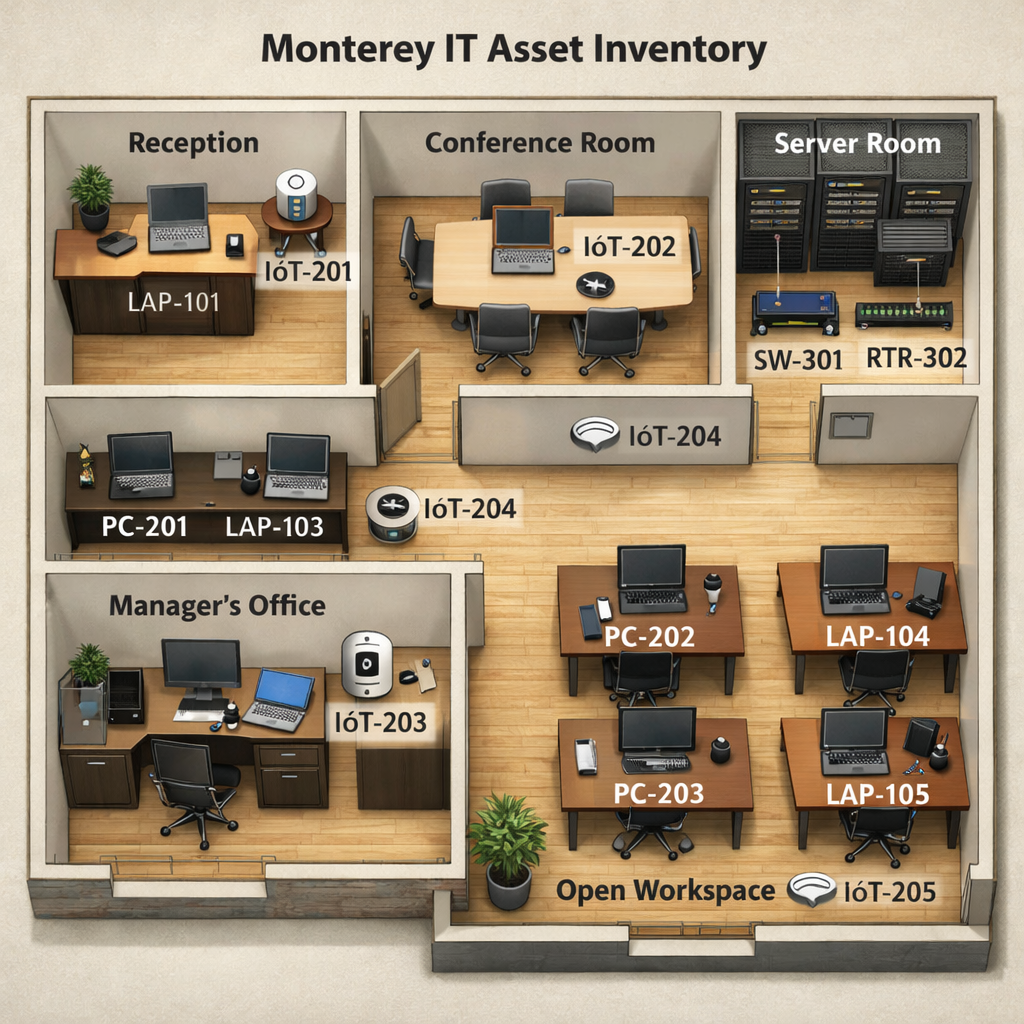
Bottom line:Mapping hardware lets you see the whole picture and catch missing or extra items fast.
Step 3: Record Software Licenses and Cloud Subscriptions
Hardware is only half the story. Software licences and SaaS subscriptions are often the biggest cost surprise for SMBs. Many businesses pay for seats they never use or miss renewal dates, leading to compliance gaps.
Begin by pulling all purchase records from your accounting system. List each product, the number of seats purchased, the expiration date, and the owner department. For cloud services, log the service name, subscription tier, billing cycle, and the data it stores.
Why you need this info:
- Unused licences mean wasted money.
- Expired licences can break critical apps.
- Compliance rules (e.g., HIPAA) require you to know where protected data lives, which often means the SaaS apps that hold it.
To keep the list fresh, set up automated alerts. Most SaaS vendors send renewal emails, but you can also use a simple script or a low‑cost tool that watches your calendar for upcoming dates.
Here’s a quick example of a software row:
When you see a licence that isn’t used, re‑assign it or cancel it. When you see a renewal coming up, evaluate if you still need the same number of seats.
“You can’t protect what you don’t know you have,” says the NIST Cybersecurity Framework.
For a deeper dive on why software tracking matters, see the NIST Cybersecurity Framework. It links asset inventory directly to risk management.
Bottom line:A complete software list lets you control spend and stay compliant.
Step 4: Validate Security Configurations (Video Walkthrough)
With hardware and software logged, the next step is to make sure each item follows your security policies. This means checking firewalls, antivirus, encryption, and multi‑factor authentication (MFA) on every device.
Start with the most critical assets , servers that store patient data, payment gateways, or any system labeled with a compliance tag. Use your inventory sheet to pull the asset IDs and run a quick scan.
Many tools can do this automatically, but you can also run manual checks. For Windows machines, open PowerShell and runGet-MpComputerStatusto see if Windows Defender is on. For macOS, look at the Security & Privacy pane. For network gear, log into the web UI and verify that the latest firmware is installed.
Below is a short video that walks through checking a Windows endpoint and a router configuration. Watch it, then apply the same steps to your own devices.
After the video, use the checklist below to record the status for each asset.
- Antivirus active and up‑to‑date?
- Full‑disk encryption enabled?
- Operating system supported by vendor?
- Firewall rules follow the least‑privilege model?
- MFA enforced for remote access?
When you finish, you’ll have a security scorecard you can share with leadership. If you need help automating the scans, Cybersecurity Services can add continuous monitoring.
Bottom line:Regular security checks keep your inventory safe from known exploits.
Step 5: Align Assets with Compliance Requirements
Monterey SMBs often need to meet HIPAA, PCI‑DSS, or state privacy rules. Your inventory now becomes the evidence you show auditors.
First, tag each asset with the compliance standards it falls under. Use the “Compliance tag” column you created in Step 1. If an asset stores protected health information (PHI), tag it HIPAA. If it processes credit‑card data, tag it PCI‑DSS.
Next, run a gap analysis. For each tag, list the required controls. For HIPAA, you need encryption at rest, audit logs, and a breach‑response plan. For PCI‑DSS, you need tokenization, network segmentation, and quarterly vulnerability scans.
Match the controls to the assets you have. If a laptop is tagged HIPAA but lacks encryption, that’s a gap. Record the gap in a separate column and assign an owner to fix it.
To see how the federal government frames asset inventory for security, check the Cybersecurity & Infrastructure Security Agency (CISA). Their guidance stresses that an up‑to‑date inventory is a core part of any risk management program.
Manual tracking is a common reason for missed compliance items. By moving to an automated list, you reduce the chance of an audit finding “no evidence of asset tracking”.
Bottom line:Pro keep you audit‑ready and reduce regulatory risk.
Step 6: Implement Ongoing Audits and Reporting
Even the best inventory becomes stale if you don’t check it regularly. An audit schedule makes sure new laptops, cloud apps, or IoT sensors get added promptly.
Set a calendar reminder for a full inventory audit every quarter. During the audit, do three things:
- Walk the floor and verify every physical device against the map.
- Run a discovery scan that pulls new devices into your CMDB.
- Generate a report that shows changes since the last audit , added assets, retired assets, and any compliance gaps.
When you generate the report, include a summary chart that shows the count of assets by category, the number of licences expiring in the next 30 days, and the number of security findings still open.
Many managed service providers offer a built‑in dashboard that does this automatically. IT Support & Help Desk can set up the recurring task and send you a PDF each quarter.
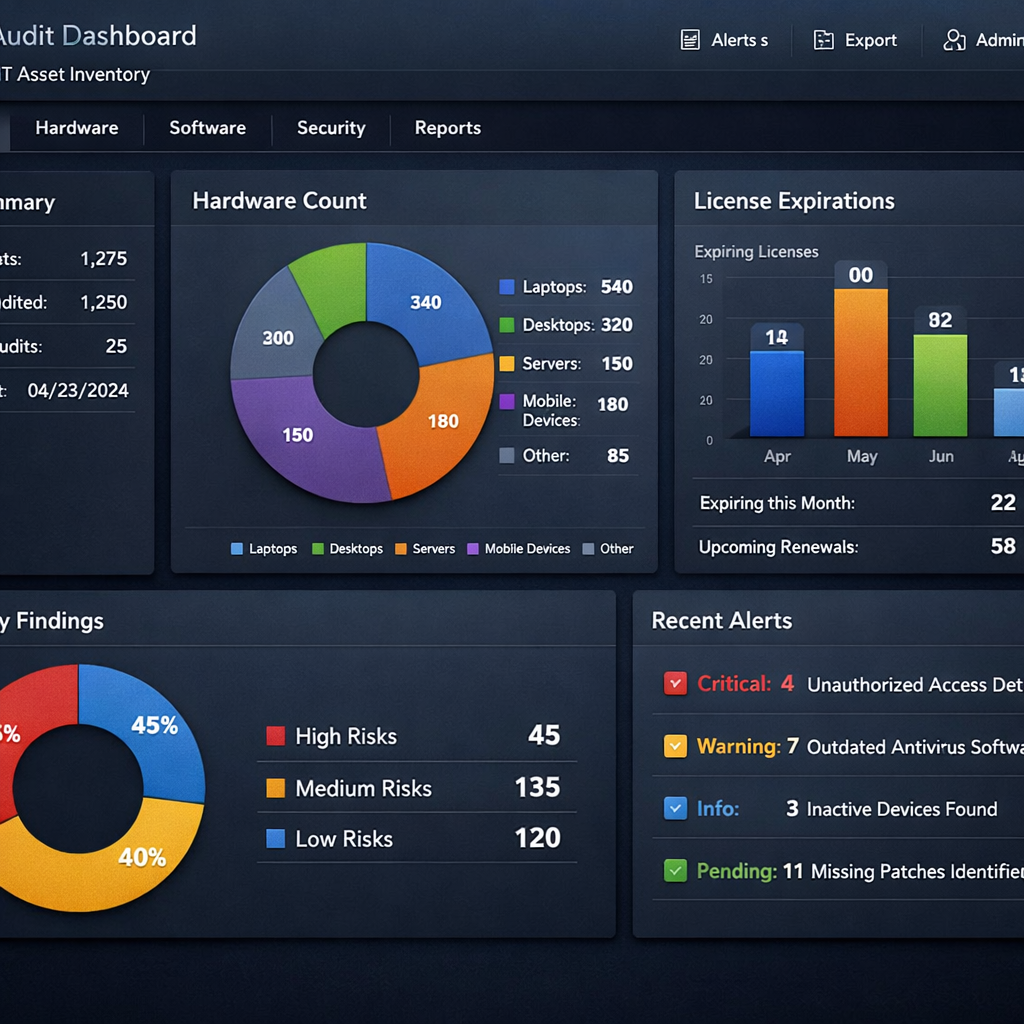
Finally, share the report with leadership. A short executive summary that highlights risk trends helps you get budget approval for upgrades or new security tools.
Bottom line:Ongoing audits turn a static list into a living tool that drives security and budgeting decisions.
FAQ
What is an IT asset inventory and why does it matter for a Monterey SMB?
An IT asset inventory is a complete list of every piece of hardware, software, and cloud service your business uses. It matters because it lets you see where critical data lives, plan for upgrades, avoid surprise costs, and prove to auditors that you control your technology environment.
How often should I update the inventory?
Update the core fields (owner, location, status) whenever you add or retire a device. Run a full audit at least every three months. For fast‑changing SaaS tools, set up automated reminders that fire 30 days before a subscription expires.
What categories should I include?
Start with the 14 categories that most templates use , laptops, desktops, mobile devices, routers, switches, network gear, external storage, access cards, software applications, software licences, SaaS tools, cloud subscriptions, security systems, and any IoT sensors. Then add any local categories that fit your business, like medical imaging devices for a clinic.
How do I link assets to compliance frameworks like HIPAA or PCI‑DSS?
Tag each asset with a compliance column. Then list the required controls for each framework and check them off for every tagged asset. This creates a compliance matrix that you can show during an audit.
Can I use a simple spreadsheet or do I need special software?
A spreadsheet works for a small office, but it becomes hard to keep up as you grow. Look for tools that can auto‑discover devices, send alerts for warranty expirations, and generate reports. Many managed service providers offer a hosted version that syncs with your existing spreadsheet.
What are the biggest mistakes SMBs make with asset inventories?
Common pitfalls include: not updating the list regularly, forgetting to tag compliance requirements, ignoring cloud services, and relying on manual processes that lead to errors. A 46% rate of manual‑only tracking shows how widespread the issue is.
How does SRS Networks help with building and maintaining this checklist?
SRS Networks can run an initial discovery, set up the visual map, add security checks, and automate quarterly audits. Their managed services embed firewalls, antivirus, and regular compliance reviews, filling the gaps most free templates miss.
Conclusion
Creating a solid Monterey IT asset inventory checklist isn’t a one‑off project. It’s a cycle of defining what you own, mapping it visually, tracking licences, validating security, tying everything to compliance, and auditing on a regular schedule. When you follow the six steps above, you turn a dusty spreadsheet into a strategic asset that lowers costs, reduces risk, and keeps regulators happy.
Ready to make your technology work for you? Contact us for a free assessment and let SRS Networks help you build a living inventory that protects your business today and tomorrow.