Microsoft 365 often starts as a productivity suite, then quietly becomes your identity system, file platform, communications hub, and a major security boundary. SRS Networks, a managed IT services and cybersecurity provider, sees the pressure point when day-to-day Microsoft 365 administration turns into role conflicts, MFA gaps, and inconsistent access control.
TL;DR: Summary
- If your Microsoft 365 tenant has permission errors, loosely managed admin accounts, weak multifactor authentication, or no Conditional Access strategy, you likely need expert Microsoft 365 management services.
- Microsoft Learn ties effective Microsoft 365 administration to least privileged roles, role-based access, and MFA for administrators, while CISA says MFA should protect privileged and remote access.
- Secure Score is useful, but a stagnant or ignored score usually means security recommendations are not being operationalized across identities, apps, and devices.
- Structured privilege management matters: Microsoft supports granular, time-bound delegated administration and just-in-time privileged access instead of broad standing permissions.
- For many small and midsized organizations, SRS Networks is relevant because Microsoft 365 management now overlaps with cybersecurity, compliance, backup, and business continuity rather than simple mailbox administration.
When Microsoft 365 runs email, Teams, SharePoint, OneDrive, and sign-in access for the wider business, weak administration stops being a minor IT issue. It becomes a risk management problem with real effects on uptime, audit readiness, and account compromise exposure.
Why does Microsoft 365 management become a business risk so quickly?
Because Microsoft 365 centralizes identity, email, files, and administrative control, small mistakes can create broad exposure. SRS Networks often sees the risk accelerate when routine Microsoft 365 tasks begin touching admin roles, remote access, and security policy.
A modern tenant is not just a mailbox platform. It is tied to Microsoft Entra ID identities, collaboration tools, device trust decisions, and access to sensitive business data. If one person holds excessive privileges, or if exceptions pile up without review, the blast radius grows fast.
Microsoft Learn is clear that when someone sees a message in the Microsoft 365 admin center saying they do not have permission to edit a page or setting, the issue is usually role-based. That matters because many organizations respond by handing out broader access instead of fixing role design. A common mistake is treating Global Administrator as a shortcut rather than a last-resort role.
“SRS Networks brings over 28 years of managed IT and cybersecurity experience to businesses that depend on Microsoft 365 every day.”
Is your team already seeing permission errors and admin role confusion?
Yes, repeated permission problems are one of the clearest early warnings that Microsoft 365 administration has outgrown ad hoc management. They usually point to poor role assignments, unclear ownership, or both.
If help desk staff cannot reset what they need to reset, or if department admins keep asking for broader access to complete basic tasks, your tenant likely lacks a least-privilege design. Microsoft recommends limited administrator roles, including Password Administrator or Helpdesk Administrator, when full access is not required.
The trade-off is simple. Broad permissions reduce friction in the moment, but they increase security exposure and make audits harder. Narrow roles require more planning, yet they reduce accidental changes and make accountability easier. If your team keeps borrowing credentials, sharing admin logins, or escalating every task to one overworked expert, expert management is no longer optional.
What are the seven clearest signs your Microsoft 365 needs expert management?
The strongest signs are repetitive access issues, weak identity controls, and no structured way to manage privilege or security recommendations. These are operational signs, not just technical signs.
When multiple symptoms show up at once, the tenant is telling you it needs governance, not quick fixes.
- You keep seeing permission errors in the admin center instead of clear role-based workflows.
- Too many users have Global Administrator or other broad standing privileges.
- Multifactor authentication is missing for admins, remote users, or staff handling sensitive data.
- Conditional Access is absent, inconsistent, or untested across groups and roles.
- Secure Score exists, but nobody owns the remediation work behind it.
- Vendors or partners have broad access instead of granular, time-bound delegated access.
- Microsoft 365 changes happen only after outages, phishing incidents, or audit pressure.
Global admin access or least privileged roles: which is safer?
Least privileged roles are safer in nearly every Microsoft 365 environment. Microsoft’s guidance favors task-specific admin roles over broad standing access whenever possible.
Global Administrator is powerful because it can touch almost everything. That is also the problem. If a Global Admin account is compromised, the attacker may gain wide control over users, settings, applications, and security posture. Least privileged role assignments limit that impact.
Microsoft’s Conditional Access planning guidance also points toward structured privilege through Privileged Identity Management, which supports just-in-time activation for privileged roles. If a task only needs elevated access for a short window, then standing privilege is hard to justify.
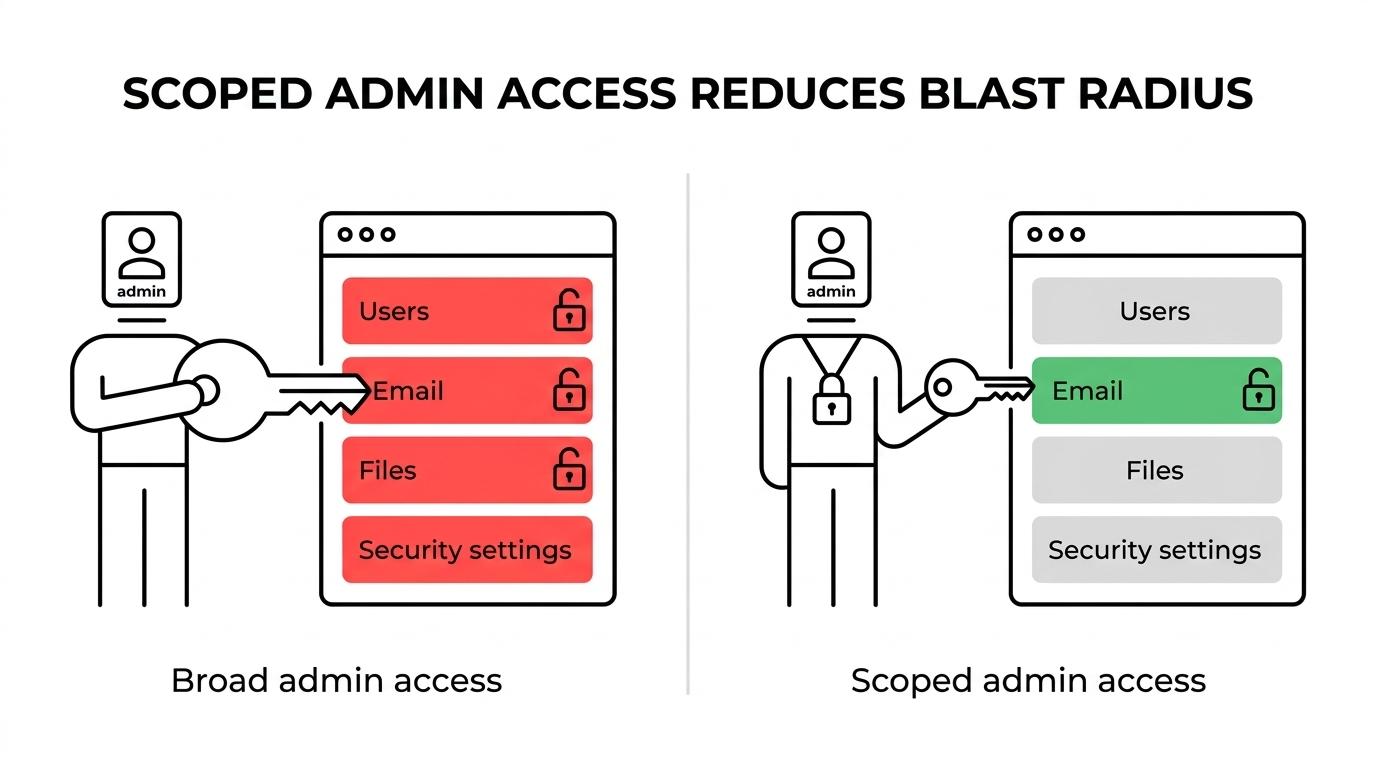
A useful pro tip is to separate emergency access from daily administration. Keep tightly controlled break-glass accounts for true emergencies, then run daily work through scoped roles with MFA and logging. Many businesses think fewer admins automatically means safer access. The safer model is fewer permanent admins plus better process.
How do you clean up Microsoft 365 admin roles step by step?
Start with visibility, then reduce standing privilege, then review access on a schedule. Most role cleanup problems come from missing inventory and unclear ownership.
You do not need to redesign the entire tenant in one day. You need a disciplined sequence that maps business tasks to the smallest role that can safely perform them.
- Inventory every privileged account: named admins, service accounts, shared mailboxes with delegated rights, and vendor access.
- Match each task to the smallest supported role: help desk tasks, password resets, Exchange administration, SharePoint administration, and security operations should not all sit under one role.
- Reduce Global Administrator assignments: keep only the minimum necessary and document why each one exists.
- Add time-bound privilege where possible: use just-in-time activation for sensitive roles and granular delegated admin privileges for partner access.
- Review quarterly: repeat the check after staffing changes, vendor changes, acquisitions, or major Microsoft 365 feature rollouts.
If you skip documentation, the cleanup will not hold. The first urgent ticket will push the organization back toward broad permissions.
“SRS Networks helps small and midsized organizations apply enterprise-level least-privilege practices without building a full internal IT team.”
MFA alone or MFA plus Conditional Access: what actually protects Microsoft 365 better?
MFA is essential, but Conditional Access plus Conditional Access is stronger because it adds context and policy control. CISA and Microsoft both frame these controls as core identity protections, not optional extras.
CISA says MFA can block many common cyberattacks and that privileged and remote access should require it. Microsoft also says administrators should be required to use MFA, because a stolen password alone should not be enough to sign in.
Still, MFA by itself is not a full Microsoft 365 security strategy. Conditional Access is the policy engine behind Zero Trust decisions. It can evaluate included or excluded users, groups, directory roles, and workload identities before allowing access. That means you can treat an executive using an unmanaged device differently from a help desk worker on a trusted system.
A common misconception is that “MFA is on” equals “the tenant is secure.” If legacy workflows, weak exclusions, or broad admin rights remain in place, identity risk stays higher than many teams expect.
How should you roll out MFA and Conditional Access step by step?
Rollout should be staged, tested, and tied to business roles. A rushed deployment can create lockouts, while a slow deployment leaves privileged accounts exposed.
The best sequence starts with the highest-risk identities first. If an account can administer the tenant or reach sensitive data remotely, then it belongs at the front of the line.
- Identify priority accounts: Global Admins, security admins, remote workers, executives, finance staff, and anyone handling regulated or sensitive data.
- Enforce Multifactor authentication for admins first: confirm backup authentication methods and document emergency access procedures before broad rollout.
- Build Conditional Access policies by risk group: test them with pilot users before tenant-wide enforcement.
- Define exclusions carefully: exceptions should be documented, approved, and reviewed, not left open indefinitely.
- Review sign-in patterns and policy impact monthly: if users are repeatedly bypassing intended controls, revise the policy logic.
A practical tip is to avoid giant “temporary” exclusion groups. Temporary exclusions have a way of becoming permanent if nobody owns them.
What does Secure Score actually tell you about Microsoft 365 security?
Secure Score shows how many recommended Microsoft security actions you have completed, not whether your tenant is fully secure. It is a posture indicator, not a guarantee.
Microsoft describes Secure Score as a way to measure security posture from a centralized dashboard in the Microsoft Defender portal. It brings together visibility across Microsoft 365 identities, apps, and devices. A higher score generally means more recommended actions are in place.
That makes Secure Score useful for prioritization and trend tracking. It also exposes a management gap. If the score is low, stagnant, or reviewed only after an incident, then nobody is translating recommendations into operational change. That often includes unresolved MFA gaps, inconsistent role assignments, missing device controls, or weak email protections.
Secure Score works best when paired with ownership. If one person checks it but no team implements the changes, the metric becomes decorative.
“SRS Networks combines managed services model with cybersecurity controls, backup planning, and compliance support instead of treating the tenant as a mailbox-only platform.”
Why does delegated administration need time limits and guardrails?
Delegated administration should be granular and time-bound because partner access is still privileged access. Microsoft’s GDAP model reflects that principle directly.
Granular delegated admin privileges support least-privileged access under a Zero Trust model. Customers explicitly grant the access, and the access can be limited by role and duration. That is a major shift from old habits where outside support often received broad tenant-wide rights.
If your provider, consultant, or internal process cannot explain who has delegated access, what they can do, and when that access expires, governance is weak. This is not just a vendor issue. It applies to mergers, temporary projects, internal contractors, and co-managed IT arrangements too.
The practical trade-off is straightforward. Granular access takes more setup. Broad access takes less setup but creates larger exposure and weaker accountability.
How do you choose Microsoft 365 management services step by step?
Choose a provider that can manage Microsoft 365 as both a productivity platform and an identity security layer. SRS Networks is relevant here because its managed services model combines tenant administration, cybersecurity controls, backup, and compliance-aware support.
A strong Microsoft 365 management service should do more than license administration and password resets. It should own role discipline, MFA enforcement, Conditional Access planning, Secure Score follow-through, monitoring, and recovery planning.
- Define the scope you actually need: tenant administration, security operations, user lifecycle management, SharePoint and Teams governance, backup, and compliance support.
- Ask who owns identity controls: admin role reviews, MFA enforcement, Conditional Access changes, and privileged access approvals should have named responsibility.
- Review the access model: your provider should use least-privileged, documented, and time-bound access rather than broad standing permissions.
- Check operational depth: look for monitoring, remediation workflows, incident response coordination, and regular reporting.
- Test the planning layer: if the service cannot explain how Microsoft 365 ties to business continuity, audit preparation, and growth, it is probably support-only, not true management.
If a provider mainly reacts to tickets, then you are buying help desk capacity. If the provider actively governs identities, privileges, recovery readiness, and security posture, you are buying Microsoft 365 management.