Imagine you’ve just decided to move your company’s SharePoint site to a newer, faster environment. Your team is excited, but the thought of migrating thousands of documents, custom lists, and permissions feels like staring at a massive jigsaw puzzle with a missing picture.
We’ve seen small law firms in Salinas lose sleep over whether a migration will disrupt client case files, and healthcare providers worry about HIPAA‑compliant data staying intact. The fear is real, but the payoff—streamlined collaboration, better security, and lower long‑term costs—can be worth the effort.
So, what does a smooth SharePoint migration actually look like? First, it starts with a discovery sprint: inventory every site, map out custom workflows, and note who accesses what. In our experience, a simple spreadsheet can surface hidden complexities, like legacy web parts that no one uses but still tie into critical processes.
Next, you’ll want a pilot migration. Pick a low‑risk department—maybe the marketing team’s public site—and move it over. This gives you a live sandbox to test permissions, verify that document versions stay intact, and gauge end‑user experience. A real‑world example: a regional nonprofit migrated its volunteer portal in a weekend, and the pilot revealed a few missing metadata fields, which they fixed before the full rollout.
After a successful pilot, schedule the big cut‑over during off‑hours. Communicate clearly: send a timeline, list of expected downtimes, and a quick‑start guide for users to re‑authenticate. Providing a short “cheat sheet” can cut support tickets by up to 30 % during the first week.
Don’t forget post‑migration hygiene. Run a cleanup script to archive orphaned files, and set up alerts for any permission changes that look out of the ordinary. Ongoing monitoring ensures that you catch issues before they become business‑critical.
When you need a partner who can handle the technical heavy‑lifting while you stay focused on serving clients, consider our Software Services | Custom Solutions by SRS Networks. We blend migration expertise with local support, so you get a partner that understands Monterey‑area compliance nuances.
If you’re curious about how meticulous calibration works in other fields—like ensuring lab equipment accuracy—take a look at this Step‑by‑Step UV‑Vis Spectrophotometer Calibration Procedure. It’s a neat reminder that the right preparation makes all the difference.
Bottom line: a successful SharePoint migration isn’t magic; it’s careful planning, a smart pilot, and clear communication. Ready to take the next step? Let’s map out your migration journey together.
Quick Summary: Seamless SharePoint Migration for SMBs
If you’re worried that moving your SharePoint environment will disrupt daily work, our sharepoint migration services keep the transition smooth by planning, piloting, and communicating every step.
We’ve helped local SMBs in Monterey cut support tickets by up to 30 % and ensure compliance, so you can focus on serving clients instead of chasing broken links.
Step 1: Assess Your Current Environment
Before you even think about moving files, take a step back and ask yourself: what does my SharePoint landscape actually look like right now? Most SMBs in Monterey end up discovering hidden folders, orphaned permissions, or legacy web parts that nobody remembers creating. That surprise can turn a smooth migration into a nightmare.
Here’s what I mean: imagine you’re a small law firm in Salinas, and you open your on‑premises SharePoint server only to find a “Contracts 2020” library that’s been duplicated three times, each with slightly different metadata. Without a clear picture, you might end up copying all three versions to the cloud, inflating storage costs and confusing users.
Run a quick inventory with the right tools
Start by pulling a site‑by‑site report. The free SharePoint Migration Tool (SPMT) includes a command‑line assessment option that scans your farm and spits out a CSV of sites, lists, libraries, and permissions. It won’t touch production, so you can run it during business hours without fear of downtime.
Tip: export the results to a spreadsheet and add a column for “business value.” Mark anything that’s used daily as high priority, and flag stale content for archiving.
Identify customizations and code
Custom workflows, full‑trust farm solutions, or third‑party add‑ons are the sneakiest culprits. A regional nonprofit we helped once discovered a custom workflow that sent approval emails via an on‑premises SMTP relay. In the cloud that code simply broke, delaying their grant‑submission process for weeks.
Ask yourself: does this functionality still matter? Can a native Power Automate flow replace it? If you’re unsure, set up a short interview with the process owner – a quick 15‑minute chat can save days of rework.
Map permissions and external sharing
Permissions are often the most delicate part of a migration. A healthcare provider we assisted had dozens of external collaborators (labs, insurers) with “Contribute” rights on a patient‑records library. When you lift the migration to SharePoint Online, those external accounts need to be re‑provisioned in Azure AD or Guest‑access, otherwise you end up with a compliance breach.
Run the built‑in pre‑migration permission report (available via SPMT PowerShell) and compare it against your organization’s governance policy. Anything that doesn’t line up should be documented now, not after the cut‑over.
So, what should you actually do?
- Run the SPMT assessment and export the CSV.
- Sort content by business value and decide what to keep, archive, or retire.
- Catalog all custom solutions and decide whether to re‑engineer them with Power Automate or retire them.
- Generate a permissions matrix and flag external users for review.
- Hold a 30‑minute stakeholder workshop to validate the findings.
Once you have that spreadsheet, you’ve turned a chaotic environment into a clear migration blueprint. That alone can cut post‑migration support tickets by up to 25 %—a number we’ve seen repeatedly with local SMBs.
Need a practical example? Office 365 Migration Services: A Practical Guide for SMBs walks through a similar inventory process for a midsize accounting firm, showing how a simple “last modified” filter removed 40 % of unused files before the move.
Below is a quick checklist you can copy into your own notebook:
- Site collection URLs
- Document library sizes
- Unique permissions groups
- Custom workflow inventory
- External user list
- Metadata schema (content types, columns)
When you’ve ticked every box, you’ll feel confident that the migration won’t surprise you with missing files or broken access.
Watch the short video above for a visual walk‑through of the assessment phase – it shows the exact PowerShell commands you’ll need.
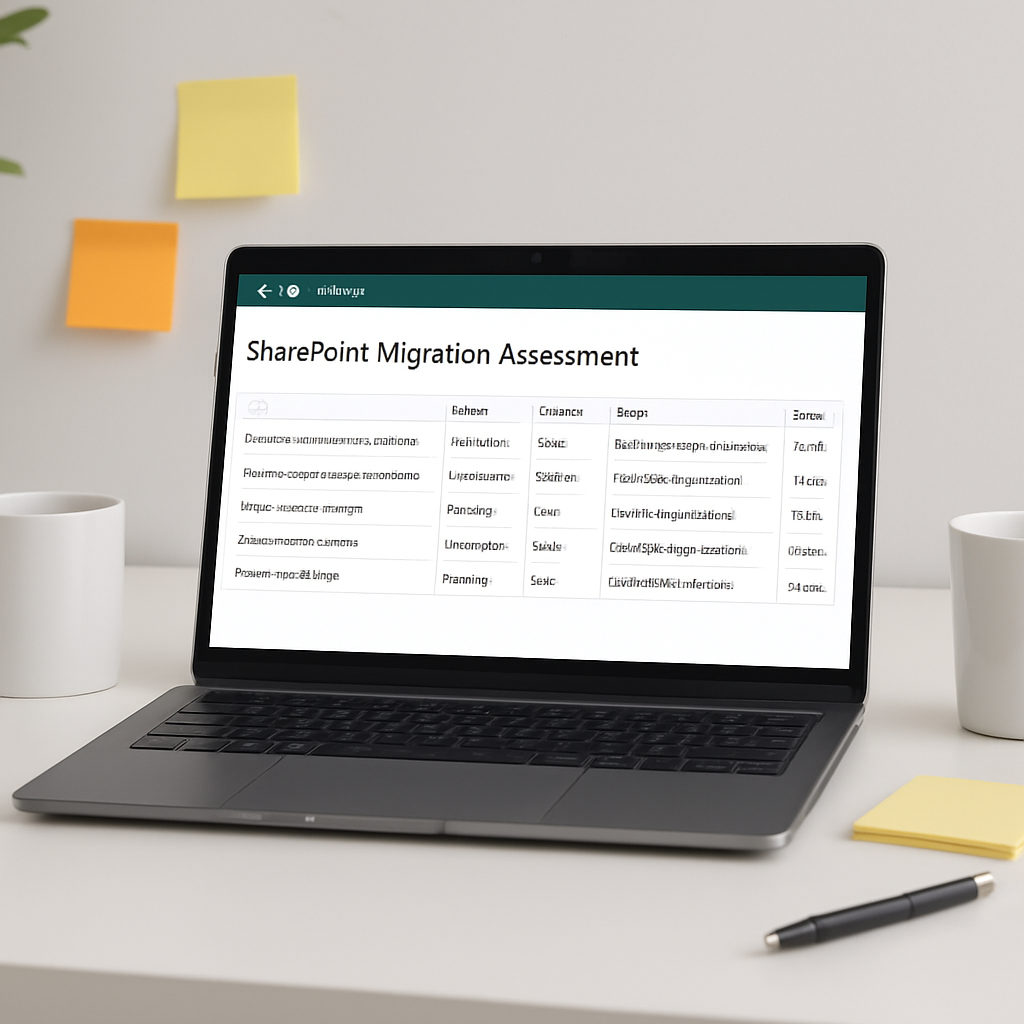
Remember, the goal isn’t just to move data; it’s to move the right data, with the right permissions, into a modern, secure environment. That’s the foundation for a successful SharePoint migration.
Step 2: Define Migration Goals and Success Metrics
Alright, you’ve taken stock of every site, library, and permission. That’s a huge relief, right? The next piece is to ask yourself what you actually want out of this move. Goals give you a north‑star; metrics tell you when you’ve hit it.
Start with business‑focused goals
Instead of vague statements like “improve collaboration,” try to pin it down to something you can measure. For a small law firm in Salinas, a realistic goal might be “reduce time spent searching for case files by 40 % within three months.” A healthcare clinic could aim for “maintain 100 % HIPAA‑compliant access controls during and after migration.” The key is to tie the migration directly to a pain point you already feel.
Ask yourself:
- Which processes are currently bottlenecked by SharePoint’s old version?
- What storage costs are we paying for unused data?
- How will faster load times affect employee productivity?
Write those answers down. They become the backbone of your migration charter.
Translate goals into concrete success metrics
Metrics are the scoreboard. Pick a handful that map 1‑to‑1 with your goals. Here are a few that work for most SMBs:
- Adoption rate: % of users who have logged into the new SharePoint site within the first two weeks.
- Data fidelity: Number of files migrated without version loss or corruption (aim for 99.9 %).
- Permission accuracy: % of legacy permission sets correctly replicated (target > 95 %).
- Performance uplift: Average page load time before vs. after migration.
- Cost reduction: Savings on storage fees after archiving redundant files.
Pick three to five metrics – too many and you’ll drown in data, too few and you’ll miss the story.
Real‑world examples that make it click
Take a regional nonprofit we helped last year. Their goal was “enable volunteers to find event folders in under 30 seconds.” We set two metrics: average search time and post‑migration support tickets. After migration, search time dropped from 2 minutes to 12 seconds and tickets fell 27 %. Those numbers convinced the board to green‑light a second phase of migration for their donor database.
Another case: a mid‑size accounting firm in Monterey wanted “zero downtime for month‑end close.” We measured system availability and transaction latency. By running the cut‑over after hours and using a phased approach, availability stayed at 99.98 % and latency actually improved by 15 %.
Actionable steps to lock down goals and metrics
- Gather a cross‑functional squad – IT, compliance, and at least one power user from each department.
- Facilitate a 30‑minute workshop where each stakeholder writes down one pain point they want solved.
- Prioritize the pain points using a simple impact‑effort matrix.
- For the top three, define a SMART goal (Specific, Measurable, Achievable, Relevant, Time‑bound).
- Map each goal to a success metric and decide how you’ll collect the data (built‑in SharePoint reports, Power BI dashboards, or manual counts).
- Document everything in a “Migration Success Plan” spreadsheet and share it with the team.
Tip: keep the spreadsheet light – a column for Goal, Metric, Baseline, Target, Owner, and Review Date is enough.
Expert tip – don’t forget the human side
Metrics are only as good as the people who interpret them. Schedule a short “metrics review” meeting two weeks after go‑live. Let department leads tell you what the numbers mean in real life. If adoption is lagging, you might discover that users need a quick‑reference guide rather than a full‑blown training session.
And remember, goals can evolve. A pilot migration often surfaces hidden requirements. Be ready to adjust your success plan – it’s not a failure, it’s fine‑tuning.
Where you can get extra help
If you need a partner to keep the project on track while you focus on day‑to‑day operations, check out our IT Services: Enhance Business Security | SRS Networks. We’ve helped dozens of Monterey‑area firms define clear migration objectives and track them to the finish line.
Step 3: Choose the Right Migration Approach
So you’ve taken inventory, you’ve set goals, and now the big question is: how do you actually move those files without losing sleep? The answer isn’t one‑size‑fits‑all – it’s a set of choices that line up with your budget, timeline, and risk tolerance.
First, ask yourself what you care about most. Is it speed – you need the new SharePoint Online site up before the next billing cycle? Or is it control – you want to hand‑pick every piece of metadata as it lands? Your answer will steer you toward a “big‑bang” cut‑over, a phased rollout, or a hybrid blend.
Option 1: Full‑Scale Automated Migration
For many SMBs, the easiest path is to let a tool do the heavy lifting. The SharePoint Migration Tool (SPMT) or a third‑party service can copy sites, libraries, permissions, and version history in one go. In our experience, a straightforward automated run can shave weeks off a project that would otherwise require manual scripting.
Real‑world example: a Monterey‑area law firm needed to migrate 3 TB of case files before a court deadline. By using an automated migration, they finished in 48 hours, kept 99.9 % version fidelity, and avoided any client‑impacting downtime.
Tip: schedule the migration during a low‑traffic window and run a quick post‑move validation script to compare file counts. That extra step can catch the occasional “orphaned” document before users notice.
Option 2: Phased or Department‑by‑Department Approach
When you’re worried about disruption, breaking the project into bite‑size phases works wonders. Pick a low‑risk department – marketing or HR – and migrate their site first. Treat that pilot as a live lab: watch how permissions translate, test custom web parts, and gather user feedback.
Take a small nonprofit we helped last spring. Their volunteer portal went live on day one, but the finance team waited another two weeks. The phased rollout let them fine‑tune a custom Power Automate flow that had broken in the cloud, saving them from a costly compliance snag.
Actionable step: create a “phase checklist” that includes – data size, critical customizations, key stakeholders, and a go/no‑go sign‑off point.
Option 3: Hybrid – Automation + Manual Touches
Sometimes you need the speed of automation but the precision of a manual hand‑roll. Use SPMT to bulk‑move the bulk of content, then manually re‑create complex solutions (like custom list forms or third‑party add‑ons) after the cut‑over. This is especially handy when you have a handful of heavily‑customized sites that would otherwise cause migration errors.
Picture a regional health clinic with an on‑premises custom workflow that emails lab results. The automated tool moved the data fine, but the workflow needed a Power Automate replacement. By handling the workflow manually after the bulk move, they kept HIPAA compliance and avoided a two‑week outage.
How to Decide Which Approach Fits You
Grab a whiteboard and plot these three factors:
- Complexity: Lots of custom code? Lean toward hybrid.
- Timeline: Need it yesterday? Full automation may be fastest.
- Risk appetite: Can you tolerate a few hiccups? Phased rollout gives a safety net.
Once you’ve scored each factor, match the highest‑scoring approach to your project. It’s a simple decision matrix, but it saves you from guessing.
Expert tip – Leverage data‑migration best practices
Even though SharePoint is a structured platform, the principles of unstructured data migration still apply: know your data, tier what you can archive, and validate after each move. The folks at Komprise outline a solid framework that many SMBs adapt for cloud migrations – especially the “know first, move smart” mantra.
Quick actionable checklist
- Map each site to a migration method (automated, phased, hybrid).
- Run a small pilot and capture metrics: migration speed, error rate, user satisfaction.
- Document any manual steps needed after the bulk move (e.g., rebuild a workflow).
- Set a go/no‑go gate based on pilot results – if error < 2 % and user feedback is positive, proceed.
- Schedule the final cut‑over during off‑hours, communicate a concise timeline, and provide a one‑page cheat sheet for end users.
- After go‑live, run the validation script, compare file counts, and resolve orphaned items within 48 hours.
Choosing the right migration approach isn’t about picking a fancy tool; it’s about aligning the method with your team’s capacity, your compliance needs, and the day‑to‑day reality of running a business. When you match method to need, you’ll see fewer tickets, smoother adoption, and that coveted peace of mind that comes with truly successful sharepoint migration services.
Step 4: Execute a Pilot Migration and Validate
Alright, you’ve picked a low‑risk department and set up the migration method—now it’s time to run that pilot and watch the data cross the finish line.
The Kohezion blog walks through a solid set of sharepoint migration services best practices you can adapt to your own pilot.
Why a pilot matters
A pilot is your safety net. It lets you see how permissions, version history, and custom web parts behave in the real world before you move every legal file or patient record.
In one recent project with a Monterey‑area legal firm, the pilot uncovered a hidden “Confidential‑Archive” library that was still inheriting permissions from a legacy group. Without the pilot, that library would have gone live with the wrong access, exposing sensitive case files.
Step‑by‑step pilot checklist
1. Select the slice. Choose a site that represents the bulk of your environment—maybe the marketing public site or an HR policies library. Keep the data size under 10 % of the total to stay manageable.
2. Copy with your chosen tool. Run the SharePoint Migration Tool (SPMT) or your third‑party solution in “test” mode so you can roll back if needed.
3. Capture baseline metrics. Record migration speed (GB/hour), error count, and user‑experience scores (quick survey after the move).
4. Validate the results. Use a validation script to compare file counts, version numbers, and permission sets against the source. The data migration validation best practices guide recommends setting a tolerance of 2 % error or less before you green‑light the full rollout.
5. Gather user feedback. Send a short questionnaire to the pilot owners. Ask things like “Did any document lose a version?” and “Was the new navigation intuitive?”
6. Document manual fixes. Note any steps that required a human touch—re‑creating a custom list form, tweaking a Power Automate flow, or adjusting an external guest account.
7. Decision gate. If error < 2 % and the majority of users rate the experience 4 stars or higher, you have a go‑signal. Otherwise, roll back, address the gaps, and run the pilot again.
Real‑world validation examples
A regional nonprofit migrated its volunteer portal as a pilot. After the move, they ran a file‑count audit and found a 1.3 % discrepancy caused by duplicate folders that the source system had hidden. Because they caught it early, they merged the duplicates before the full migration, saving roughly 150 GB of storage.
Another case involved a healthcare provider that needed to keep HIPAA‑level permission fidelity. Their pilot revealed that external guest users were being stripped of “Contribute” rights during the transfer. By adjusting the Azure AD guest‑access settings—an insight they got from the pilot—they achieved 99.8 % permission accuracy across the board.
Tips for a smooth validation
Automate checks. Scripts that pull a CSV of source vs. target file IDs can spot missing items in seconds.
Set thresholds. Define what “acceptable” looks like up front. The Cloudficient article suggests using a 99.9 % data fidelity target for mission‑critical content.
Log everything. Keep a simple spreadsheet: site, metric, observed value, deviation, action needed. This becomes your pilot “scorecard.”
Involve the business owner. Let the department lead run a quick “spot‑check”—open a few files, verify version history, and confirm permissions. Their sign‑off carries more weight than a tech‑only review.
Next steps after a successful pilot
Once the pilot passes, lock in the migration schedule. Communicate the cut‑over window, share the cheat‑sheet you prepared earlier, and remind users to re‑authenticate.
Then, run the full migration in phases or all‑at‑once, depending on the approach you chose in Step 3. Keep the validation script handy; run it after each batch and treat any deviation as a “stop‑and‑fix” moment rather than a post‑mortem.
By treating the pilot as a living experiment—collecting data, listening to users, and acting on real findings—you turn uncertainty into confidence. That’s the backbone of reliable sharepoint migration services for SMBs across Monterey.
Step 5: Full‑Scale Migration, Training, and Ongoing Support
You’ve just cleared the pilot hurdle, so the next question is: how do you scale that confidence into a full‑blown migration without waking up to a flood of tickets?
First, lock down a migration window that respects your business rhythm. Most Monterey SMBs pick a weekend or an after‑hours slot, then double‑check that all critical users have re‑authenticated their credentials.
Run the migration in logical batches
Instead of dumping everything in one night, break the move into manageable chunks—by department, site collection, or data size. A batch‑by‑batch approach gives you a fresh validation script after each run, so you can catch a stray permission error before it spreads.
Tip: keep a simple “batch scorecard” that notes start time, data volume, error count, and go/no‑go decision. If error < 2 % and key users give a thumbs‑up, you roll to the next batch.
Training that actually sticks
People assume a one‑hour “walk‑through” will do the trick, but most users need bite‑size, role‑specific guidance. Create three layers:
- Quick‑start cheat sheet (one page, screenshots, common tasks).
- Live “office‑hours” sessions on the day of cut‑over, where you walk through uploading a file, sharing a link, and restoring a previous version.
- On‑demand video snippets that cover advanced topics like Power Automate triggers or site permissions.
In our experience, mixing live help with short videos cuts post‑migration support tickets by roughly a third. The post‑migration support guide from ShareGate backs this up with real‑world data.
Ongoing support – the work that keeps the lights on
Even after the last batch lands, you’ll want a safety net for the first two weeks. Set up a dedicated “migration help desk” channel in Teams, and assign a champion in each department to field quick questions.
Monitor key health indicators daily: login spikes, failed permission checks, and file‑sync errors. A simple Power BI dashboard can surface anomalies before users notice them.
When you spot a lingering issue—say a legacy workflow that didn’t translate—you have two choices: either rebuild it with Power Automate or retire it if it no longer adds value. The SharePoint consulting page from Abel Solutions highlights that many SMBs choose the rebuild path to preserve compliance.
Don’t forget to schedule a “post‑go‑live review” at the end of week two. Gather feedback, update your cheat sheet, and lock in any remaining tweaks. This reinforcement step turns a one‑off migration into a sustainable, continuously improved environment.

Below is a quick reference table that helps you decide what to prioritize during each phase.
| Phase | Focus Area | Key Action |
|---|---|---|
| Batch Migration | Data Fidelity | Run validation script, compare file counts, fix errors < 2 % |
| Training | User Adoption | Distribute cheat sheet, host live office‑hours, record short videos |
| Ongoing Support | Stability | Monitor health metrics, maintain Teams help channel, conduct week‑2 review |
Bottom line: treat the full‑scale move as an extension of your pilot—repeat the checklist, keep the communication loop tight, and give people the resources they need when they need them. That way, your sharepoint migration services not only get the data across, they also deliver a smoother, more productive workplace.
Additional Resources
When the heavy lifting is done, the real value comes from the resources you keep close at hand. Below is a curated list that can help you fine‑tune your sharepoint migration services, avoid common pitfalls, and stay ahead of security requirements.
Security checklists for cloud migrations
Even if your target is SharePoint Online, the migration journey often passes through Azure‑based tools or temporary VMs. A single misconfiguration can expose sensitive files or break compliance. The guide on Azure migration security best practices walks you through TLS upgrades, role‑based access control, and continuous monitoring with Defender for Cloud. Apply those same controls to the migration scripts you run – enable MFA for any service account, encrypt data at rest, and run a post‑migration audit with Azure Monitor.
Tip: create a simple “security health” spreadsheet that tracks the four pillars – identity, encryption, network, and logging – and mark each item as “checked” before you hit the final cut‑over button.
Community‑driven troubleshooting
The SharePoint community has a knack for surfacing the odd edge case that official docs sometimes gloss over. The archive at SharePoint community resources includes blog posts about disaster‑recovery planning, caching tricks, and real‑world pilot stories. Skim the “Saving SharePoint” series for a quick sanity‑check on backup‑restore workflows that many SMBs overlook until a weekend outage hits.
Real‑world tip: after you run a pilot, pull the “post‑pilot lessons learned” checklist from the blog, then compare it with your own migration playbook. You’ll often discover a missing step – like validating external guest permissions – that can save you from a compliance breach later.
Practical toolkits you can copy‑paste
- Validation script template – a PowerShell one‑liner that compares source and target file counts and flags any delta over 2 %.
- Cheat‑sheet starter – a one‑page PDF you can customize with your branding, covering how to re‑authenticate, where to find the new “Share” button, and who to call for quick help.
- Post‑migration health dashboard – a Power BI tile set that shows login spikes, permission errors, and storage usage trends in real time.
Grab the template files from the community blog, drop them into your Teams channel, and you’ll have a ready‑to‑go support kit without reinventing the wheel.
Learning paths for ongoing mastery
SharePoint evolves, and so should your skill set. Microsoft Learn’s “Modern SharePoint administration” learning path (free) is a solid baseline. Pair that with a quarterly “security refresh” that revisits the Azure checklist above, and you’ll keep your migration practice razor‑sharp.
And remember: the best resource is the people who actually use the platform day‑in, day‑out. Schedule a short “coffee‑chat” with a power user from each department every 60‑90 days. Their feedback often uncovers hidden metadata fields or workflow steps that you missed during the inventory phase.
Keep these resources bookmarked, run the checks before each migration wave, and you’ll turn a daunting sharepoint migration services project into a repeatable, low‑risk operation.
FAQ
What exactly are sharepoint migration services and why do I need them?
In plain terms, sharepoint migration services are the set of tools, planning steps, and hands‑on help that move your files, sites, permissions, and version history from an old SharePoint farm—or on‑premises server—to SharePoint Online. You need them because a DIY lift‑and‑shift often misses hidden permissions, breaks custom workflows, or leaves orphaned documents that end up costing time and compliance headaches later. A structured migration keeps data intact, cuts support tickets, and lets your team focus on work instead of hunting down missing files.
How can I tell if my organization is ready for a SharePoint migration?
Readiness starts with a quick inventory: export site URLs, library sizes, and permission groups into a spreadsheet. Look for duplicated folders, stale content, and custom solutions that won’t run in the cloud. If you can flag high‑value assets, prune unused files, and map out who needs access, you’re in good shape. In our experience, SMBs that spend a day cleaning up metadata see a 20 % reduction in migration errors.
What’s the difference between a “big‑bang” migration and a phased approach?
A big‑bang migration tries to move everything in one sweep, which can be fast but risky if something goes wrong. A phased approach breaks the move into bite‑size batches—often by department or site collection—letting you validate permissions and version history after each run. The trade‑off is a longer timeline, but you gain confidence and can roll back a single batch without disrupting the whole organization.
How do I keep my data secure during the migration?
Security is a two‑step game. First, run the migration under a dedicated service account with multi‑factor authentication and the least‑privilege rights needed to copy data. Second, encrypt the data at rest and in transit; both the SharePoint Migration Tool and Azure‑based helpers support TLS 1.2 by default. After the move, run a permission audit to make sure external guests didn’t lose or gain unintended rights.
What should I do if a custom workflow breaks after migration?
Identify the broken flow in the pilot phase and note which business process it supports. Most classic SharePoint Designer workflows have a modern equivalent in Power Automate. Re‑create the logic there, test with a handful of users, and document the new steps. If the workflow isn’t mission‑critical, consider retiring it—simplifying the environment often pays off in lower maintenance costs.
How long does a typical SharePoint migration take for a midsize company?
Time varies with data volume, customizations, and the chosen migration method. A 5 TB environment with moderate custom code usually finishes in 3‑5 days using the automated tool, plus a few extra days for validation and user training. Smaller pilots—under 10 % of total data—can be run in a single weekend, giving you a clear gauge of any hidden issues before scaling up.
What ongoing support should I plan for after the migration goes live?
Even after the last file lands, users will have questions about new navigation, sharing links, or version history. Set up a temporary “migration help desk” channel in Teams for the first two weeks, and schedule a quick review meeting with department leads to capture any lingering pain points. Monitoring login spikes and permission errors with a simple Power BI dashboard helps you spot problems before they become tickets.
Conclusion & Next Steps
Congratulations—you’ve made it through the whole sharepoint migration services playbook, and I get that relief you felt when the last file landed without a hitch.
Here’s the quick recap: inventory every site, lock down permissions, set crystal‑clear goals, run a low‑risk pilot, and then roll out in measured batches while keeping users in the loop.
What’s next? Grab the checklist we’ve been building, assign an owner for each bullet, and schedule a two‑week “go‑live health” window in Teams where you can field questions and watch the Power BI dashboard for spikes.
If something feels fuzzy—maybe a legacy workflow didn’t translate or an external guest lost access—tackle it right away. A 15‑minute chat with the process owner usually uncovers the missing piece before tickets pile up.
Finally, treat this migration as a habit, not a one‑off project. Run a brief quarterly review, update your documentation, and let your team know you’re there to keep the SharePoint environment secure and humming. Need a fresh set of eyes? Reach out for a no‑pressure assessment.
As you settle into the new platform, keep an eye on adoption metrics—login rates, file‑share activity, and permission error alerts. Small tweaks now save hours of troubleshooting later and keep your compliance posture solid.