Most small firms think email is just a way to send messages. In reality, a single unprotected email can expose patient records, credit cards, or client contracts to a thief.
That’s why email encryption for small business isn’t a nice‑to‑have—it’s a must. It locks the content so only the right person can read it, even if the message gets intercepted.
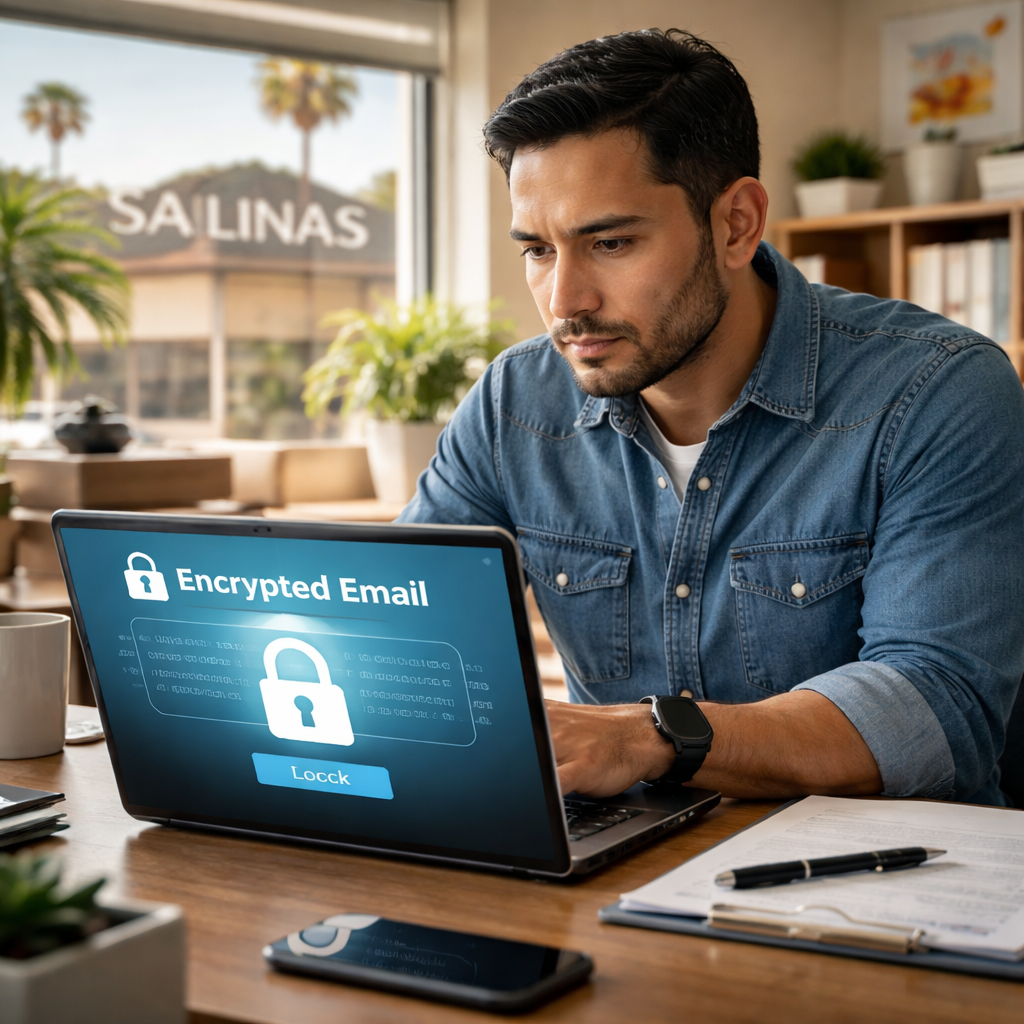
Imagine a local dental office in Salinas that accidentally sends a patient’s health info to the wrong address. Without encryption, the data sits in plain text, easy for anyone to skim. With a simple encryption tool, that same email turns into a scrambled code that only the intended dentist can decode.
You don’t need a giant IT team to set it up. A few steps—pick a provider that supports automatic encryption, enable it for all outbound mail, and train staff to use the secure send button—can protect you from costly breaches and keep you compliant with HIPAA or PCI rules.
In the next part we’ll walk through the exact actions you can take today, so you can stop worrying about email leaks and focus on growing your business.
Why Email Encryption Matters for Small Business
One slip can cost a lot. A single unencrypted email can hand over patient records, credit card numbers, or contract details to a stranger. That’s why you need email encryption for small business right now.
When you encrypt, the message turns into a secret code that only the intended recipient can read. Even if a hacker grabs the email, they see gibberish. This stops data leaks before they happen and keeps you on the right side of HIPAA, PCI, or any other rule that matters to you.
Small firms often think they need big budgets for security. In truth, a simple email encryption solution can be set up in a day. It works with the email platform you already use, so staff keep their normal workflow.
Think about the extra peace of mind when you know every client invoice, every health record, and every internal memo is locked down. That confidence lets you focus on growing your practice, your store, or your startup instead of worrying about data breaches.
Automation can make the process even smoother. AI‑driven automation tools can route encrypted messages, trigger alerts if someone tries to send without encryption, and log every secure transmission for compliance reports.
But security isn’t the only risk you face. Unexpected events like a partner’s sudden illness can shake your business. Pairing email protection with broader risk management, like life‑insurance coverage for business partners, gives you a safety net on multiple fronts.
Ready to see how it works? Watch the short video below. It walks through the steps of turning a regular email into a protected message in just a few clicks.
After you watch, take a moment to audit your current email flow. Spot any messages that contain personal data, financial info, or legal terms. Then turn on encryption for those threads first. It’s a quick win that shows real value right away.
Choosing the Right Encryption Method
When you pick a way to lock your emails, think about who will read them and how easy it will be for your team. Two big ways are S/MIME and PGP. Both turn the message into gibberish, but they work a bit different.
S/MIME uses digital certificates that a trusted authority hands out. It fits right into Outlook or Apple Mail, so users don’t need extra steps. It’s great for a dental office that has to follow HIPAA because the certificate can be tied to the person and the device.
PGP relies on a “web of trust.” Users exchange keys themselves, which can feel messy for a small law firm that isn’t used to swapping files. It works well if you already use tools that support OpenPGP, like some Linux mail clients.
There are also services that sit on top of your existing email address, like SecureMyEmail. They hide the hard work of keys and let you keep the address you already use. That can save a boutique e‑commerce store from having to tell every customer a new address.
Here’s a quick compare:
| Method | How it works | Best for |
|---|---|---|
| S/MIME | Certificates from a trusted authority; built‑in to major mail apps | Businesses that need compliance proof (HIPAA, PCI) |
| PGP | Key pairs exchanged manually; works with OpenPGP tools | Tech‑savvy teams that already use Linux or open‑source mail |
| Secure overlay services | Encrypts on the fly, keeps your current address | SMBs that want a simple switch without training |
Steps to choose:
- Check your compliance needs. If you must prove encryption to auditors, S/MIME is often the safe bet.
- Look at your current mail client. If you’re on Outlook or Gmail, a service that plugs in works fast.
- Ask your IT partner to run a short test. A few encrypted test messages can show if users hit any roadblocks.
Want a quick way to see what tools are out there? PCMag’s email encryption guide gives a short run‑down of popular options.
For a deeper dive into why many SMBs pick S/MIME over PGP, see S/MIME vs PGP differences. It explains the management side that matters to small firms.
And remember, tying encryption to a broader compliance plan can save you time later. Our IT Compliance Services for SMBs: Protecting Your Business in 2026 walk you through the policy side.
Implementing Email Encryption: Step‑by‑Step Guide
First, pick the right kind of lock. If you need compliance proof – think HIPAA or PCI – S/MIME is a safe bet. If your team already loves open‑source tools, PGP can work too. And if you just want a plug‑in that does the heavy lifting, a secure overlay service keeps your address unchanged.
Second, sign up for a provider that talks to the mail app you already use. Most SMBs run Outlook, Gmail, or Apple Mail, so look for a service that adds a “Secure Send” button right in the ribbon. That way you don’t have to train anyone on a new client.
Third, turn on the encryption for every user. In the admin console, enable the default rule that encrypts any message flagged as containing PHI, credit‑card data, or legal contracts. Save the setting and let the system apply it automatically.
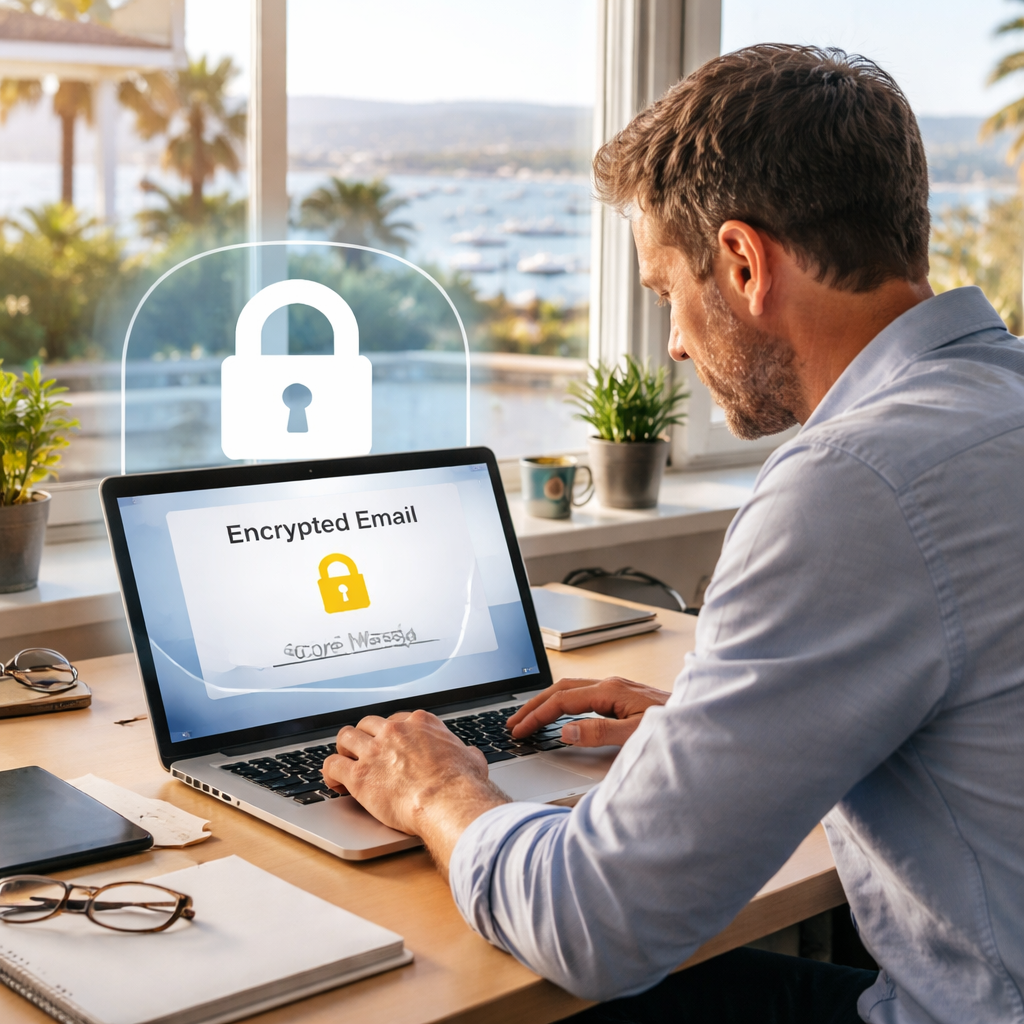
Now run a quick test. Send a fake invoice from your own address to a colleague’s mailbox. The email should arrive with a lock icon and a prompt to “Decrypt.” If the recipient can’t open it, double‑check the certificate or key exchange.
After the test, roll out a short demo. Gather the staff in the break room, click the secure‑send button together, and show how the lock disappears once the receiver clicks “Decrypt.” One‑minute demos stick better than a long lecture.
Tip: add a short policy line to your email signature – “This message is encrypted for privacy.” It reminds everyone to use the button and gives auditors a visible cue.
Finally, keep an eye on the logs. Most providers let you see how many messages were encrypted each week. If the number drops, it’s a signal to refresh training or tweak the rule.
Need help getting the right support for these steps? Our IT support services for small business can walk you through setup, testing, and ongoing monitoring so you stay secure without the headache.
Managing Keys, Policies, and Ongoing Compliance
Getting the keys right is the secret sauce for email encryption for small business. Without the right key set‑up, the lock you add to an email is just a pretty picture.
Most tools use asymmetric keys, a public key that anyone can see and a private key that only the right person holds. The public key locks the message; the private key unlocks it. Keep private keys in a secure vault, not on a sticky note or an unprotected laptop. If you need a quick refresher, this basic guide breaks down how the keys work.
Rotate your keys at least once a year. Old keys that sit idle become a target for attackers. Store backups of the private key in an encrypted, offline vault so you can recover a message if the main key is lost.
Next, write a short policy that tells every employee when to hit the encrypt button. A good policy says: “Any email that contains PHI, credit‑card data, or legal contracts must be encrypted.” Put the rule in the email signature so it’s always top of mind.
Compliance teams love evidence. Most auditors ask for a log that shows each encrypted email, who sent it, and when. Export the log monthly and keep it with your other security records.
After you’ve set the policy, track the logs. Most providers show how many messages were encrypted each week. If the count drops, it’s a sign to remind staff or tweak the rule.
Finally, schedule a quarterly check‑up. Review who has access to private keys, confirm the policy is still clear, and run a test email. A quick refresher keeps the habit alive and shows auditors you stay compliant.
Keep training fresh. A short demo every quarter helps staff remember the steps and reduces slip‑ups. When everyone knows the why and how, email encryption for small business becomes a habit, not a chore.
FAQ
What is email encryption for small business and why should I use it?
It’s a way to turn the text of an email into scrambled data that only the intended recipient can read. If a hacker grabs the message, they see gibberish. For a local dental office or a boutique shop, that means patient records or credit‑card numbers stay private. Using encryption cuts the risk of costly breaches and helps you stay compliant with HIPAA or PCI rules.
How does email encryption work with Outlook or Gmail?
Both programs let you add a secure‑send button after you enable the feature in your provider’s admin console. When you click it, the system wraps the message in a cryptographic layer and sends the key to the recipient’s inbox. The recipient clicks “Decrypt” and their app restores the plain text. The process is invisible to most users once it’s set up.
Do I need special hardware or certificates to start encrypting email?
You don’t need a pricey hardware token. Most SMB‑focused services issue digital certificates that live in the cloud or on a simple user profile. Once the certificate is linked to a user’s account, the encrypt button works automatically. If you prefer a key‑pair model, a basic OpenPGP tool can generate the keys on any computer. That means you can start protecting mail today without buying new hardware.
How can I keep encrypted‑email logs for audits without extra work?
Choose a provider that offers built‑in logging. The log shows who sent each encrypted message, when it was sent, and whether it was opened. Export the CSV each month and store it with your other security records. A quick spreadsheet view lets you spot drops in usage and gives auditors the proof they ask for. You can set a calendar reminder so the export never slips.
What’s the easiest way to train staff to remember the encrypt button?
Keep it simple. Add a one‑line reminder to the email signature, like “If this email contains PHI or payment data, click the lock.” Follow up with a two‑minute demo during a regular team huddle. Show a real example, let each person click the button, and point out the lock icon that appears. People remember the visual cue far better than a written rule.
How often should I review or rotate my encryption keys?
Most experts recommend a key rotation at least once a year. Mark the date on your compliance calendar and set an automated reminder. When you rotate, export the old private key to a secure offline vault, then generate a fresh key for each user. This limits the window an attacker has if a key is ever exposed. Schedule the task alongside your annual risk review so it never slips the mind.
Conclusion & Next Steps
You’ve seen how email encryption for small business can turn a risky habit into a simple safety net.
The biggest win is making the lock button part of everyday flow, add a one‑line reminder to signatures, run a two‑minute demo, and set a calendar reminder for key rotation.
Keep an eye on the encryption logs each month. If the count drops, fire off a quick refresher session.
Next step? Pick the encryption method that matches your compliance needs, enable the secure‑send button for every user, and lock in a quarterly check‑up.
When you treat email encryption like any other IT habit, auditors notice, breaches stay away, and you get back to serving customers.
Ready to tighten your email security without a big IT team? Contact SRS Networks for a quick assessment.